
BC 2.3
Customs Documents Module Guide
Module Location :
CEISA > Dokumen Pabean > BC 2.3
How to Open
- Select the Customs Documents menu.
- Click the BC 2.3 submenu.
- The system displays the Document List page.
Page Display
Displays a list of BC 2.3 document submissions for the entryimport of imported goods into a TPB. Each row displays document information, such as the submission number, shipper, registration number, registration date, route, customs office, and document processing status.
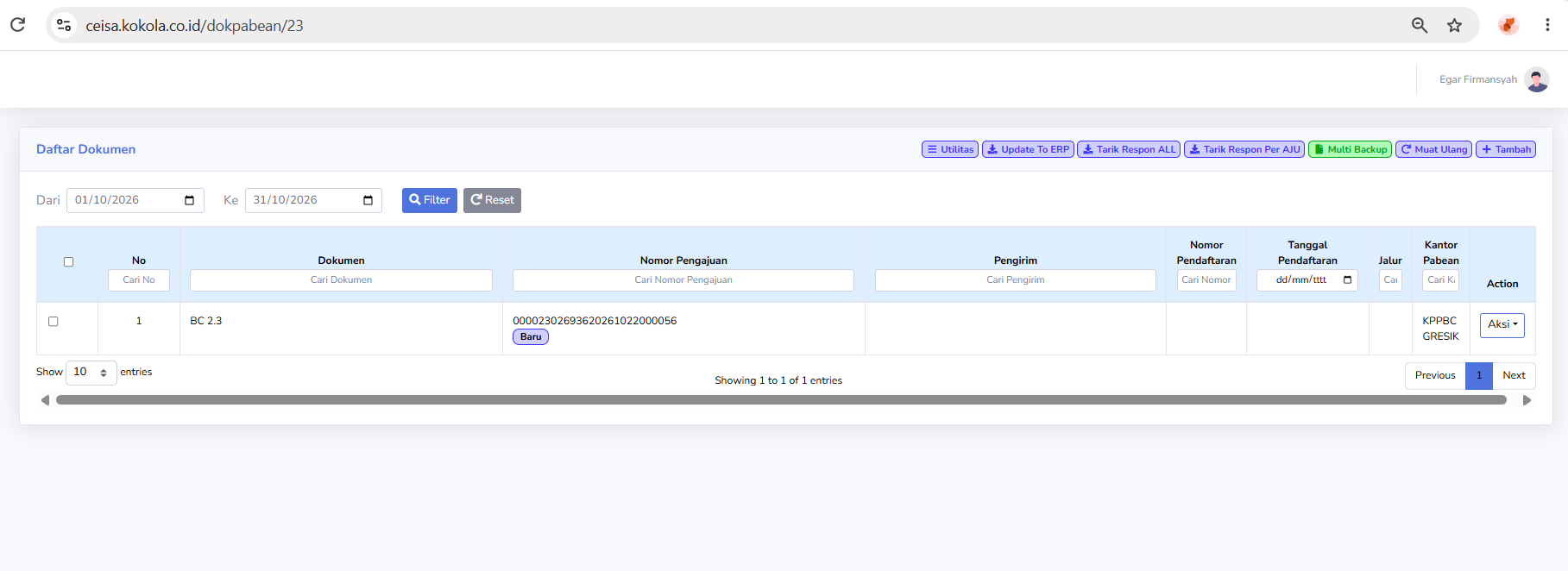
The page layout consists of:
- Period filter.
- Document table.
- Search field.
- Utility buttons.
- Action menu.
On the document list page, users can view documents that have already been created as well as documents that do not yet have registration data.
ColumnButton Descriptions
The availablefunctions columnsof the buttons on the BC 2.3 page include:
- Filter: Displays data according to the selected period.
- Reset: Resets the filter to its default state.
- Utilities: Opens a menu of additional functions.
- Update to ERP: Updates or synchronizes data with the ERP.
- Retrieve ALL Responses: Retrieves responses for a number of relevant documents.
- Retrieve Response by AJU: Retrieves responses based on a specific application number.
- Multi Backup: Backs up multiple documents.
- Reload: Refreshes the data display.
- Add: Creates a new BC 2.3 document.
- Actions: Opens the list of actions available for the document.
Column Descriptions
- No.: Displays the document’s
sequentialserialnumber in the list.number. - Document: Displays the
typedocumentof customs document,type, namely BC 2.3. SubmissionApplication Number: Displays theAJUdocument’snumber,identificationwhich identifies the customs document submission.number.- Sender: Displays the
namesender of thecompanygoods,orifparty sending the goods.available. - Registration Number: Displays the
documentdocument’s registration numberassigned throughif thecustomsregistrationprocess.process has been completed. - Registration Date: Displays the date the document was registered.
- Channel: Displays the customs service
channel indicator,channel, if available. - Customs Office: Displays the Customs and Excise office handling the document.
- Action: Displays
optionsavailable actions forfurtherthe document.
Button Descriptions
- Filter: Displays data according to the selected period.
- Reset: Resets the filter to its default state.
- Utilities: Opens the additional functions menu.
- Update to ERP: Updates or synchronizes data with the ERP.
- Retrieve ALL Responses: Retrieves responses for a number of relevant documents.
- Retrieve Response by AJU: Retrieves responses based on a specific application number.
- Multi Backup: Backs up multiple documents.
- Reload: Refreshes the data display.
- Add: Creates a new BC 2.3 document.
- Actions: Opens the list of actions available for the document
-
Explanation of the Action Menu
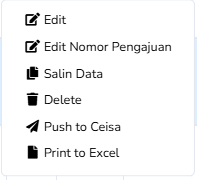
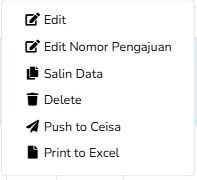
In the Action column, the Action button displays the following options:
Edit:
- Opens the document edit page to modify or complete BC 2.3 data.
- Edit Submission Number: Used to change the document’s submission number.
- Copy Data: Copies existing document data to serve as the basis for creating a new document.
- Delete: Deletes the document.
- Push to CEISA: Sends or pushes the document data to the CEISA system.
- Print to Excel: Exports the document data to Excel format.
- Opens the document edit page to modify or complete BC 2.3 data.
-
-
Document Edit Page
When the user selects the Edit menu, the system displays the BC 2.3 document details page. On this page, the following buttons are available:
-
Back: Returns to the previous page.
-
Print: Prints the document
-
Validate: Validates the document data.
In addition, there are navigation tabs for entering document data, namely:
-
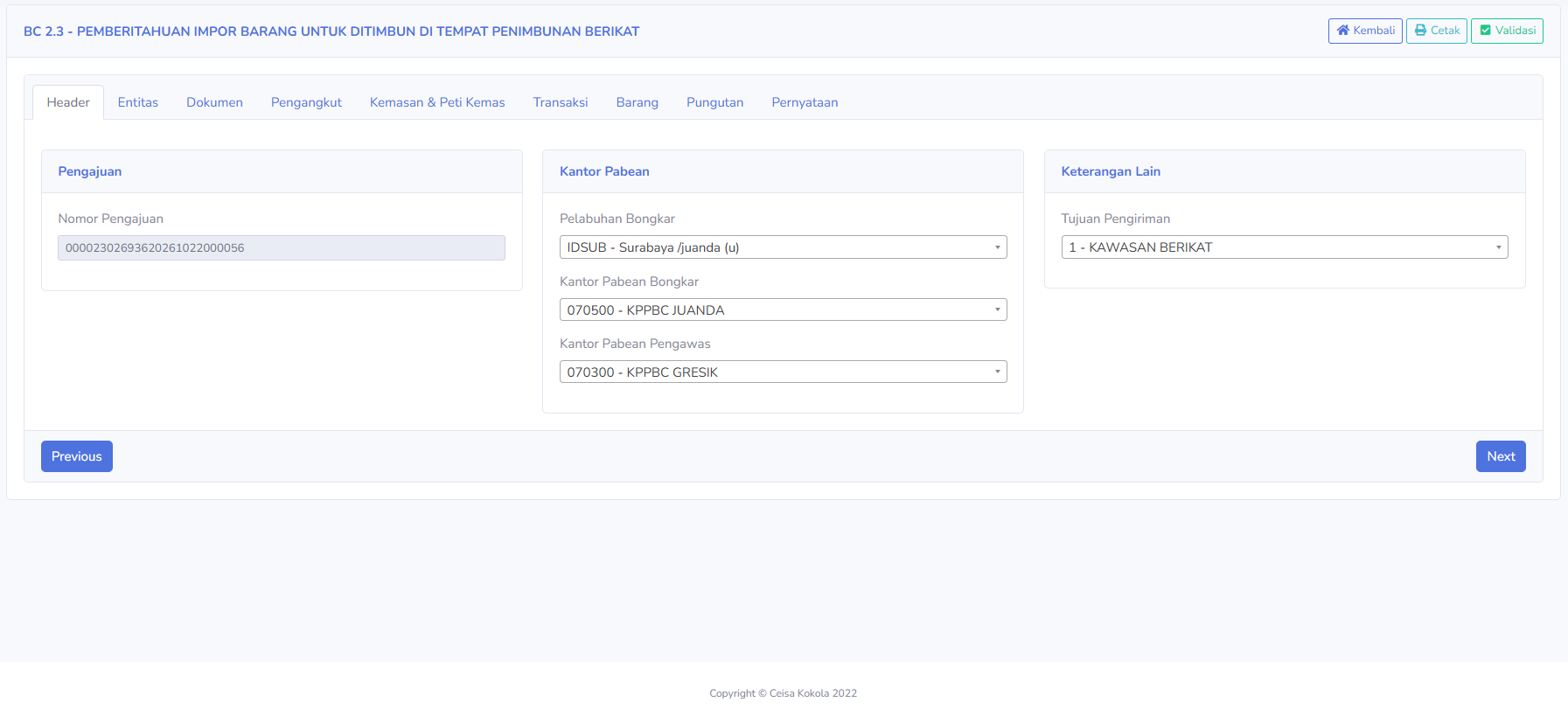
- Header:
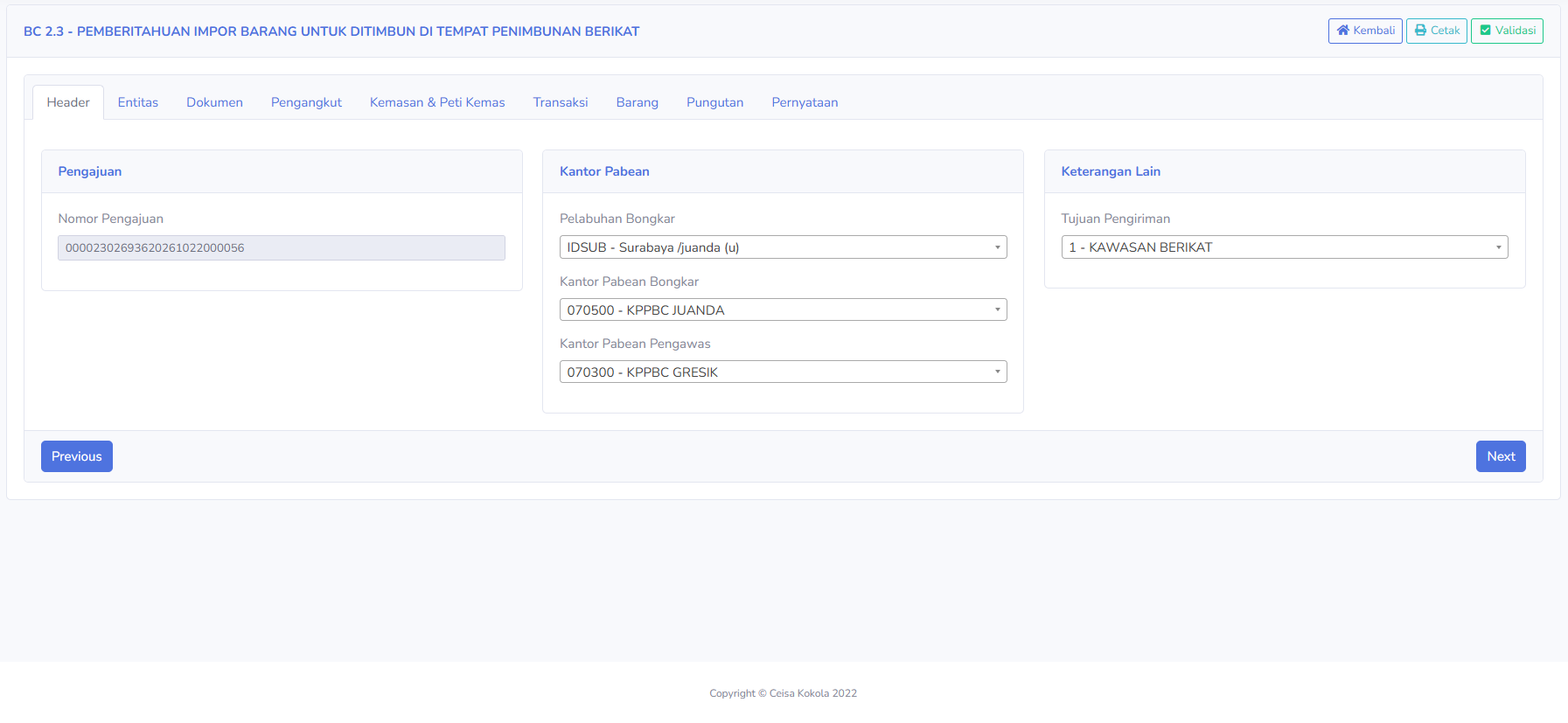
Used to enter general application data. The available sections include:
Application.
-
Application Number: Displays the document’s application number.
Customs Office
-
Port of Unloading: Displays the port where the goods were unloaded.
-
Unloading Customs Office: Displays the customs office where unloading takes place.
-
Supervising Customs Office: Displays the customs office that supervises the document.
Other Information
-
Shipping Destination: Displays the destination of the goods, for example, a Bonded Zone
-
- Entity:
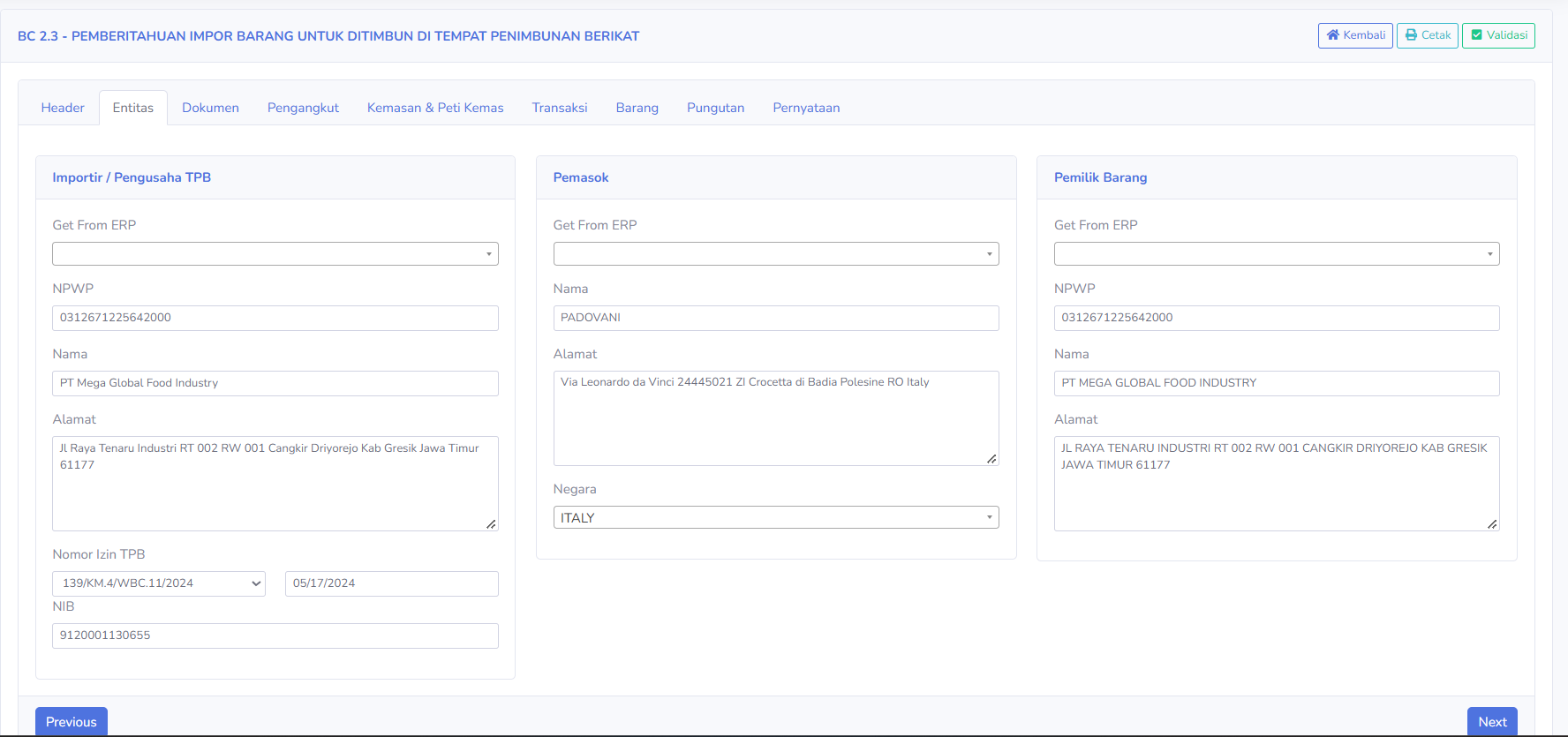
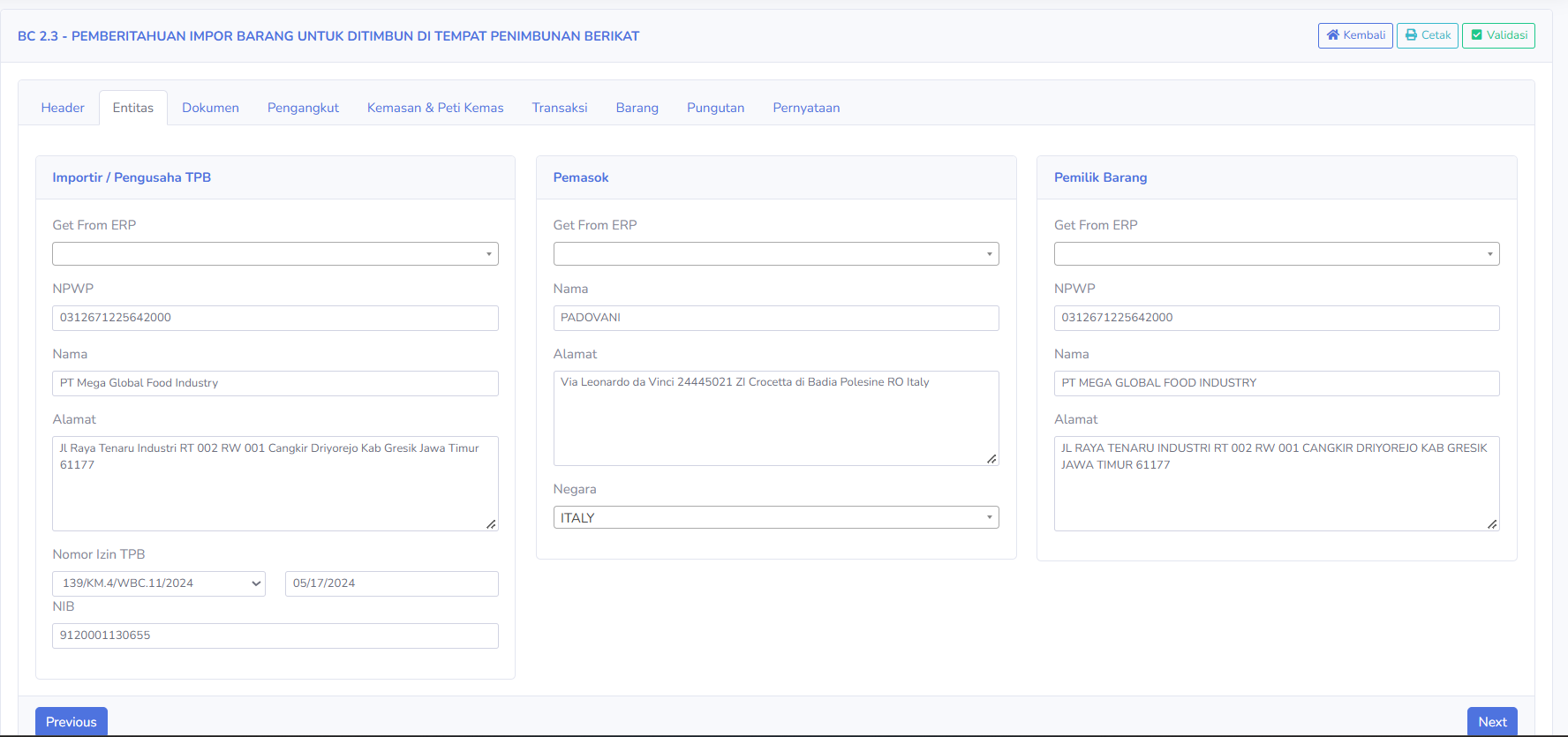
The Entity tab is used to enter data on the parties involved in the document. The available fields include:
Importer / TPB Operator
-
Get From ERP
-
Tax ID (NPWP)
-
Name
-
Address
-
TPB License Number
-
License Date
- NIB
Supplier
-
Get From ERP
-
Name
-
Address
-
Country
Owner of Goods-
Get From ERP
-
Tax ID (NPWP)
-
Name
-
Address
This tab is used to ensure that the identities of the parties involved have been entered completely and correctly
-
-
Document:
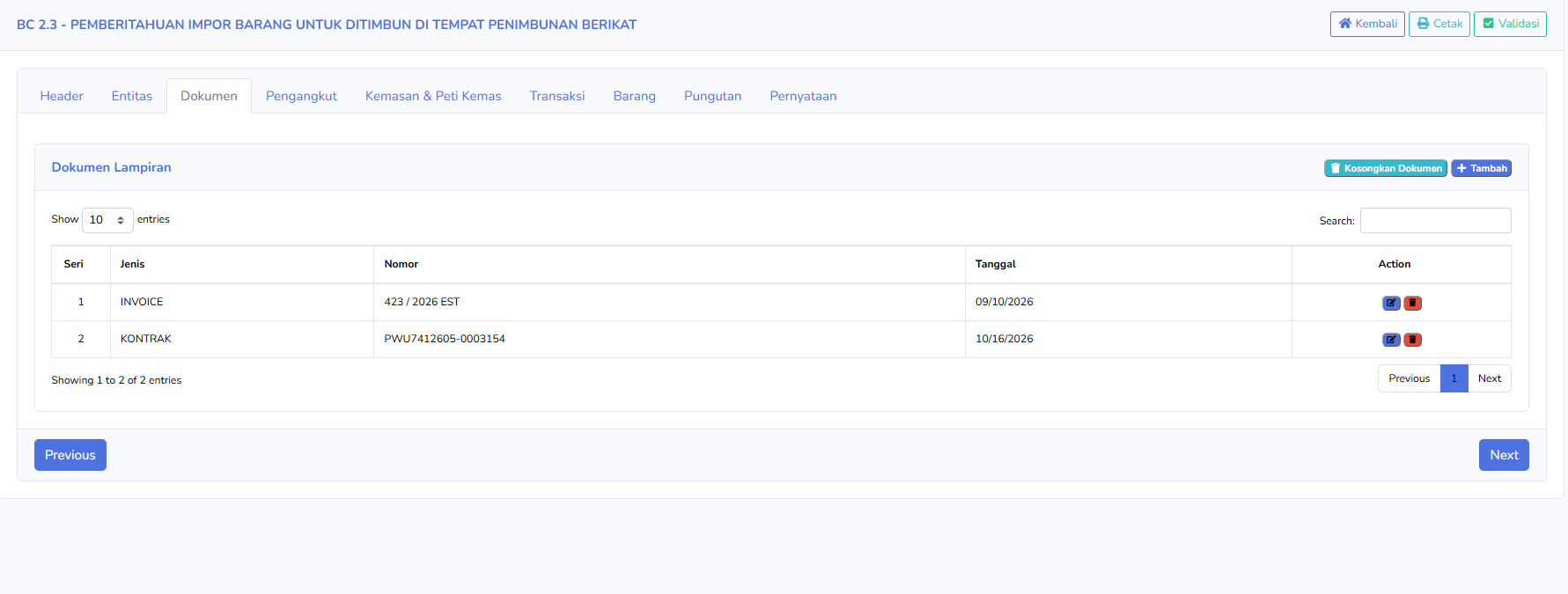
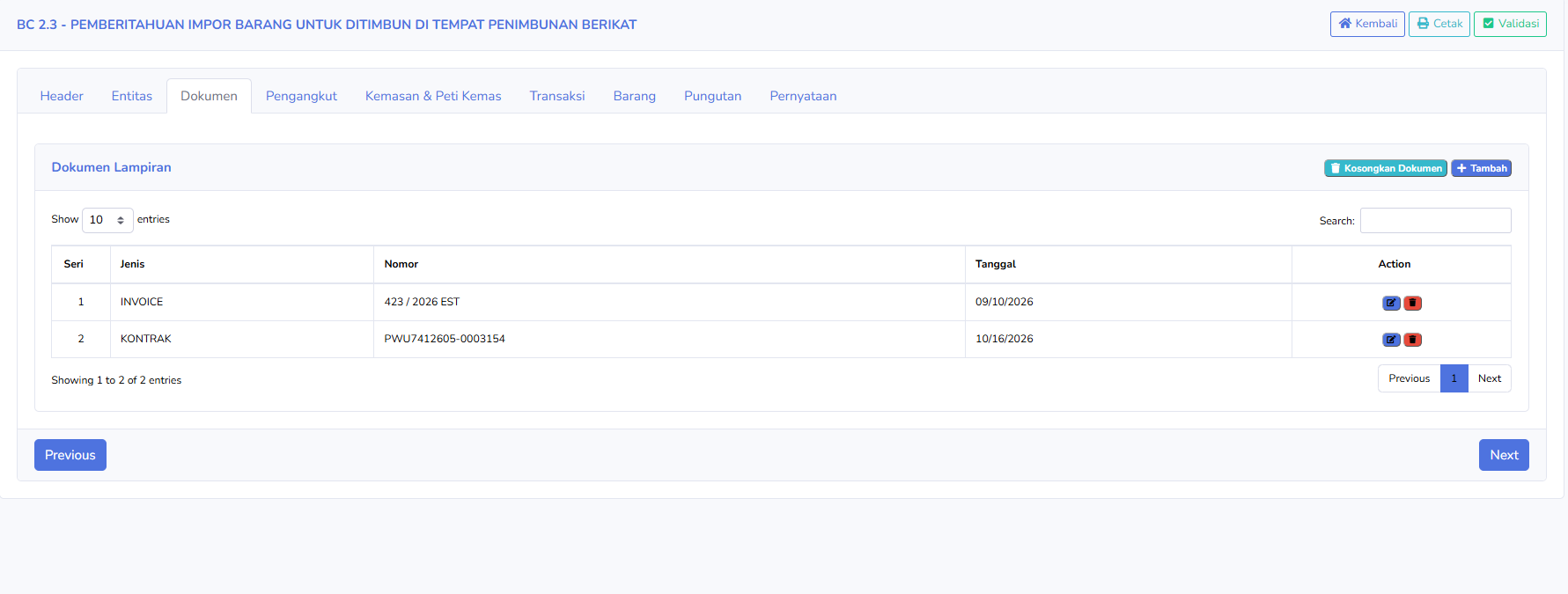
The Documents tab is used to manage the attached documents that accompany BC 2.3. The columns available in the attached documents table include:
-
Series
-
Type
- Date
- Action
-
Number
An example of an attached document shown in the image:
-
INVOICE
-
CONTRACT
-
Available buttons:
-
Clear Documents: Clears the list of attached documents that have been entered.
-
Add: Adds a new attached document.
In the Action column, there are icons for editing or deleting attachment
-
-
Carrier:
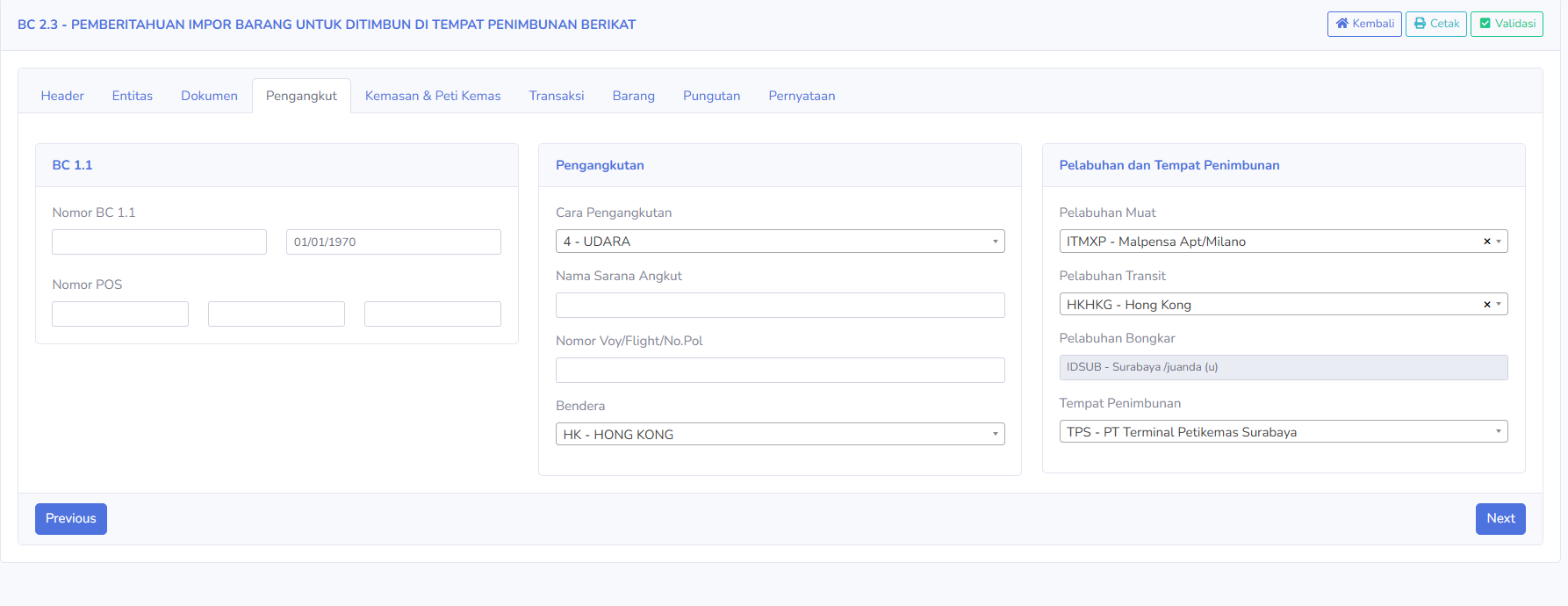
The Carrier tab is used to enter cargo transportation data. The available fields include:
BC 1.1
- BC 1.1 Number
- Date
- POS Number
Transportation
- Mode of Transportation
- Name of Transport Vehicle
- Voyage/Flight/License Plate Number
- Flag
Ports and Storage Locations
- Port of Loading
- Transit Port
- Port of Discharge
- Storage Location
This tab helps users record information regarding the movement and means of transportation of goods.
-
Packaging & Containers:
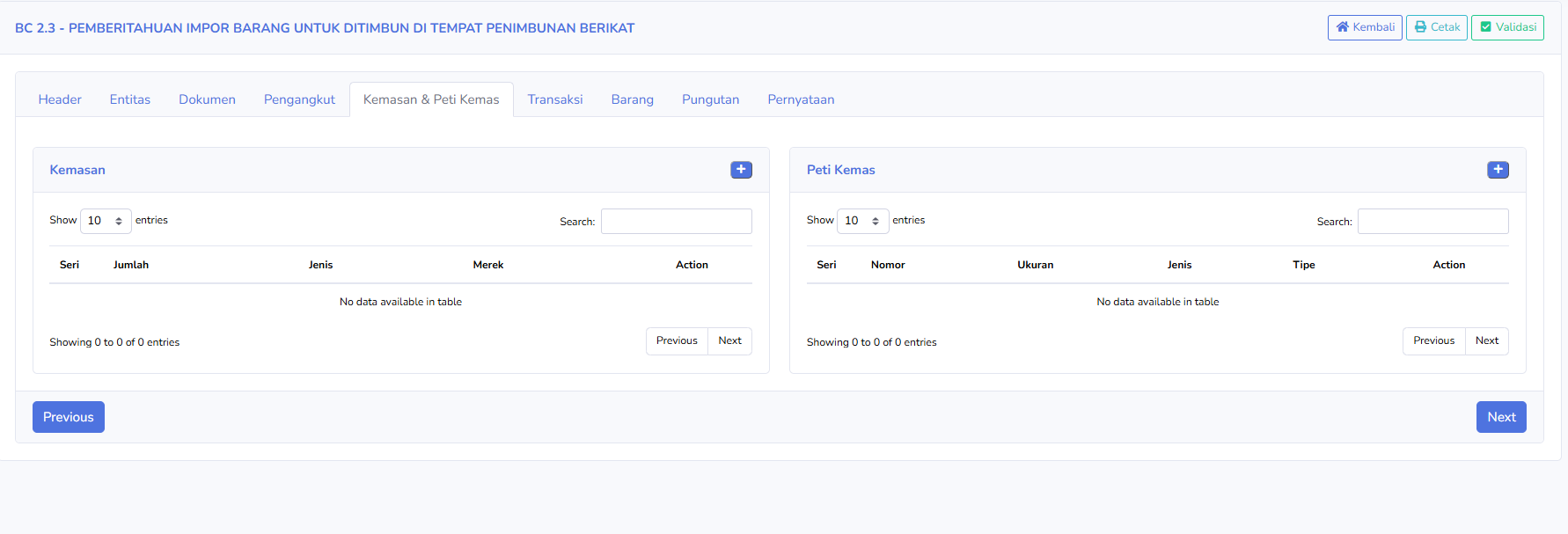
The Packaging & Container tab is used to record packaging and container data. There are two main sections:
Packaging
-
- Series
- Quantity
- Type
- Brand
- Action
Container
-
- Series
- Number
- Size
- Type
- Class
- Action
Each section has an Add button for adding new data.
If there is no data, the table will display the message “No data available in table.”
-
Transactions
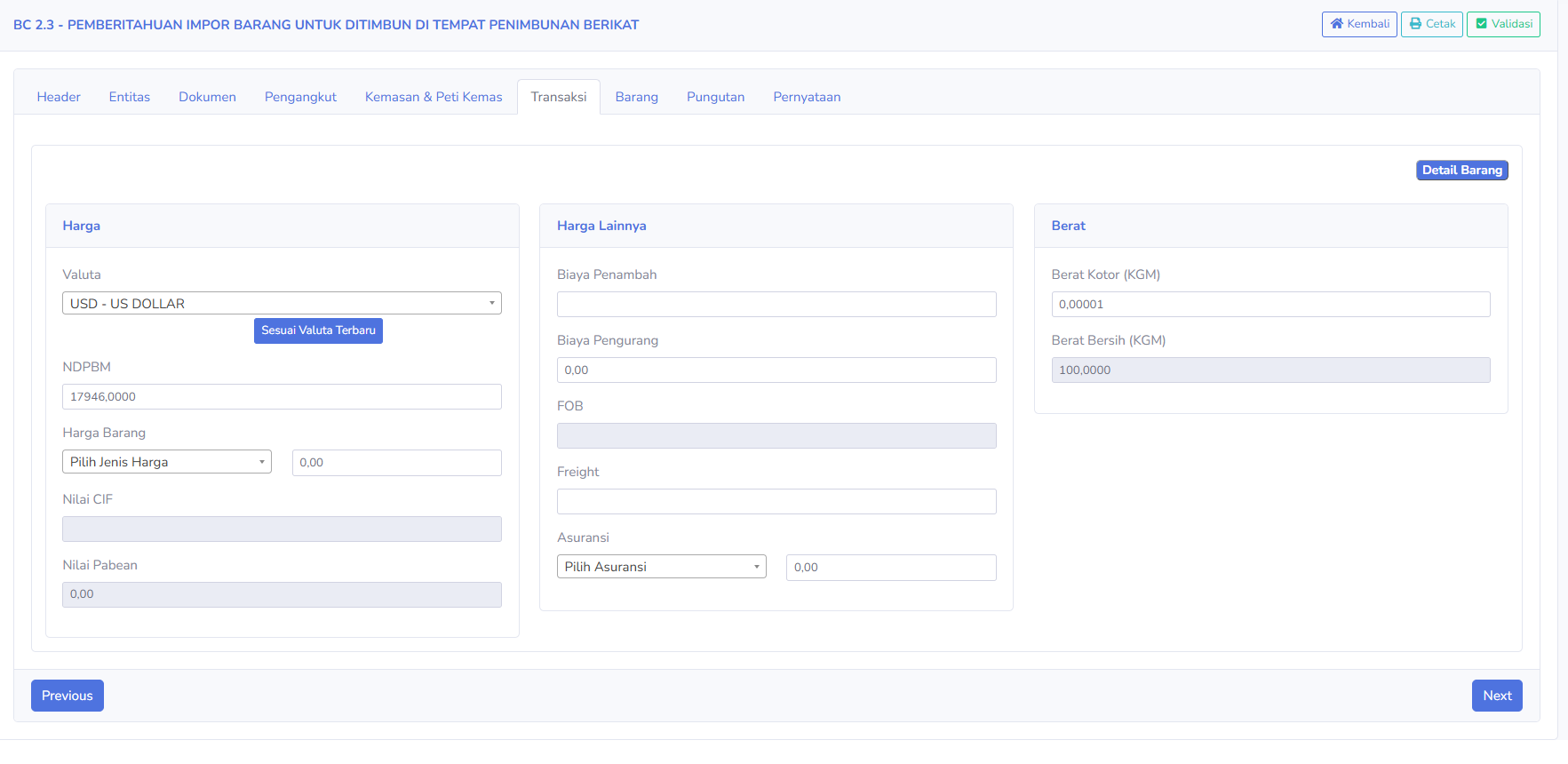
The Transactions tab is used to enter transaction value and goods weight data. The available fields include:
Price
-
- Currency
-
NDPBM
-
Goods Price
-
CIF Value
-
Customs Value
-
- Update to Latest Currency: Used to update values based on the selected
document.currency and exchange rate data available in the application.
- Update to Latest Currency: Used to update values based on the selected
Other Prices
-
- Add-On Costs
- Deduction Costs
- FOB
- Freight
- Insurance
Weight
-
- Gross Weight (KGM)
- Net Weight (KGM)
Additionally, there is a checkbox“Item Details” button to selectview documentsitem and a search field to find specific data.details.
Button Descriptions
Utilities:OpensGoods
a menu of additional features for document management.Update to ERP: Used to update or synchronize document data with the company’s ERP system.Retrieve ALL Responses: Used to retrieve or update customs responses for a number of documents.Retrieve Responses by AJU: Used to retrieve responses based on a specific submission number.Multi Backup: Used to back up multiple documents at once.Reload: Refreshes the document list view.Add: Used to create a new BC 2.3 document submission.Filter: Displays a list of documents based on the selected date range.Reset: Restores search settings to their default state.
StatusThe andItems Processing Path Explanation
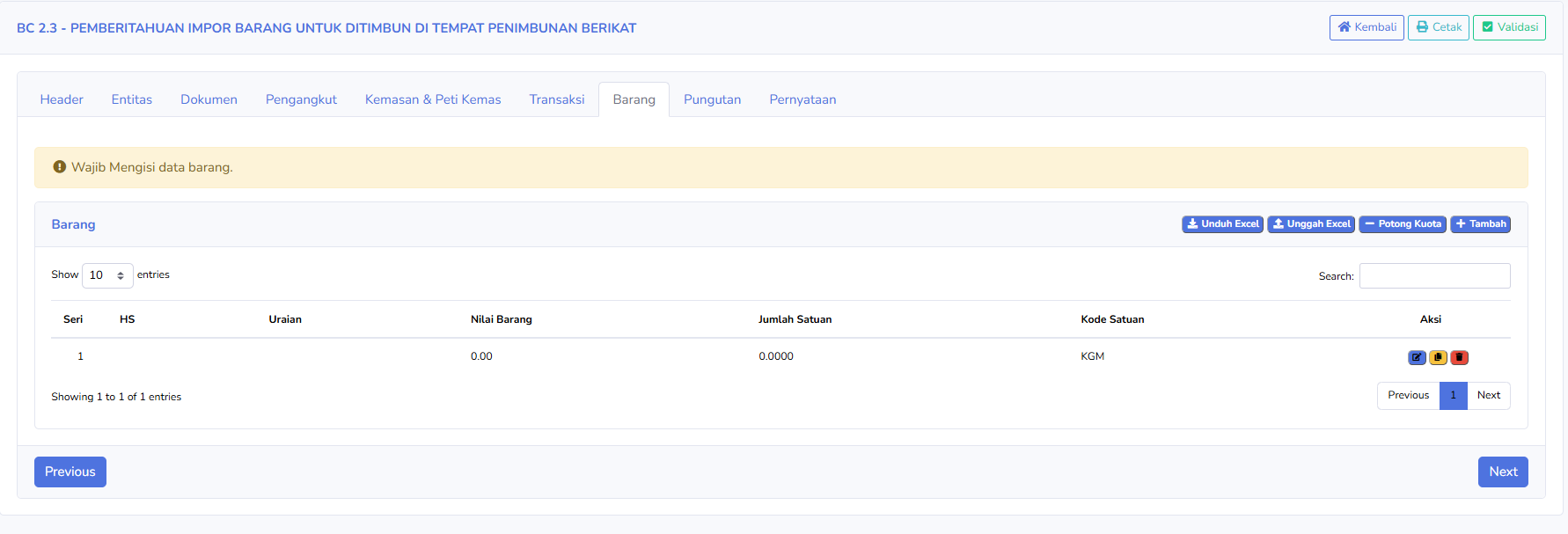
In the Application Number column, there is an indicator showing the document’s processing stage.Based on the page display, the visible statuses are:New: Indicates that the document is in the initial stage or has just been created and does not yet show registration results.Other statuses may appear depending on the stage of the application and the response received from the customs system. In the “Channel” column, an indicatortab is used toshowmanage thecustomslistserviceofchannelitemsiflisted in thedocumentdocument.hasThebeencolumnsassignedinathechannel.items table include:-
- Series
HHS- Description
- Item
indicatesValue - Quantity
- Unit Code
- Action
(Green):Presumably
-
- Download Excel: Downloads the
GreendataChannel,orwhichExcelistemplateaprovidedservicebychannelthethat generally does not require routine physical inspection, except under certain conditions.application. MUpload(Red):Excel:IndicatesUpload item data from an Excel file.- Deduct Quota: Execute the
RedquotaLane,deductionafeatureserviceaccordinglanetothat requires physical inspection in accordance with customssystem regulations. Note:Add:InAdd new item data.
- Download Excel: Downloads the
Notifications may also appear at the
displayedtop,imagefor example:-
- Item data must be filled in.
-
Fees
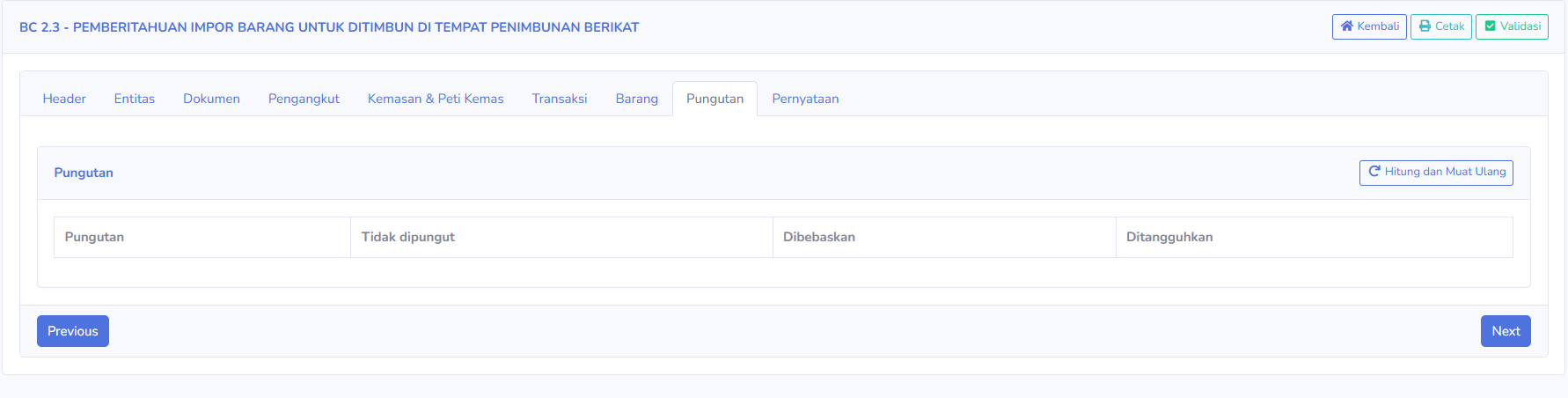
The Fees tab is used to display or calculate fees associated with a document. Available sections:
-
- Charged
- Not Charged
- Exempt
- Deferred
- Available buttons:
Calculate and Reload: Recalculates fee data and updates the display.
-
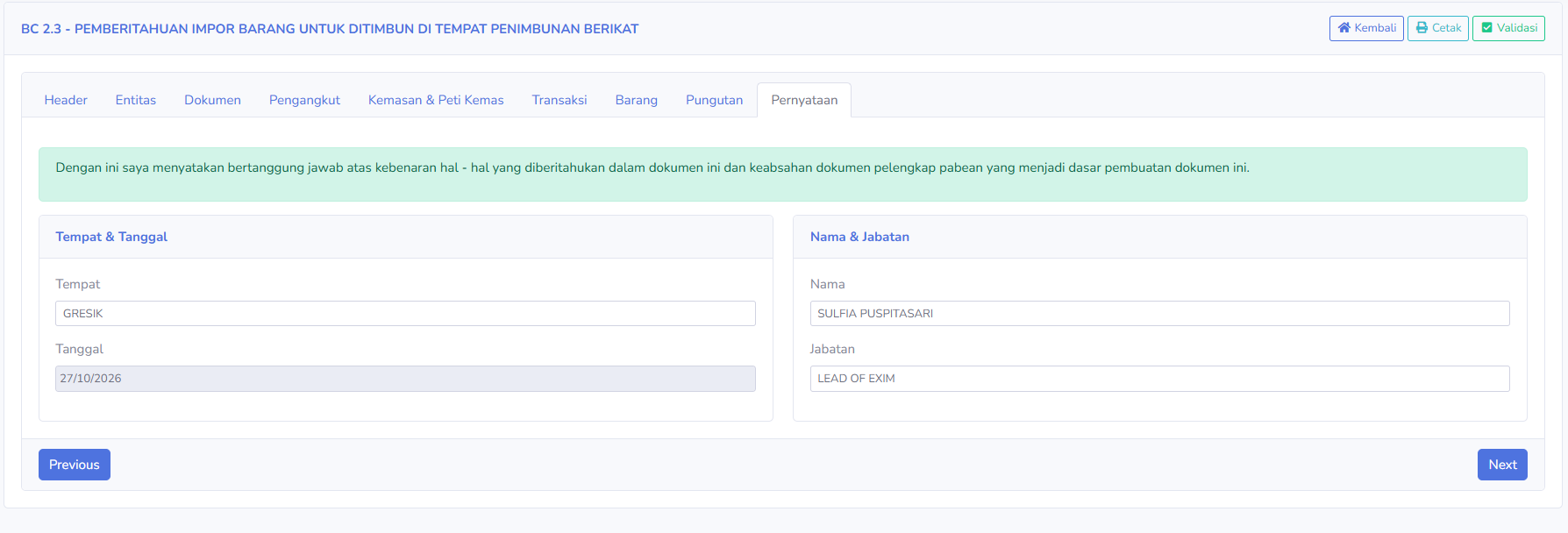
Statements
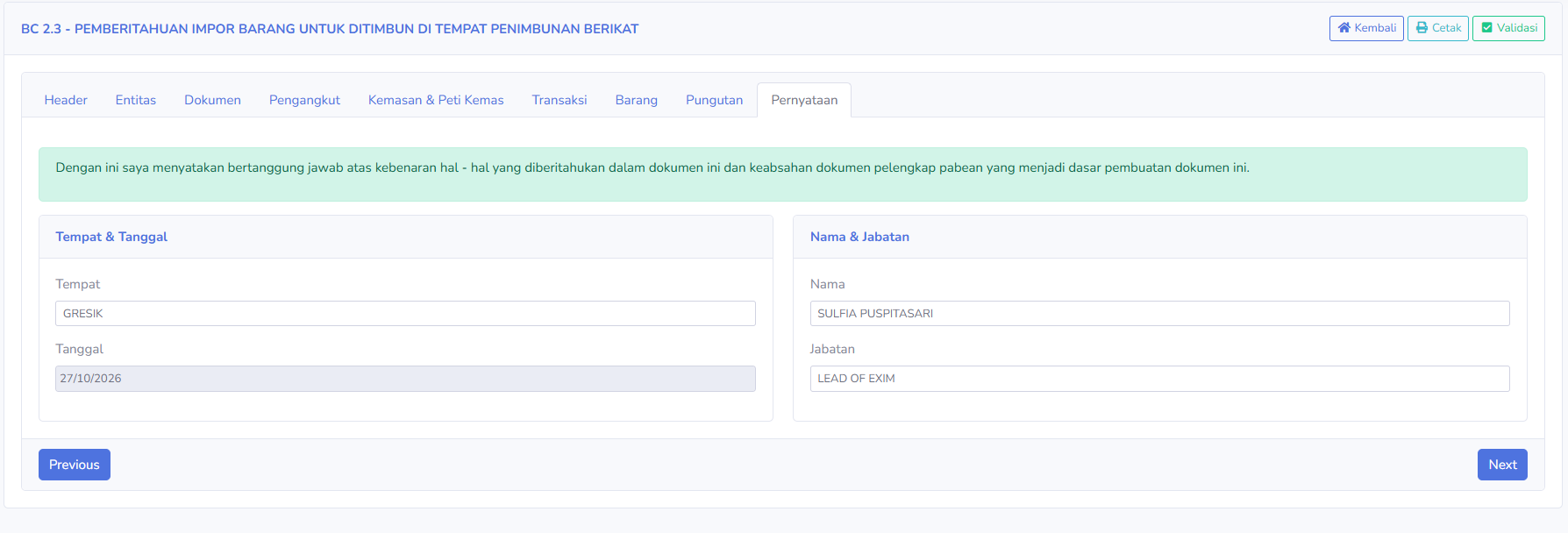
The Declaration tab is used to display and complete the declaration section for the person responsible for the document. The available sections include:
Place & Date
-
- Place
- Date
Name & Position
-
- Name
- Position
At the top, there is also a statement that the user is responsible for the accuracy of theBCdocument’s2.3contentdocument,and thedocument status is still “New,” while the Registration Number, Registration Date, and Lane fields are not yet filled in. This indicates that registration information and lane designation are not yet available in the list. The official statusvalidity of thedocument must be confirmed throughsupporting customsdetailsdocumentsorusedaasresponse.the basis for creating the document.
Table Navigation ExplanationAt the bottom of the
document list,page, the followingnavigation featuresbuttons are available:ShowEntries: Sets the number of documents displayed on each page.- Previous:
GoReturn to the previouspage of the list.tab. - Next:
GoProceed to the nextpage of the list.tab. Showing
Entries: Displays the number of documents currently shown and the total number of available documents.-
Horizontal Scrollbar: Scroll the table view to see columns that are not visible on the screen.
StepsInstructions for Use
Tips & Important Notes
Make sureDouble-check thesearchLeviesperiodsectionmatchesbefore validating thedocumentdocument.- Ensure
wantthattothecheck.name, title, location, and date on the Statement tab are correct. - Use the
Application NumberPush tomakeCEISAitmenueasieronlyto find a specific document. The Application Number and Registration Number serve different purposes.Checkafter thesender’s name to ensure the applicationdata iscorrect.accurate and complete.“New” status indicatesEnsure that thedocumentsubmissionisresultsstillandinofficial CEISA response are double-checked after theinitialPushstage based on the application indicator.process.TheRegistration Number, Registration Date, and Route may not yet be available if the registration process has not been recorded.Check the customs response to confirm the document’s processing status.Ensure the document meets customs requirements before proceeding with the entry of goods into the TPB.Use the Action button and ERP synchronization features as needed and in accordance with company procedures.