
BC 2.3
Customs Documents Module Guide
Module Location :
CEISA > Dokumen Pabean > BC 2.3
Tujuan
Howfor todocuments, Access
check - registration
- numbers,
updateLogmonitorincustomstostatustheandCEISAroutes,Lokaandapplication.document Select the Customs Documents menu.Click BC 1.6.The system displays the BC 1.6 Document List page.
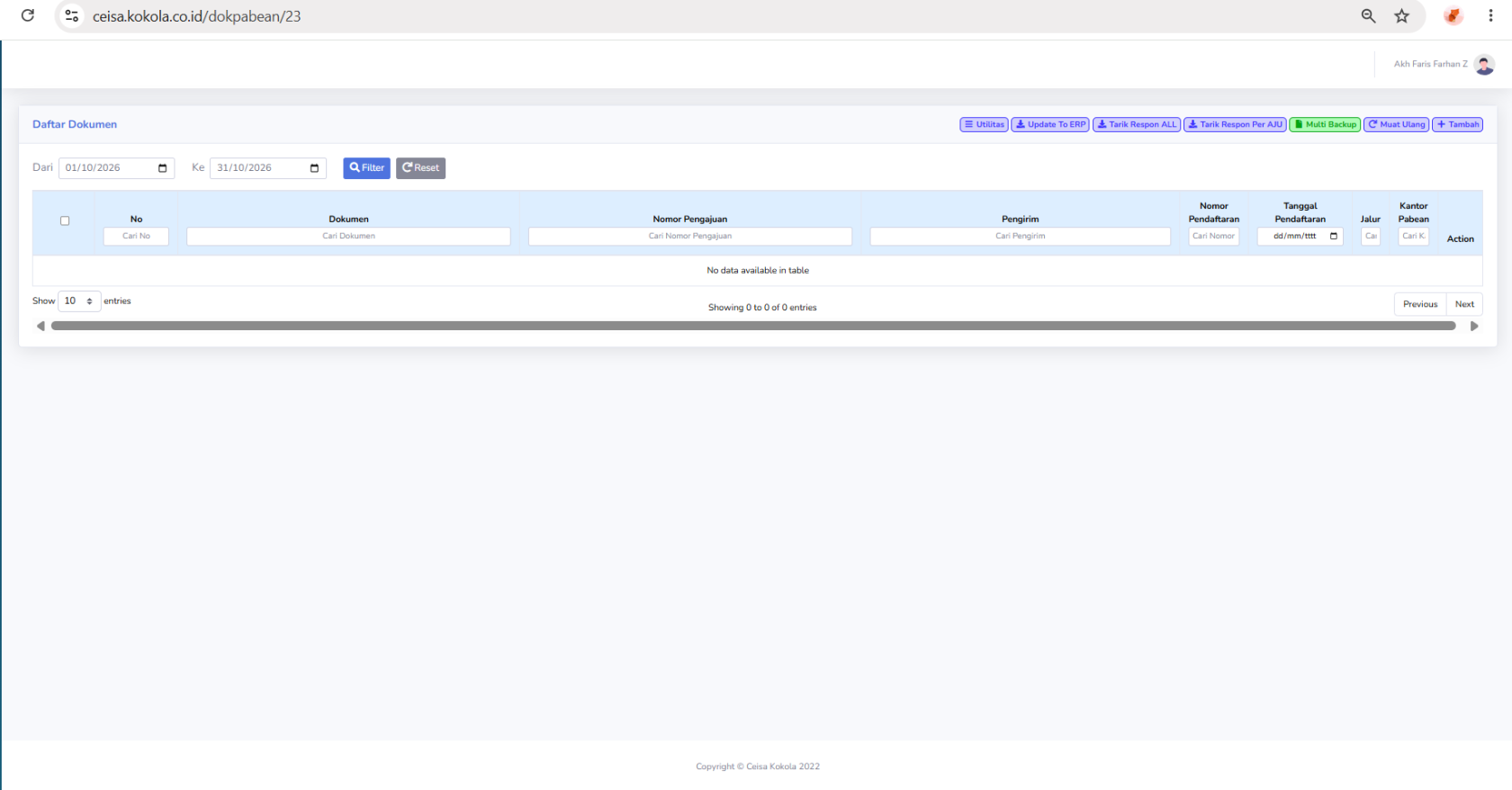
Page LayoutDisplay
TheDisplays pagea layoutlist consistsof of:BC 2.3 document submissions for the entry of imported goods into a TPB. Each row displays document information, such as the submission number, shipper, registration number, registration date, route, customs office, and document processing status.
Period filter.Document table.Search column.Utility buttons.Action menu.
Column Descriptions
| |
| sequential number in the list. | |
| Displays the
| identifies
| document
| Displays
|
| the customs process.
| Date: Displays |
| Displays the |
|
| further actions regarding the selected document.
|
Button Descriptions
- Utilities:
functionsOpensina menu of additional features for document management. - Update to ERP: Used to update or synchronize document data with the company’s ERP system.
- Retrieve ALL Responses: Used to retrieve or update customs responses for a number of documents.
- Retrieve Responses by AJU: Used to retrieve responses based on a specific submission number.
- Multi Backup: Used to back up multiple documents at once.
- Reload: Refreshes the document list view.
- Add: Used to create a new BC 2.3
aredocumentessentiallysubmission. - Filter: Displays a list of documents based on the
sameselectedasdateonrange. - Reset:
documentRestorespages:search“Filter, Reset, Utilities, Updatesettings toERP,theirRetrievedefaultAllstate.
UsageStatus Stepsand Processing Path Explanation
- New: Indicates that the document is in the initial stage or has just been created and does not yet show registration results.
- H (Green): Presumably indicates the Green Channel, which is a service channel that generally does not require routine physical inspection, except under certain conditions.
- M (Red): Indicates the Red Lane, a service lane that requires physical inspection in accordance with customs regulations.
- Show Entries: Sets the number of documents displayed on each page.
- Previous: Go to the previous page of the list.
- Next: Go to the next page of the list.
- Showing Entries: Displays the number of documents currently shown and the total number of available documents.
- Horizontal Scrollbar: Scroll the table view to see columns that are not visible on the screen.
- Make sure the search period matches the document you want to check.
- Use the Application Number to make it easier to find a specific document.
- The Application Number and Registration Number serve different purposes.
- Check the sender’s name to ensure the application data is correct.
- “New” status indicates that the document is still in the initial stage based on the application indicator.
- The Registration Number, Registration Date, and Route may not yet be available if the registration process has not been recorded.
- Check the customs response to confirm the document’s processing status.
- Ensure the
RegistrationdocumentNumbermeetsappearscustomsoncerequirements before proceeding with theprocessentryisofcomplete.goods into the TPB. PerformUseActionsthe Action button and ERP synchronization features asneeded.needed and in accordance with company procedures.
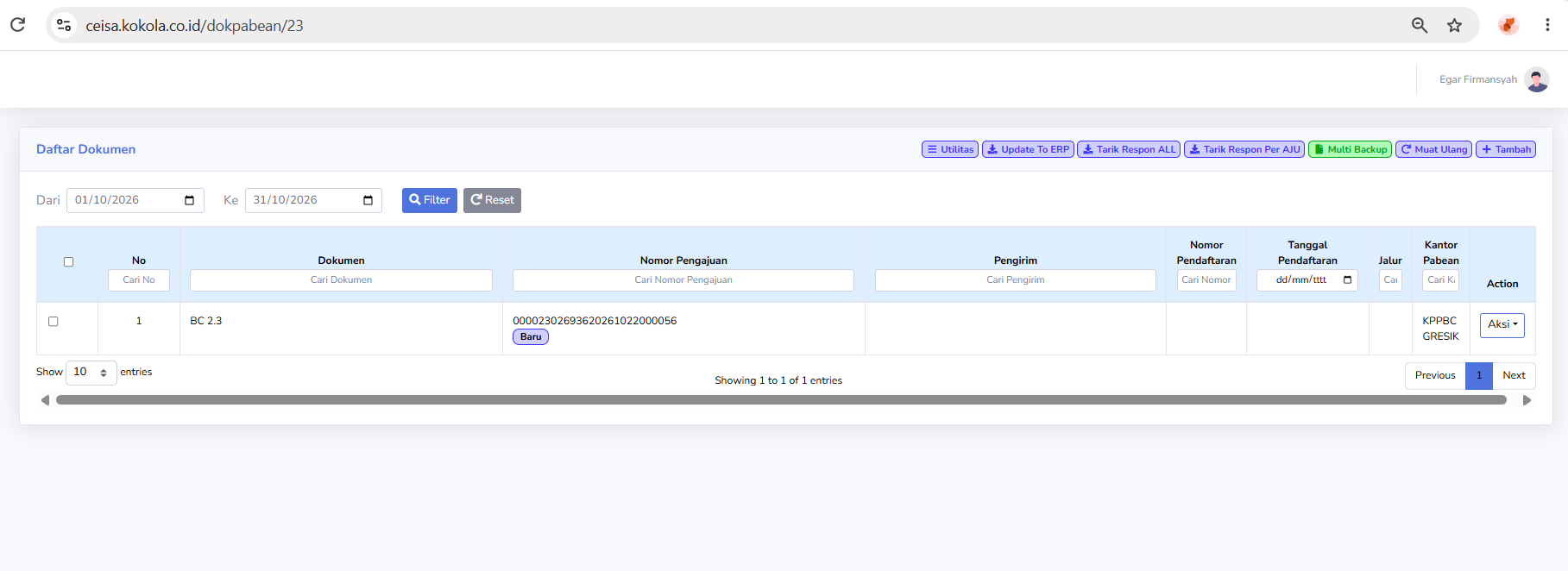
In the Application Number column, there is an indicator showing the document’s processing stage.
Based on the page display, the visible statuses are:
Other statuses may appear depending on the stage of the application and the response received from the customs system. In the “Channel” column, an indicator is used to show the customs service channel if the document has been assigned a channel.
Note: In the displayed image of the BC 2.3 document, the document status is still “New,” while the Registration Number, Registration Date, and Lane fields are not yet filled in. This indicates that registration information and lane designation are not yet available in the list. The official status of the document must be confirmed through customs details or a response.
Table Navigation Explanation
At the bottom of the document list, the following navigation features are available:
Steps for Use