WORKING PERMIT
Access Requisition Module Guide
Module Location:
Access Requisition > Requisition > Working Permit
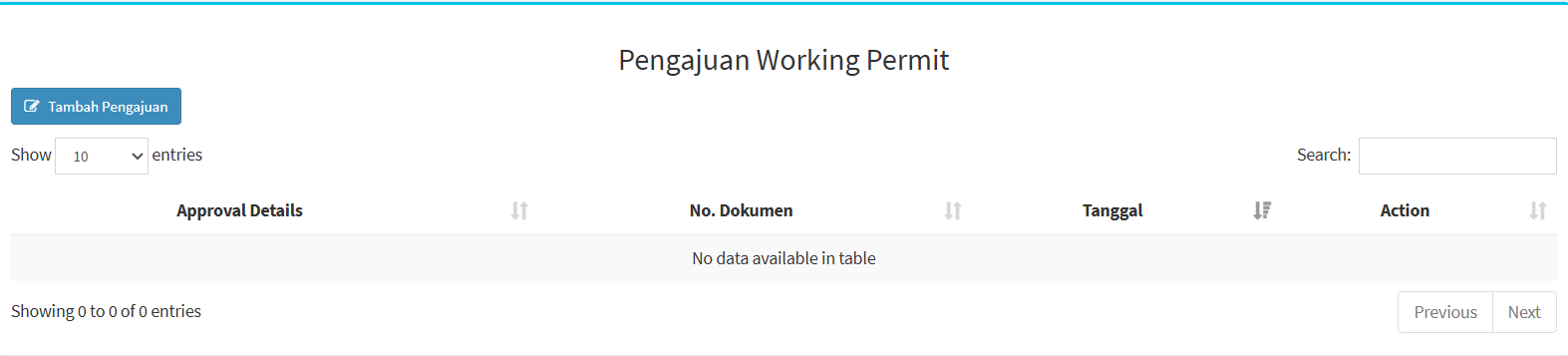
On the Working Permit Application page, you can view a list of Working Permit applications that have been created. The main page features an Add Application button, a table listing the applications, a search feature, and settings to adjust the number of records displayed.
| Section | Description |
|---|---|
|
Add Application |
Used to create a new Working Permit application. |
| Show Entries |
Used to set the number of records displayed in the table. |
| Search | Used to search for specific application data. |
| Approval Details | Displays information regarding the application approval process. |
| Dokumen No. | Displays the Working Permit document number. |
| Date | Displays the application date or the date recorded on the document. |
| Action | Displays the actions available for that application. |
| Previous / Next | Used to navigate between pages if there is more than one page of data. |
Some columns include sorting icons that can be used to sort the data. If there are no applications to display, the system will display the message “No data available in table.”
-
Working Permit Application
-
First, click the “Add Application” button. Once clicked, the work permit application form will appear.
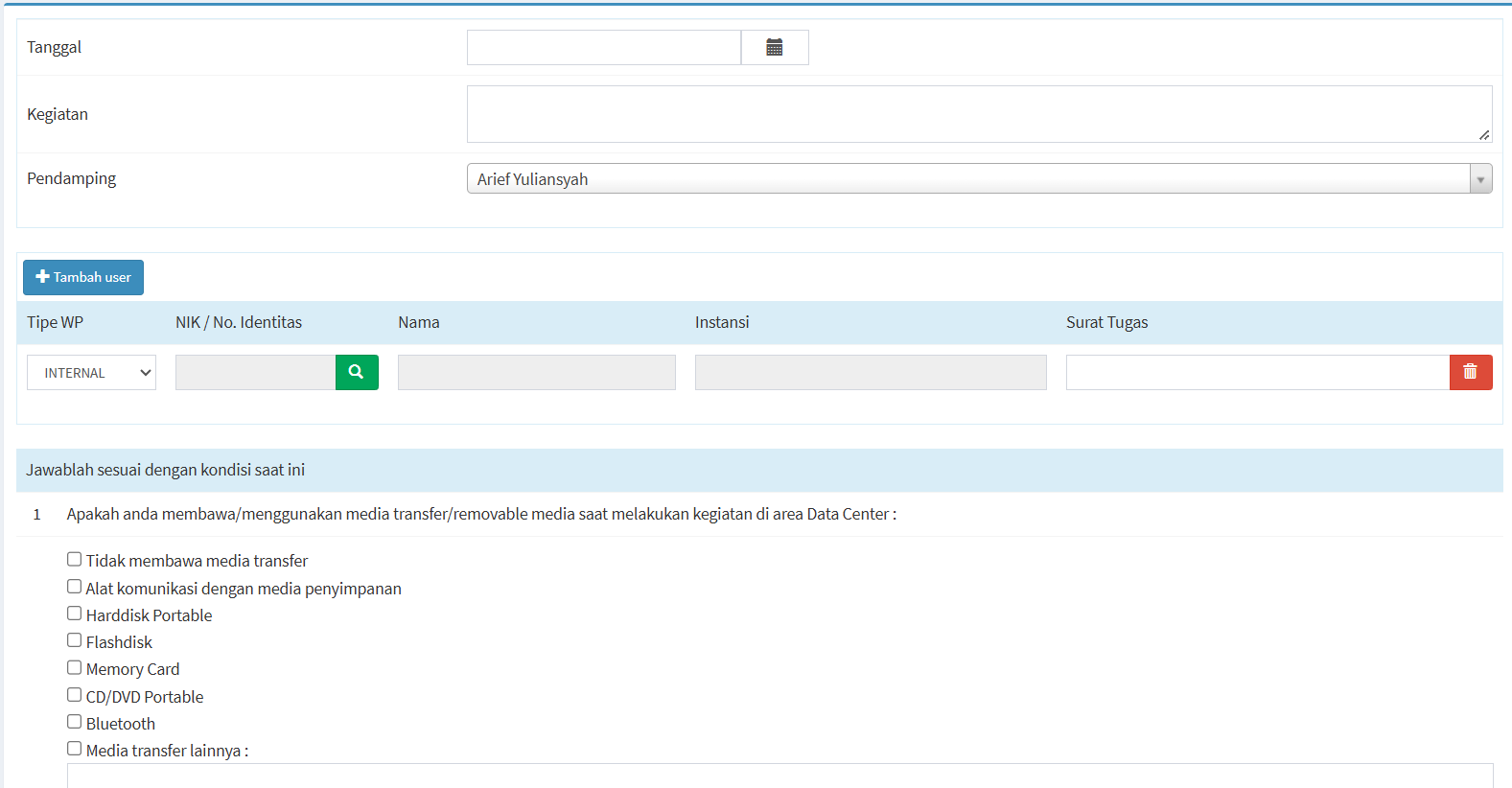
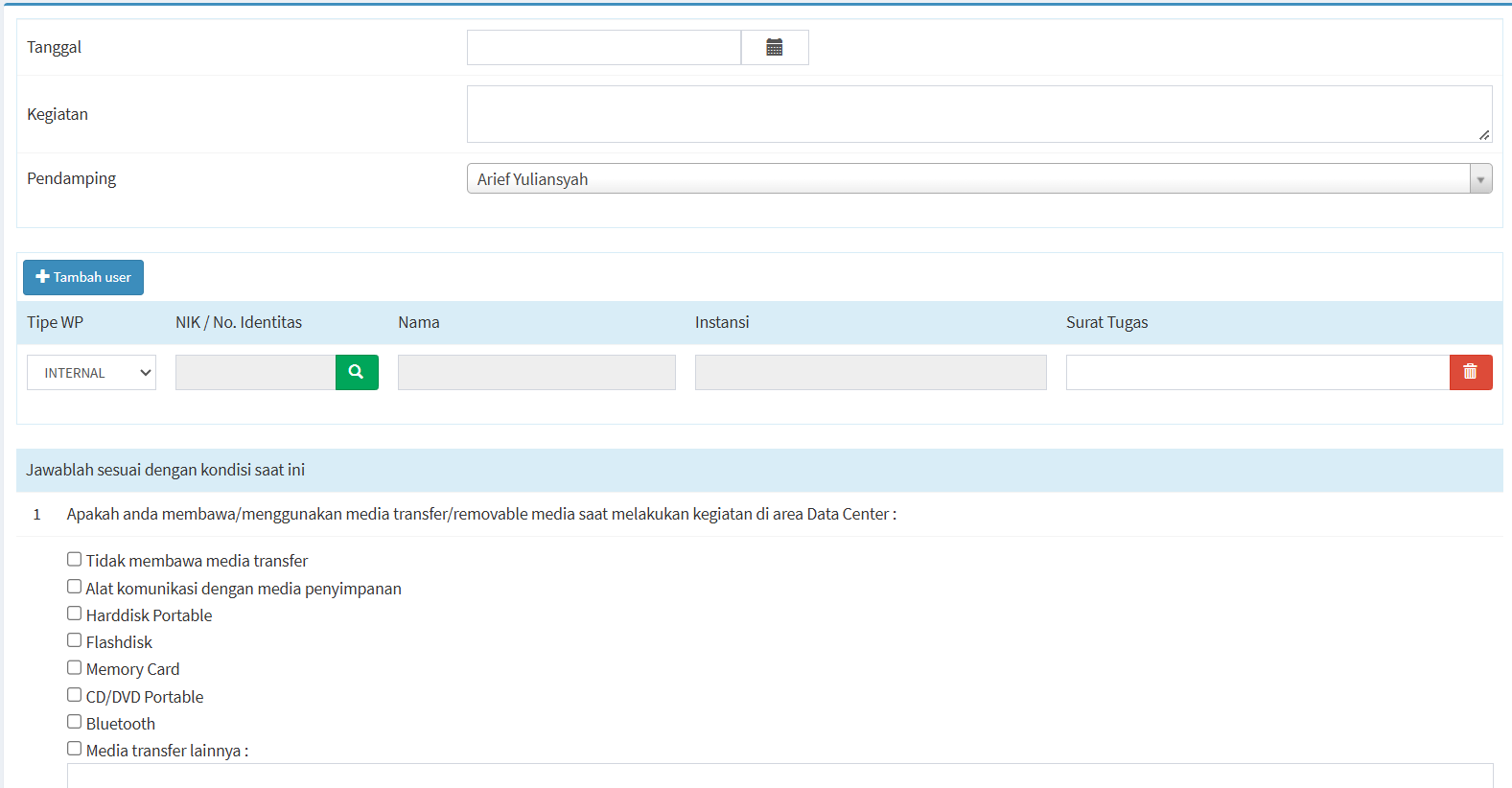
- After clicking the “Add Application” button, a form will appear that you must complete. At the beginning of the form, you must provide information regarding the activity to be carried out.
Field
Description
Date
Used to specify the date the activity will take place.
Activity
Used to describe the activity or work to be performed in the Data Center area.
Supervisor
Used to select the person who will supervise the activity.
-
Next, fill out the form to add a user, which consists of several fields.
Field
Description
WP Type
Used to specify the type of Work Permit, such as INTERNAL.
NIK / No. Identitas
Used to enter the user’s NIK or ID number.
Name
Displays or is used to enter the user’s name.
Organization
Used to list the user’s organization or company.
Assignment Letter
Used to list or attach assignment letter information if necessary.
Search Icon
Used to search based on the entered NIK or ID number.
Delete Icon
Used to delete user data from the application.
-
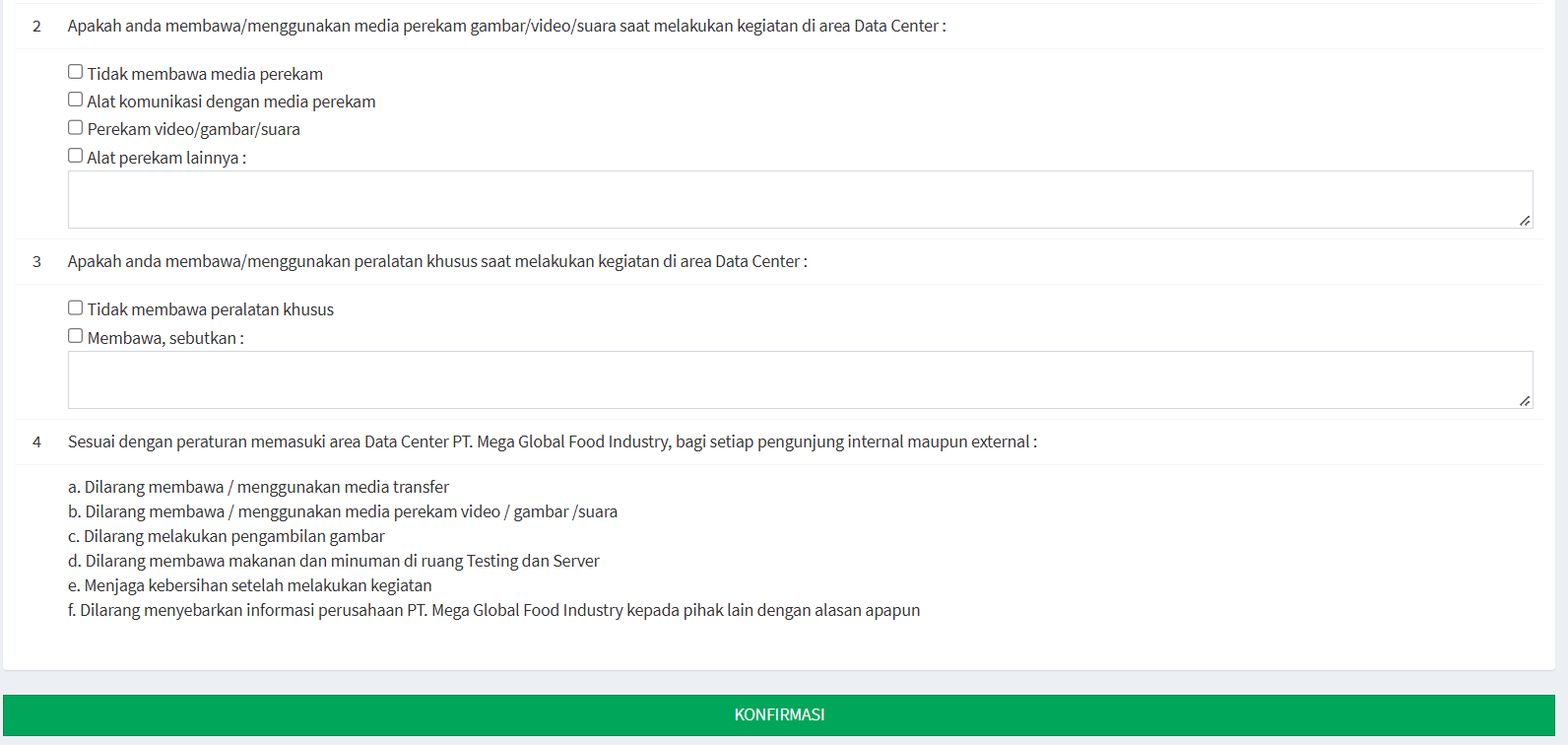
And finally, information regarding the conditions of the activity: After the activity and user data have been completed, there are several questions that need to be answered based on the conditions at the time the activity takes place. This section is used to provide information about items, devices, or equipment that will be brought or used while in the Data Center area.
-
Transfer Media / Removable Media: The first question concerns the use of transfer media or removable media during activities in the Data Center area.
-
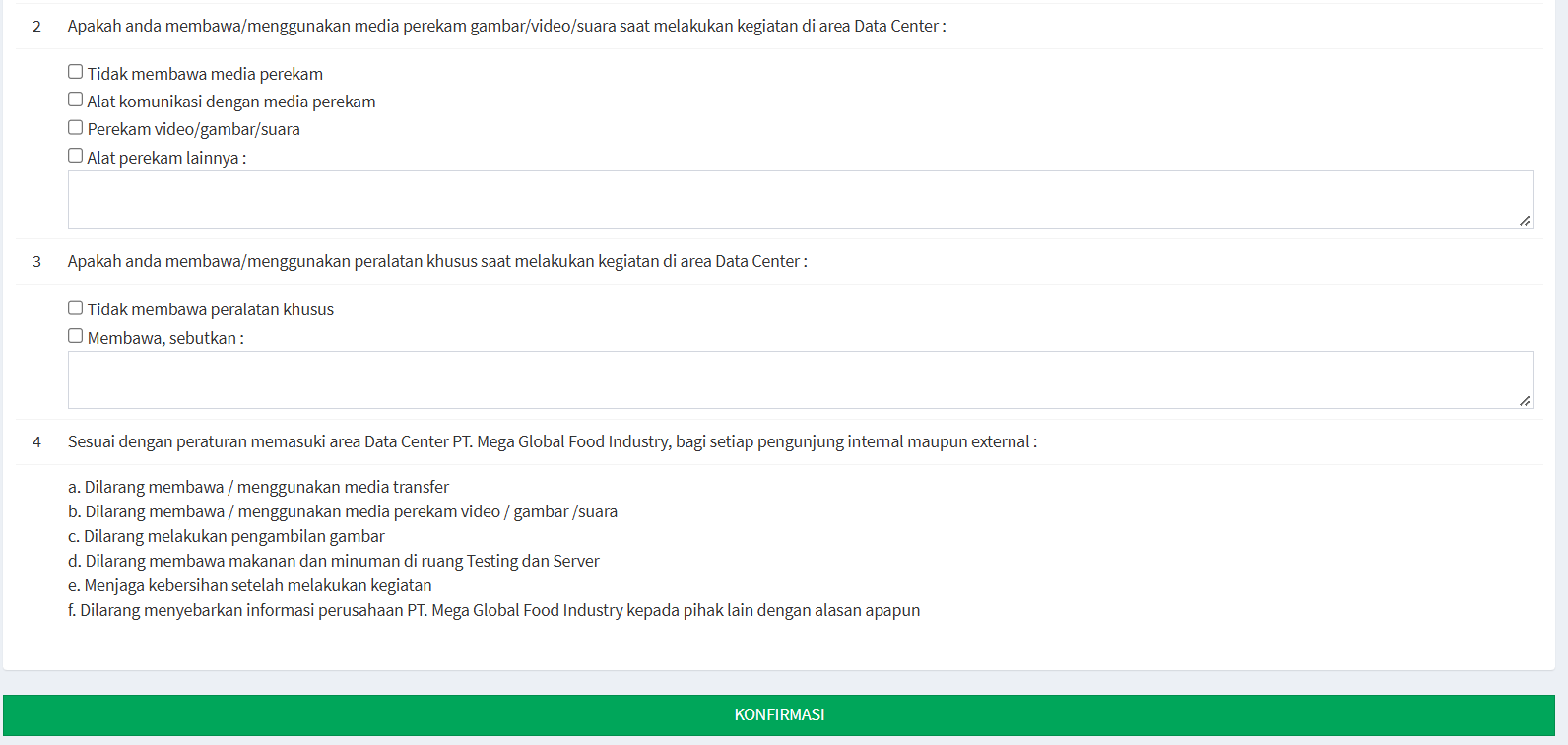
Recording Media: The next question concerns media that can be used to record images, video, or audio.
- Specialized Equipment: Users must also provide information regarding the use of specialized equipment during the activity.
-
-
-
Rules for Entering the Data Center Area
At the end of the form, you’ll find information regarding the rules that must be observed when entering the PT. Mega Global Food Industry Data Center area, for both internal and external visitors. The rules listed in the system include:
-
Do not bring or use data storage devices
-
Do not bring or use video, image, or audio recording devices
-
Taking photographs is prohibited
-
Bringing food and beverages into the Testing and Server rooms is prohibited
-
Maintain cleanliness after completing activities
-
Disclosing PT. Mega Global Food Industry’s confidential information to third parties for any reason is prohibited
-