# Backup

# Importing/Exporting Emails

In Zoho Mail, you can import/export emails (migrated to or from) with each email in standard EML format that is aggregated in .ZIP archive.

#### Table of Contents

<div class="plHr" id="bkmrk-importing-emails-imp" style="font-feature-settings: inherit; box-sizing: border-box; padding: 15px 15px 0px; margin: 0px 0px 30px; border: 15px solid rgb(49, 54, 56); font-style: normal; font-variant-caps: normal; font-variant-numeric: inherit; font-variant-east-asian: inherit; font-variant-alternates: inherit; font-variant-position: inherit; font-variant-emoji: inherit; font-weight: 400; font-stretch: inherit; font-size: 17px; line-height: inherit; font-family: Zoho_Puvi_Regular, sans-serif; font-optical-sizing: inherit; font-size-adjust: inherit; font-kerning: inherit; font-variation-settings: inherit; font-language-override: inherit; vertical-align: baseline; font-variant-ligatures: none; color: rgb(232, 230, 227); letter-spacing: normal; orphans: 2; text-align: start; text-indent: 0px; text-transform: none; widows: 2; word-spacing: 0px; -webkit-text-stroke-width: 0px; white-space: normal; background-color: rgb(24, 26, 27); text-decoration-thickness: initial; text-decoration-style: initial; text-decoration-color: initial;"><div class="toc" style="font-feature-settings: inherit; box-sizing: border-box; padding: 0px; margin: 0px; border: 0px; font-style: inherit; font-variant-caps: inherit; font-variant-numeric: inherit; font-variant-east-asian: inherit; font-variant-alternates: inherit; font-variant-position: inherit; font-variant-emoji: inherit; font-weight: inherit; font-stretch: inherit; font-size: inherit; line-height: inherit; font-family: inherit; font-optical-sizing: inherit; font-size-adjust: inherit; font-kerning: inherit; font-variation-settings: inherit; font-language-override: inherit; vertical-align: baseline; font-variant-ligatures: none;">- [Importing Emails](https://www.zoho.com/id/mail/help/import-export-emails.html?sredirect=true#alink1)
    - [Import using an EML file](https://www.zoho.com/id/mail/help/import-export-emails.html?sredirect=true#alink3)
- [Exporting Emails](https://www.zoho.com/id/mail/help/import-export-emails.html?sredirect=true#alink2)

</div></div>## <a name="alink1" style="color: rgb(63, 153, 255); font-feature-settings: inherit; box-sizing: border-box; padding: 0px; margin: 0px; border: 0px; font-style: inherit; font-variant-caps: inherit; font-variant-numeric: inherit; font-variant-east-asian: inherit; font-variant-alternates: inherit; font-variant-position: inherit; font-variant-emoji: inherit; font-weight: inherit; font-stretch: inherit; font-size: inherit; line-height: inherit; font-family: inherit; font-optical-sizing: inherit; font-size-adjust: inherit; font-kerning: inherit; font-variation-settings: inherit; font-language-override: inherit; vertical-align: baseline; font-variant-ligatures: none; text-decoration: none; outline: 0px;"></a><span style="font-feature-settings: normal; box-sizing: border-box; padding: 0px; margin: 0px;">Importing Emails</span>

If you have an email as an EML file, you can use EML import. If the emails are stored locally on your system, you can import them using this method, and access them from your Zoho Mail account. You can create .ZIP files with multiple . EML and import it into Zoho Mail. The maximum size of .ZIP files that can be imported into Zoho Mail is 500 MB. If you have a . EML that is larger in size, we recommend that you separate the files. The EML is made up of several .ZIP files of 500 MB or less. You can also select the destination folder in Zoho Mail, which is where your imported emails will be stored.

### <a id="bkmrk-" name="alink3" style="color: rgb(232, 230, 227); font-feature-settings: inherit; box-sizing: border-box; padding: 0px; margin: 0px; border: 0px; font-style: inherit; font-variant-caps: inherit; font-variant-numeric: inherit; font-variant-east-asian: inherit; font-variant-alternates: inherit; font-variant-position: inherit; font-variant-emoji: inherit; font-weight: inherit; font-stretch: inherit; font-size: inherit; line-height: inherit; font-family: inherit; font-optical-sizing: inherit; font-size-adjust: inherit; font-kerning: inherit; font-variation-settings: inherit; font-language-override: inherit; vertical-align: baseline; font-variant-ligatures: none; text-decoration: none; outline: 0px;"></a><span style="font-feature-settings: normal; box-sizing: border-box; padding: 0px; margin: 0px;">Importing using an EML file:</span>

1. Login to [Zoho Mail](https://www.zoho.com/mail/login.html)
2. <span style="font-feature-settings: normal; box-sizing: border-box; padding: 0px; margin: 0px;">Go to **Settings**</span><span class="zp-icon-settings" style="font-feature-settings: inherit; box-sizing: border-box; padding: 0px; margin: 0px; border: 0px; font-style: inherit; font-variant-caps: inherit; font-variant-numeric: inherit; font-variant-east-asian: inherit; font-variant-alternates: inherit; font-variant-position: inherit; font-variant-emoji: inherit; font-weight: inherit; font-stretch: inherit; font-size: inherit; line-height: inherit; font-family: inherit; font-optical-sizing: inherit; font-size-adjust: inherit; font-kerning: inherit; font-variation-settings: inherit; font-language-override: inherit; vertical-align: baseline; font-variant-ligatures: none; display: inline-block;"> (Settings)</span>
3. Open **[Import/Export Emails](https://mail.zoho.com/zm/#settings/all/importexport)**
4. From the account drop-down menu, select the account you want to import your email from. (Only if you have configured a POP account.)
5. <span style="font-feature-settings: normal; box-sizing: border-box; padding: 0px; margin: 0px;">In the Import section, click the **Select File** button to select the file to import. Select the file that contains the email you want to import and click **Select**.</span>  
    ![Importing emails](https://www.zohowebstatic.com/sites/zweb/images/mail/help/import2.jpg)
6. The file must be a . An EML or .ZIP file that contains multiple . EML.
7. <span style="font-feature-settings: normal; box-sizing: border-box; padding: 0px; margin: 0px;">In the Import Options menu, you'll be given two options.</span>
    - <span style="font-feature-settings: normal; box-sizing: border-box; padding: 0px; margin: 0px;">If you select the **Import to selected folder** option, all emails in your file will be imported to the selected folder, regardless of the structure of the emails in .ZIP file.</span>
        - <span style="font-feature-settings: normal; box-sizing: border-box; padding: 0px; margin: 0px;">If you want the folder structure in .ZIP file to be preserved in a specific folder, check the **Retain folder structure in the zip file** option. <span data-darkreader-inline-color="" style="font-feature-settings: inherit; box-sizing: border-box; padding: 0px; margin: 0px; border: 0px; font-style: inherit; font-variant-caps: inherit; font-variant-numeric: inherit; font-variant-east-asian: inherit; font-variant-alternates: inherit; font-variant-position: inherit; font-variant-emoji: inherit; font-weight: inherit; font-stretch: inherit; font-size: inherit; line-height: inherit; font-family: inherit; font-optical-sizing: inherit; font-size-adjust: inherit; font-kerning: inherit; font-variation-settings: inherit; font-language-override: inherit; vertical-align: baseline; font-variant-ligatures: none; color: rgb(232, 230, 227); --darkreader-inline-color: #e8e6e3;">Click </span>**Browse**<span data-darkreader-inline-color="" style="font-feature-settings: inherit; box-sizing: border-box; padding: 0px; margin: 0px; border: 0px; font-style: inherit; font-variant-caps: inherit; font-variant-numeric: inherit; font-variant-east-asian: inherit; font-variant-alternates: inherit; font-variant-position: inherit; font-variant-emoji: inherit; font-weight: inherit; font-stretch: inherit; font-size: inherit; line-height: inherit; font-family: inherit; font-optical-sizing: inherit; font-size-adjust: inherit; font-kerning: inherit; font-variation-settings: inherit; font-language-override: inherit; vertical-align: baseline; font-variant-ligatures: none; color: rgb(232, 230, 227); --darkreader-inline-color: #e8e6e3;">, select the folder you want to structure, and then click </span>**OK.**</span>
    - If you select **Import directly to your account**, the folder structure will be maintained in your mailbox.
8. <span style="font-feature-settings: normal; box-sizing: border-box; padding: 0px; margin: 0px;">After selecting your preferred Import Option, click **Import**.</span>  
    ![Importing emails](https://www.zohowebstatic.com/sites/zweb/images/mail/help/import1.jpg)
9. The Import process will start and the email will start appearing in the selected folder.
10. If the import of multiple emails is unprocessable, you'll receive a notification with the details of the failed emails and their respective errors.

Note:

<div class="note" id="bkmrk-if-the-folder-in-.zi" style="font-feature-settings: inherit; box-sizing: border-box; padding: 20px; margin: 0px 0px 20px; border: 0px; font-style: normal; font-variant-caps: normal; font-variant-numeric: inherit; font-variant-east-asian: inherit; font-variant-alternates: inherit; font-variant-position: inherit; font-variant-emoji: inherit; font-weight: 400; font-stretch: inherit; font-size: 15px; line-height: inherit; font-family: Zoho_Puvi_Regular, sans-serif; font-optical-sizing: inherit; font-size-adjust: inherit; font-kerning: inherit; font-variation-settings: inherit; font-language-override: inherit; vertical-align: baseline; font-variant-ligatures: none; overflow: hidden; background: rgb(35, 35, 12); color: rgb(232, 230, 227); letter-spacing: normal; orphans: 2; text-align: start; text-indent: 0px; text-transform: none; widows: 2; word-spacing: 0px; -webkit-text-stroke-width: 0px; white-space: normal; text-decoration-thickness: initial; text-decoration-style: initial; text-decoration-color: initial;">1. If the folder in .ZIP file already exists in Zoho Mail, the emails in that folder will be inserted into the corresponding Zoho Mail folder. Otherwise, Zoho Mail will create a folder like in .ZIP file, and import the emails to the newly created folder.
2. If you have an email in the form of a PST file or an EML file and want to import it into Zoho Mail, follow [this](https://www.zoho.com/mail/help/adminconsole/pst-migration-wizard.html) help page for PST migration, and [this](https://www.zoho.com/mail/help/adminconsole/eml-migration.html) help page for EML migration.

</div>## <a name="alink2" style="color: rgb(63, 153, 255); font-feature-settings: inherit; box-sizing: border-box; padding: 0px; margin: 0px; border: 0px; font-style: inherit; font-variant-caps: inherit; font-variant-numeric: inherit; font-variant-east-asian: inherit; font-variant-alternates: inherit; font-variant-position: inherit; font-variant-emoji: inherit; font-weight: inherit; font-stretch: inherit; font-size: inherit; line-height: inherit; font-family: inherit; font-optical-sizing: inherit; font-size-adjust: inherit; font-kerning: inherit; font-variation-settings: inherit; font-language-override: inherit; vertical-align: baseline; font-variant-ligatures: none; text-decoration: none; outline: 0px;"></a><span style="font-feature-settings: normal; box-sizing: border-box; padding: 0px; margin: 0px;">Exporting Emails</span>

You can also choose to export emails from your Zoho Mail account in EML format to save them locally or as a backup. You can export emails across folders, or by specific time period or emails from the last few months to emails from the last 1 year.

### Steps to export emails from the configured Zoho Mail/Other Mail Account:

1. Login to [Zoho Mail](https://www.zoho.com/mail/login.html)
2. <span style="font-feature-settings: normal; box-sizing: border-box; padding: 0px; margin: 0px;">Go to **Settings**</span><span class="zp-icon-settings" style="font-feature-settings: inherit; box-sizing: border-box; padding: 0px; margin: 0px; border: 0px; font-style: inherit; font-variant-caps: inherit; font-variant-numeric: inherit; font-variant-east-asian: inherit; font-variant-alternates: inherit; font-variant-position: inherit; font-variant-emoji: inherit; font-weight: inherit; font-stretch: inherit; font-size: inherit; line-height: inherit; font-family: inherit; font-optical-sizing: inherit; font-size-adjust: inherit; font-kerning: inherit; font-variation-settings: inherit; font-language-override: inherit; vertical-align: baseline; font-variant-ligatures: none; display: inline-block;"> (Settings)</span>
3. Go **[to Import/Export](https://mail.zoho.com/zm/#settings/all/importexport)**
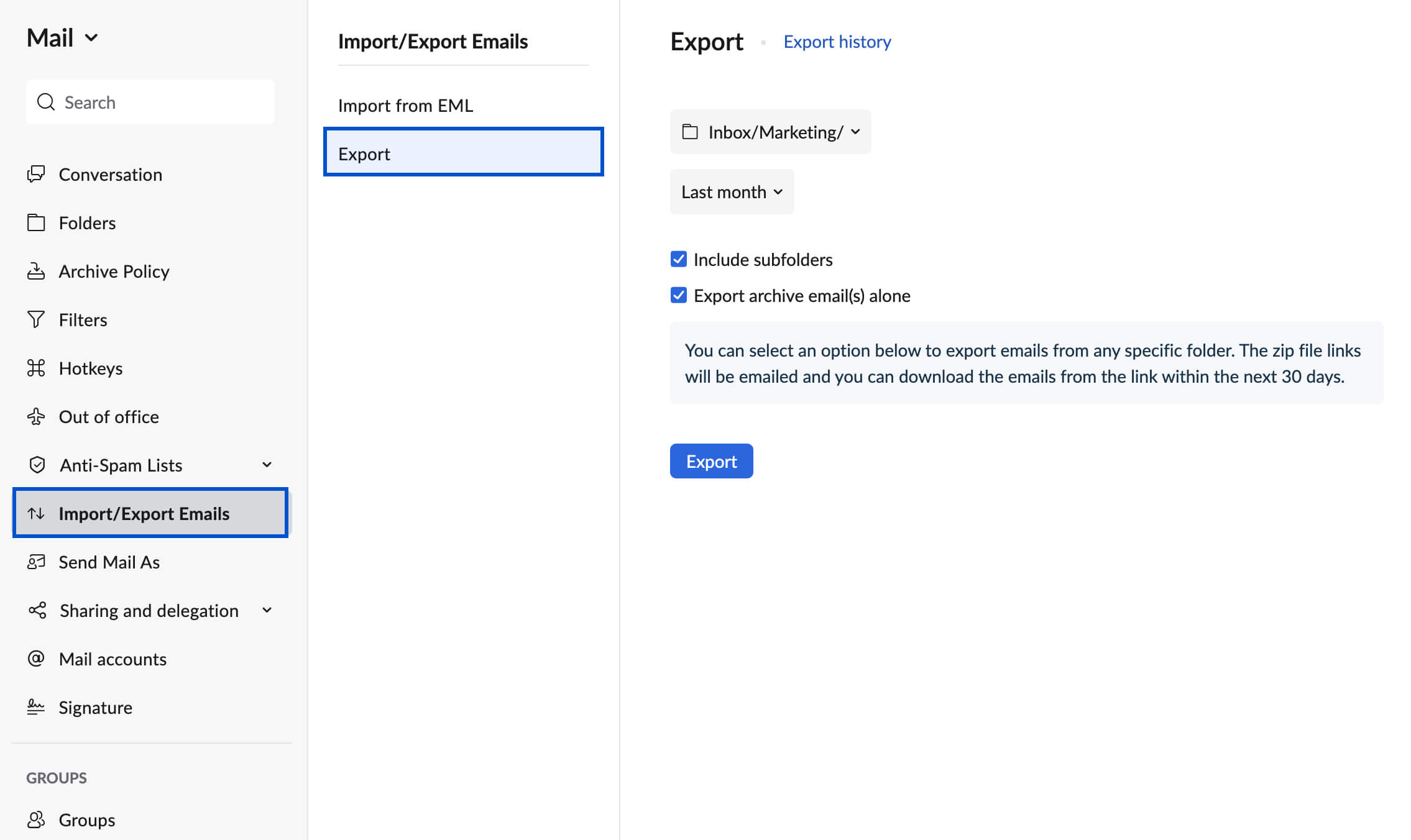
4. <span style="font-feature-settings: normal; box-sizing: border-box; padding: 0px; margin: 0px;">In the Export section, select the folder where you want to export the email.</span>
    1. Select the duration (in months) from the drop-down box.
    2. You can also select the date range for the email period you want to export.
    3. To export the entire folder, select '**Export all emails in the folder**'.
5. <span style="font-feature-settings: normal; box-sizing: border-box; padding: 0px; margin: 0px;">Click **Export**.</span>  
    ![Exporting emails](https://www.zohowebstatic.com/sites/zweb/images/mail/help/export1.jpg)
6. The export process will start for emails in a specific folder based on the parameters set by you.
7. After a while, you will receive a notification email with a link to download the exported email as a .zip file.
8. The email will be sent to the same account as the account from which your email exported from.
9. Make sure you access the link from your web email, and log in to your Zoho account.

**Note:**

When you select a specific date or month range for emails in that folder, we recommend checking that there are emails in that folder, within the specified date range. You can use Search to check this before starting the Export.