Sales Forecast Inbox
Sales Forecast Module Guide
Module Location:
Sales Forecast > Sales Forecast Inbox
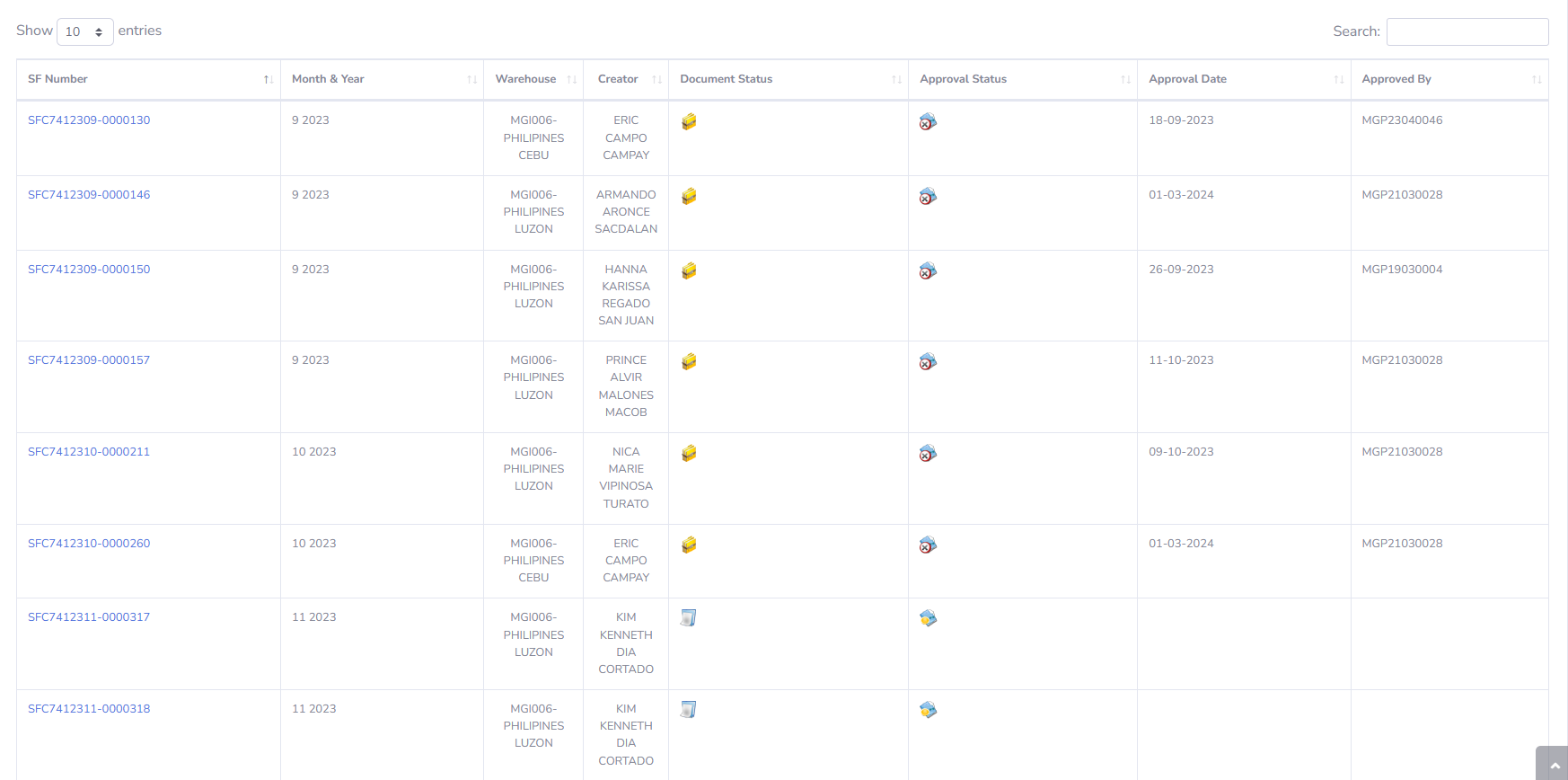
The Sales Forecast Inbox module is used to display and monitor the list of sales forecasts that have entered the approval process. This page helps users view Sales Forecast documents requiring approval and access information regarding the approval process that has been completed. Each entry displayed in the Sales Forecast Inbox contains information such as the SF Number, Sales Forecast period, warehouse, document creator, document status, approval status, approval date, and the approver. By clicking the SF Number, users can open the Sales Forecast details to view information about documents that are pending or have completed the approval process.
-
View Description
The Sales Forecast main page displays all Sales Forecast data created for the currently active company. This page is used to view a list of sales forecasts, create new sales forecasts, search for sales forecast data, and open document details using the SF Number.

-
Screen Description
This page is used to monitor Sales Forecast documents requiring approval and to view information on approvals that have already been granted. The columns available on the Sales Forecast Inbox include:
-
SF Number: The Sales Forecast document number. Click the number to open the document details.
-
Month & Year: Displays the month and year of the Sales Forecast period.
-
Warehouse: Displays the warehouse used.
-
Creator: Displays the name of the person who created the Sales Forecast.
-
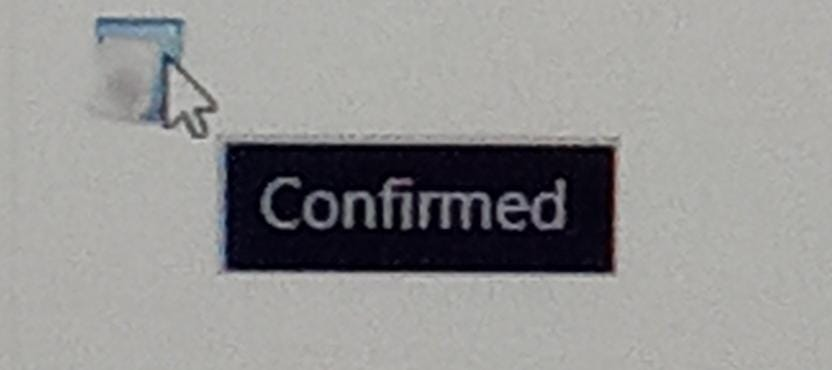
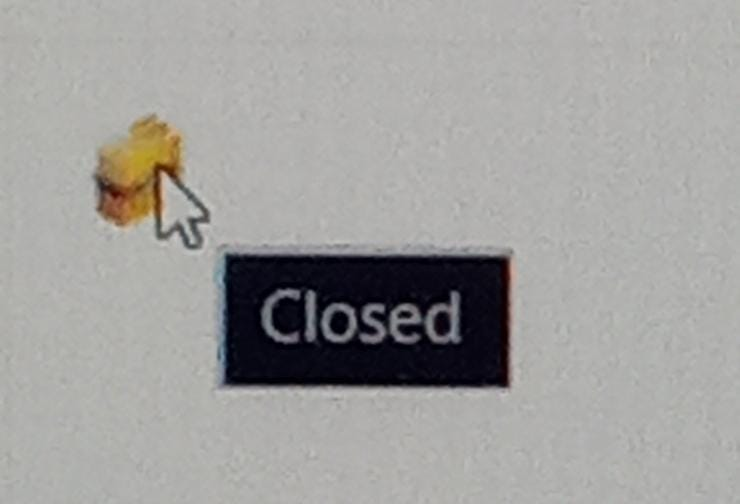
Document Status: Displays the status of the Sales Forecast document. Possible document statuses include:
-
Confirmed: Indicates that the Sales Forecast document has been approved.

-
Closed: Indicates that the Sales Forecast document has been closed

-
-
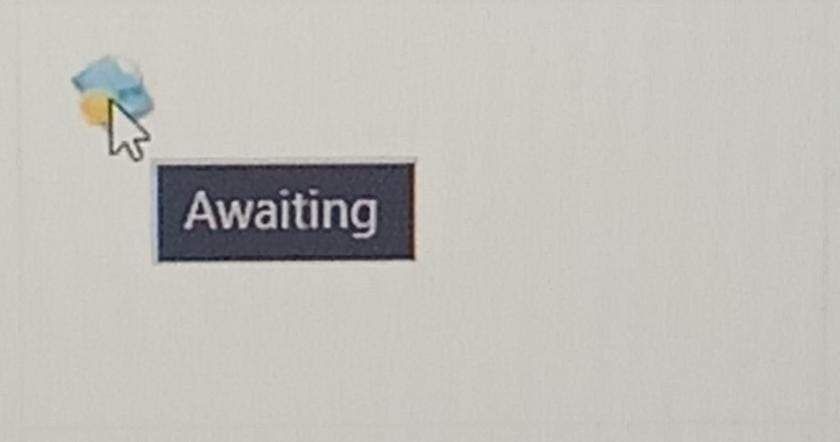
Approval Status: Displays the approval status of the Sales Forecast. The approval statuses that can be displayed include:
-
Awaiting: Indicates that the Sales Forecast is still awaiting approval

-
Rejected: Indicates that the Sales Forecast has been rejected during the approval process;

-
-
Approval Date: Displays the date the approval was granted.
-
Approved By: Displays information about the person who approved it
-
-
Tips & Important Notes
-
Make sure the “Current Company” is set correctly so that the Sales Forecast Inbox data displayed matches the company to be processed.
-
Check the “Approval Status” to see which Sales Forecasts are still awaiting approval or have been rejected.
-
Check the “Document Status” to see the status of the Sales Forecast document currently being processed.
-
Click the SF Number to view the Sales Forecast details before initiating or reviewing the approval process.
-
Check the period, warehouse, creator, and forecast details before initiating the approval process.
-
A Sales Forecast with the “Awaiting” status indicates that the document is still in the approval process.
-
A Sales Forecast with the “Rejected” status indicates that the document has been rejected during the approval process and may require review or correction in accordance with applicable regulations.
-
The “Approval Date” and “Approved By” fields can be used to determine when the approval process took place and who approved it.
-
If the data you are looking for is not found, make sure the Current Company is correct and use the search feature if available.
-
Ensure that the approval process is carried out in accordance with the authority and approval workflow defined in the system.
-