PAF (Promo Authorization Form)
Promo Authorization
Promo Authorization Module Guide
Module Location
PAF > Promo Authorization
-
Main Page View
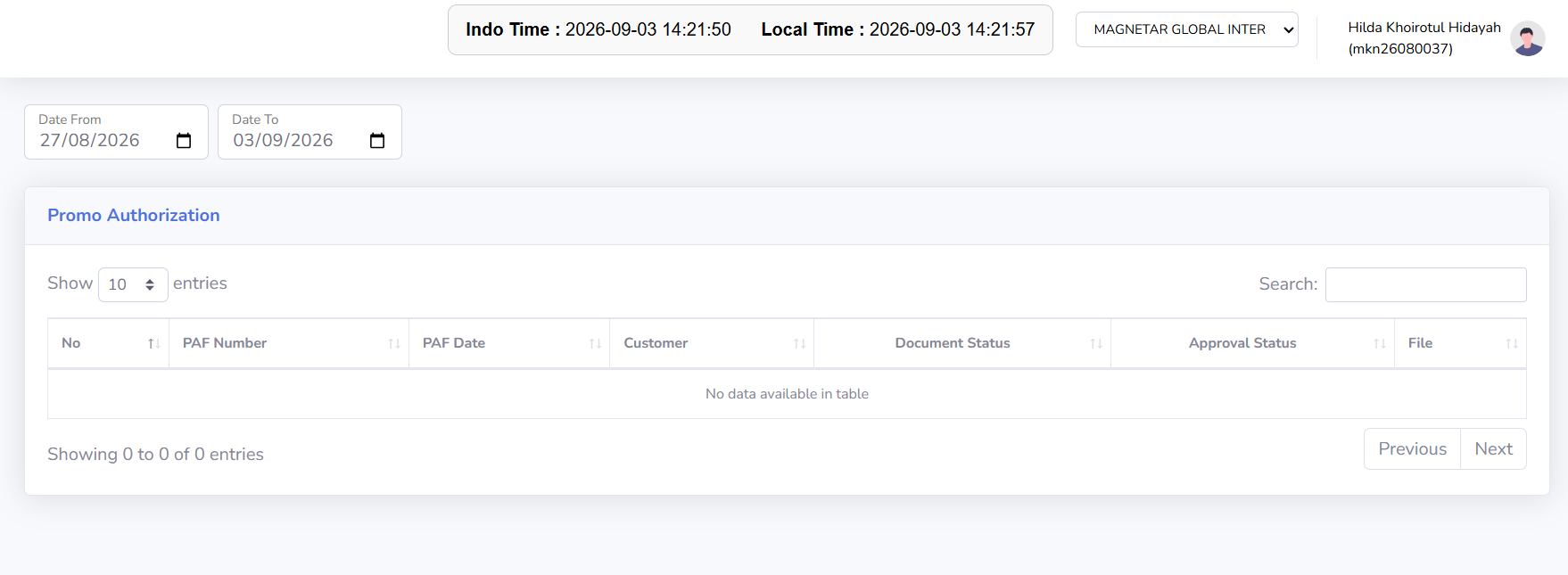
The Promo Authorization main page displays all PAF documents created for the currently active company. This page is used to view and search for Promo Authorization documents based on a specific period, open document details, and monitor document status and the PAF approval process. The data displayed in the table will adjust according to the company and date range selected by the user.

-
Screen Description
The Promo Authorization page contains several sections designed to help users view and search for PAF documents.
-
Current Company: Displays the currently active company. The Promo Authorization data displayed will correspond to the selected company.
-
Add Data: Used to create a new Promo Authorization document.
-
Date From: Used to specify the start date of the document search period.
-
Date To: Used to specify the end date of the document search period.
-
Show Entries: Used to specify the number of records displayed per page.
-
Search: Used to search for Promo Authorization documents based on specific keywords.
- Previous / Next: Used to navigate between pages if the number of records exceeds the page limit.
-
-
Promo Authorization Table
The Promo Authorization Table displays a list of PAF documents based on the selected company and period. The information displayed may include:
-
PAF Number: Displays the Promo Authorization document number. Click the number to view the document details.
-
PAF Date: Displays the date of the Promo Authorization document.
-
Customer: Displays the customer associated with the promotional program.
-
Document Status: Displays the current status of the Promo Authorization document.
-
Approval Status: Displays the status of the Promo Authorization document’s approval process.
-
Created By: Displays the user who created the document, if available.
-
Created Date: Displays the document’s creation date, if available.
-
-
Tips & Important Notes
-
Make sure the Current Company is correct before creating or searching for a Promo Authorization document.
-
Use Date From and Date To to narrow down the range of documents displayed.
-
Use Search to find a specific PAF more quickly.
-
Use the PAF Number to open and view the details of a Promo Authorization document.
-
Check the Document Status to see the document’s current status.
-
Check the Approval Status to track the progress of the document’s approval process.
-
Make sure the customer and promo period are correct before proceeding with the document.
-
Double-check all PAF information before the document is confirmed or forwarded to the approval process.
-
Avoid creating duplicate Promo Authorization documents if a document for that promo program already exists.
-
Make sure the required supporting documents are available before the PAF is forwarded to the next step.
-
Promo Authorization Inbox
Module Location:
PAF > Promo Authorization Inbox
-
Main Page View
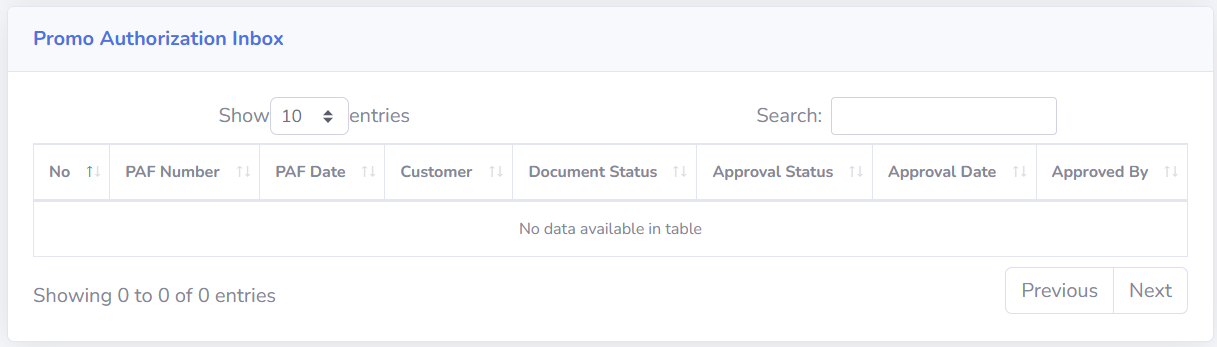
The Promo Authorization Inbox main page displays a list of PAF documents related to the approval process. This page is used to monitor Promo Authorization documents requiring approval, view the results of the approval process, and open document details for review before Approving, Revising, or Rejecting them. The information displayed helps users stay informed about the current status of each PAF document in the approval workflow.
-
Screen Description
The columns available in the Promo Authorization Inbox include:
-
No: Displays the sequential number of the data in the table.
-
PAF Number: Displays the Promo Authorization document number. Click PAF Number to open the PAF details page.
-
PAF Date: Displays the date of the Promo Authorization document.
-
Customer: Displays the name of the customer associated with the PAF document.
-
Document Status: Displays the current status of the Promo Authorization document.
-
Approval Status: Displays the status of the Promo Authorization document approval process.
-
Approval Date: Displays the date the approval process was conducted.
-
Approved By: Displays information about the party who performed the approval process.
-
-
Approval Process
Once the Promo Authorization details have been accessed via the PAF Number, users can take actions based on the document’s conditions and their access rights. Available actions include:
-
Approve: Used to approve the Promo Authorization document
- Revise: Used if the document needs to be corrected or completed before it can be approved.
- Reject: Used to reject the Promo Authorization document.
If you select Revise or Reject, clearly state the reason in the notes so that the relevant parties can understand why the document is being revised or rejected.
-
-
Tips & Important Notes
-
Ensure that the Current Company is correct so that the Promo Authorization Inbox data displayed matches the company to be processed.
-
Click the PAF Number to open and review the document details before proceeding with the approval process.
Review the customer, promo period, forecast value, total cost, ratio, and supporting documents before approving the PAF.
-
Check the Document Status to determine the status of the Promo Authorization document.
-
Check the “Approval Status” to track the progress of the document approval process.
-
The “Approval Date” information can be used to determine when the approval process took place.
-
The “Approved By” information can be used to identify the person who performed the approval.
-
Ensure that the actions “Approve,” “Revise,” or “Reject” are taken in accordance with the document’s status and the user’s authority.
-
If you select “Revise,” provide notes explaining which parts need to be corrected or completed.
-
If you select “Reject,” provide a clear reason for the rejection so that the document creator can understand it.
Carefully review all information before approving, as the approval action may affect subsequent document processes.
-
Promo authorization Form
PAF (Promo Authorization Form) Module Guide
Module Location:
PAF > Promo Authorization Form
-
Promo Authorization Form View
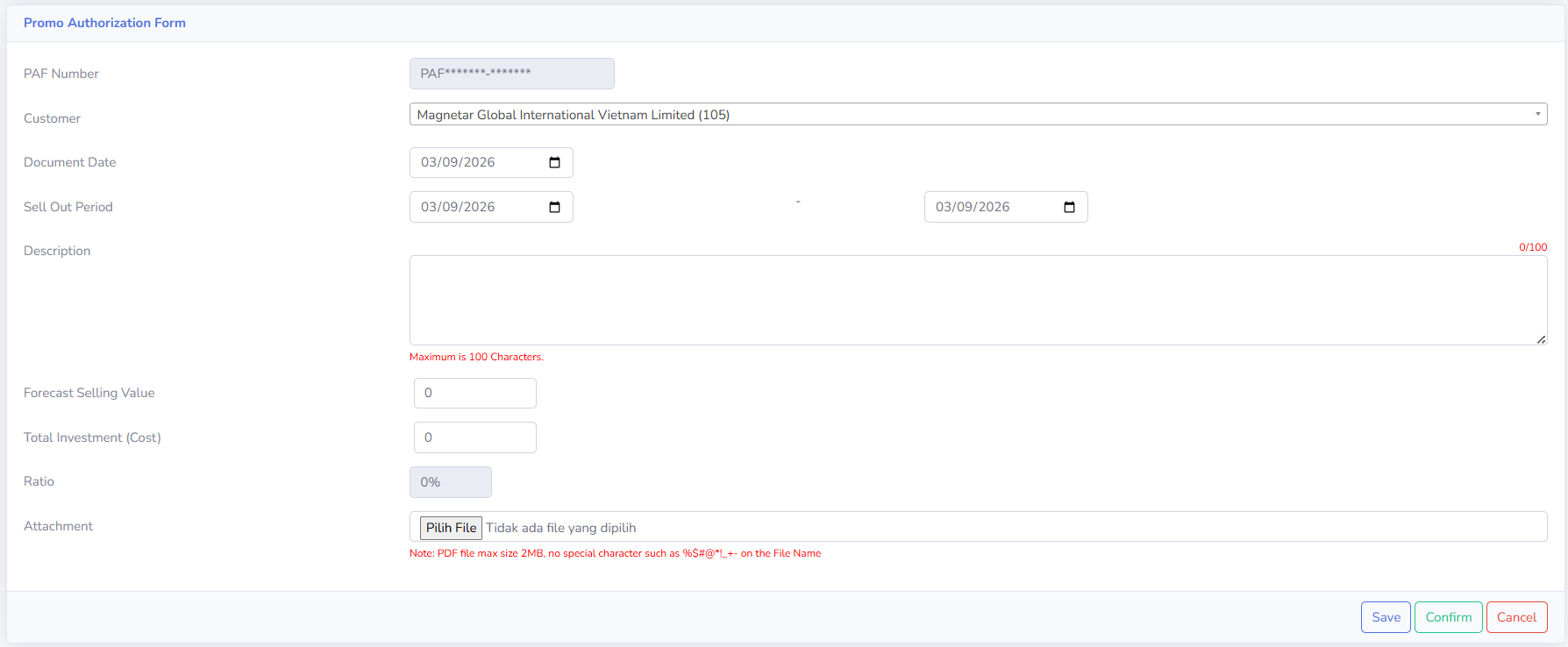
The Promo Authorization Form page appears when a user creates a new PAF document or opens a document that can still be edited. This page is used to fill in all the information required for a promotional program submission before the document is saved, confirmed, and forwarded to the approval process. Ensure that all information on the form has been filled out correctly and in accordance with the submitted promotional program before continuing the process.

-
Form Explanation
- PAF Number
Displays the identification number of the Promo Authorization document. The PAF Number is provided or generated by the system as the unique identifier for each document. -
Customer
Used to select the customer associated with the promotional program to be submitted - Document Date
Used to specify the date of the Promo Authorization document.
-
Sell-Out Period
Used to specify the duration of the promotional program.
This period consists of the start date and end date of the promotional program.
- Description
Used to add a brief description of the promotional program.
The description can be up to 100 characters long.
- Forecast Selling Value
Used to enter the estimated target sales value during the promotional program period. - Total Investment
Used to enter the total cost or investment allocated for the promotional program. -
Ratio
Displays the percentage ratio based on the Forecast Selling Value and Total Investment (Cost). Check the Ratio value to ensure the comparison between the estimated sales value and the program cost is appropriate.
-
Attachment
Used to attach supporting documents related to the promotional program. Attachment requirements:
-
Files must be in PDF format.
-
Maximum file size is 2 MB.
-
Please avoid using special charcters in files names
-
- PAF Number
-
Buttons on the Form
- Save
Used to save Promo Authorization data. Use Save if the document still needs to be completed or reviewed before proceeding to the next step.
- Confirm
Used to confirm the Promo Authorization document after all information has been reviewed. Make sure all data is correct before clicking Confirm.
- Cancel
Used to cancel the process of filling out or changing data on the form
- Save
-
Tips & Important Notes
-
Pastikan Customer yang dipilih sudah sesuai sebelum mengisi data lainnya.
-
Periksa kembali Document Date agar tanggal dokumen Promo Authorization tercatat dengan benar.
-
Pastikan tanggal awal dan tanggal akhir pada Sell Out Period sesuai dengan periode berlangsungnya program promo.
-
Isi Description secara singkat, jelas, dan maksimal 100 karakter.
-
Pastikan nilai Forecast Selling Value telah sesuai dengan estimasi penjualan yang ditargetkan selama program promo.
-
Pastikan Total Investment (Cost) telah sesuai dengan biaya atau investasi yang direncanakan.
-
Periksa nilai Ratio sebelum menyimpan atau mengonfirmasi dokumen.
-
Pastikan dokumen pendukung telah dilampirkan apabila diperlukan.
-
Attachment harus menggunakan format PDF dengan ukuran maksimal 2 MB.
-
Hindari penggunaan karakter khusus pada nama file attachment untuk mengurangi kemungkinan kendala saat proses upload.
-
Gunakan Save apabila data masih perlu disimpan atau dilengkapi terlebih dahulu.
-
Gunakan Confirm setelah seluruh informasi dan dokumen pendukung telah diperiksa.
-
Periksa kembali customer, periode promo, nilai penjualan, biaya, ratio, dan attachment sebelum melakukan Confirm.
-
Setelah dokumen dikonfirmasi, pantau Document Status dan Approval Status untuk mengetahui perkembangan proses dokumen.
-