BC 2.6.2
Customs Documents Module Guide
Module Location:
CEISA > Customs Documents > BC 2.6.2
The BC 2.6.2 form is used to manage notification documents for the re-entry of goods that were previously temporarily released from a Bonded Warehouse (TPB) to Another Location Within the Customs Territory (TLDDP) using the BC 2.6.1 form. This document is used to record the process of returning goods to the BW after they were previously temporarily released, for example, for subcontracting activities or other activities approved in accordance with customs regulations.
BC 2.6.2 is a document related to BC 2.6.1, which is the document for the temporary release of goods from a Bonded Warehouse with a guarantee. Through this menu, users can view a list of submissions, search for documents, check registration information, monitor the status of goods re-entry, update customs responses, and manage document data via the Edit page.
How to Access
- Log in to the CEISA Kokola application.
- Select the Customs Documents menu.
- Click the BC 2.6.2 submenu.
- The system displays the Document List page.
Page Display
The main page displays a list of BC 2.6.2 document submissions used for re-importing goods into a Temporary Storage Facility (TPB). Each row displays information such as document type, submission number, shipper, registration number, registration date, route, customs office, and document processing status. At the top, there are period filters, document management buttons, and a button to create a new submission.
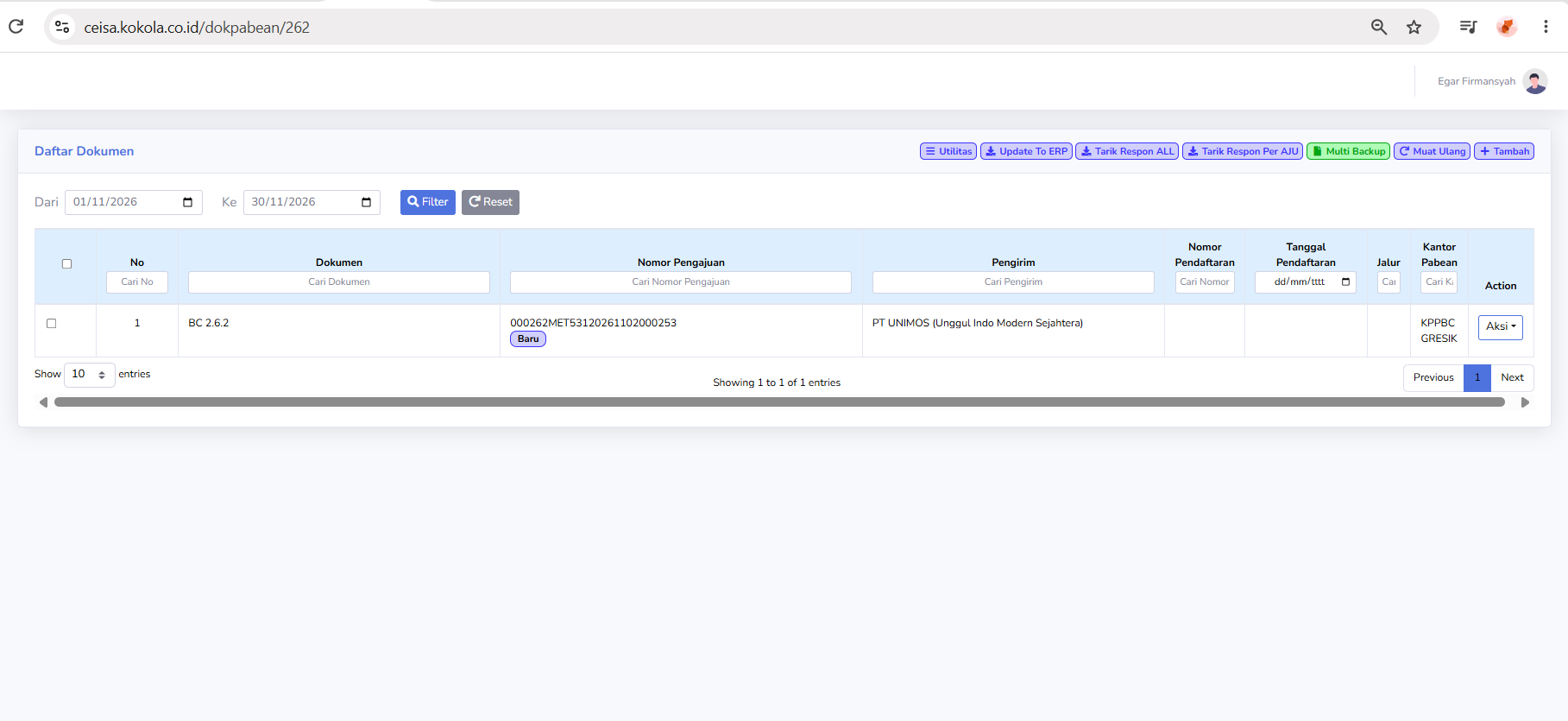
At the top, you’ll find a date range filter, document management buttons, and a button to create a new submission.
Column Descriptions
The available columns include:
-
Checkbox: Used to selected one or more documents when bulk actions are avsilable
-
No: Displays the document's sequential number in the list.
-
Document: Displays the type of customs documnet, namely BC 2.62.
-
Submission Number: Displays the AJU number as the document submission identifier
-
Sender: Display the name of the company or party sending the goods
-
Registration Number: Displays the document registration number issue through the customs process
-
Registration Date: Displays the date the document was registered
-
Channel: Displays the customs service or supervision channel indicator, if available.
-
Customs Office: Display the customs and excise office handling the document.
-
Action: Displays option for further action regarding the selected documents.
Additionally, a search field is available to help users find documents based on the application number, sender, or other information.
Button Descriptions
-
Filter: Displays documents based on teh seleted date range
-
Reset: restores the filter settings to their default state
-
Utilies: Opens a menu of additional fuctions for documen management
-
Update To ERP: Used to update or synchronize document data with the company's ERP system
-
Retrieve ALL Responses: Used to retrieve or update customs responses for a number of documents.
-
Retrieve Response by AJU: Use to retrieve responses baes on a spesific submissin name
-
Multi Backup: Used to back up multiple document at once
-
Reload: Refreshes the document list view
-
Add: Used to create a new BC. 2.6.2 documents submission
-
Action: Opens a menu of action for the selected document
Status and Path Explanation
In the Application Number column, there is an indicator showing the document processing stage. The status shown in the screenshot is:
Other statuses that may be related to the process of submitting and re-entering goods include:
-
Gate In TPB: Related to the recording of goods entry activities through the TPB gate
-
Data Receipt: Relates to the system;s receipt of document data
-
PUSH: An application indicator believed to be related to the data transmission or synchronization process.
In the “Route” column, the system may display indicators for customs service routes, such as the Green Lane or Red Lane, once the route assignment is available.
Note: In the screenshot, the document still has a “New” status, while the Registration Number, Registration Date, and Lane fields are not yet filled in. This indicates that this information is not yet available in the list. The actual status should be verified through the details or an official response from CEISA.
Table Navigation Explanation
The following features are available at the bottom of the page:
-
Show Entries: Sets the number of documents displayed on each page
-
Previous: Go to the previous list page
-
Next: Go to the next list page
-
Showing Entries: Displays the number of documents currently shown and the total number of documents.
-
Scrollbar Horizontal: Scroll the table view to see columns that are not visible on the screen
Document Edit Page
When a user opens a document via the Actions > Edit menu, the system displays the BC 2.6.2 document details page. This page is used to view, complete, and update information regarding the return of goods that were previously temporarily removed from the TPB.
At the top of the Edit page, the following buttons are available:
-
Back: return to the previous page
-
Print: Print the BC 2.6.2 document
-
Validate: Check the completeness accuracyof the document data through the application.
-
Show History: Display the recorded history of changes or activities for the document
The Edit page consists of ten navigation tabs:
-
Header
-
Entity
-
Document
-
Carrier
-
Packaging & Container
-
Transaction
-
Goods
-
Guarantee
-
Levies
-
Statement
At the bottom of each tab, there is a “Previous” button to return to the previous tab and a “Next” button to proceed to the next tab.
Header Tab Explanation
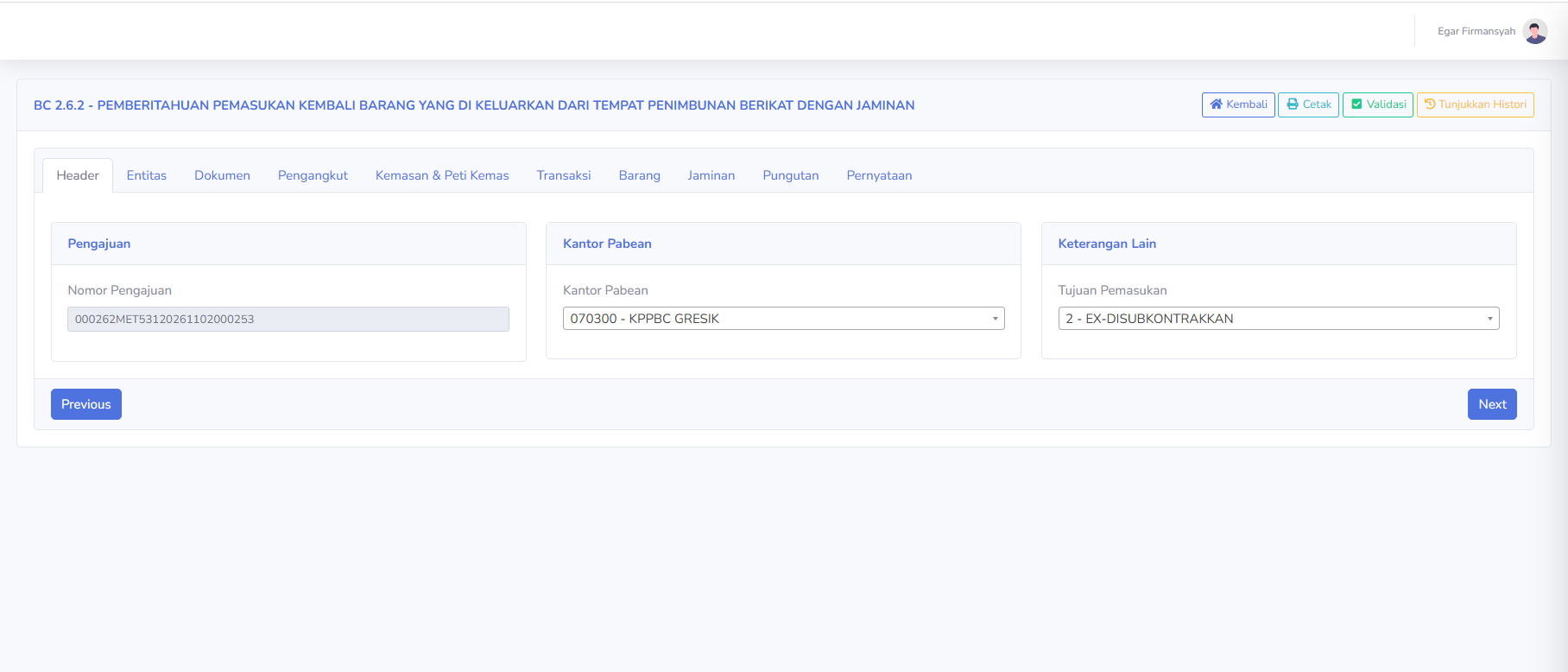
The Header tab is used to display and manage basic information about BC 2.6.2 document submissions. The available sections include:
Submission
-
Submission: Displays the identification number of the BC 2.6.2 document submission.
Customs Office
-
Customs Office: Displays the code and name of the customs office handling the document.
Additional Information
-
Purpose of Re-entry: Displays the purpose of re-entering goods into the TPB
In the screenshot, the selected purpose of re-entry is:
2 - EX-DISUBKONTRAKKAN
This selection indicates that the re-entered goods are related to subcontracting activities previously conducted outside the TPB.
This tab is used to ensure that the declaration information, customs office, and purpose of re-entry are consistent with the transaction document.
Entity Tab Description
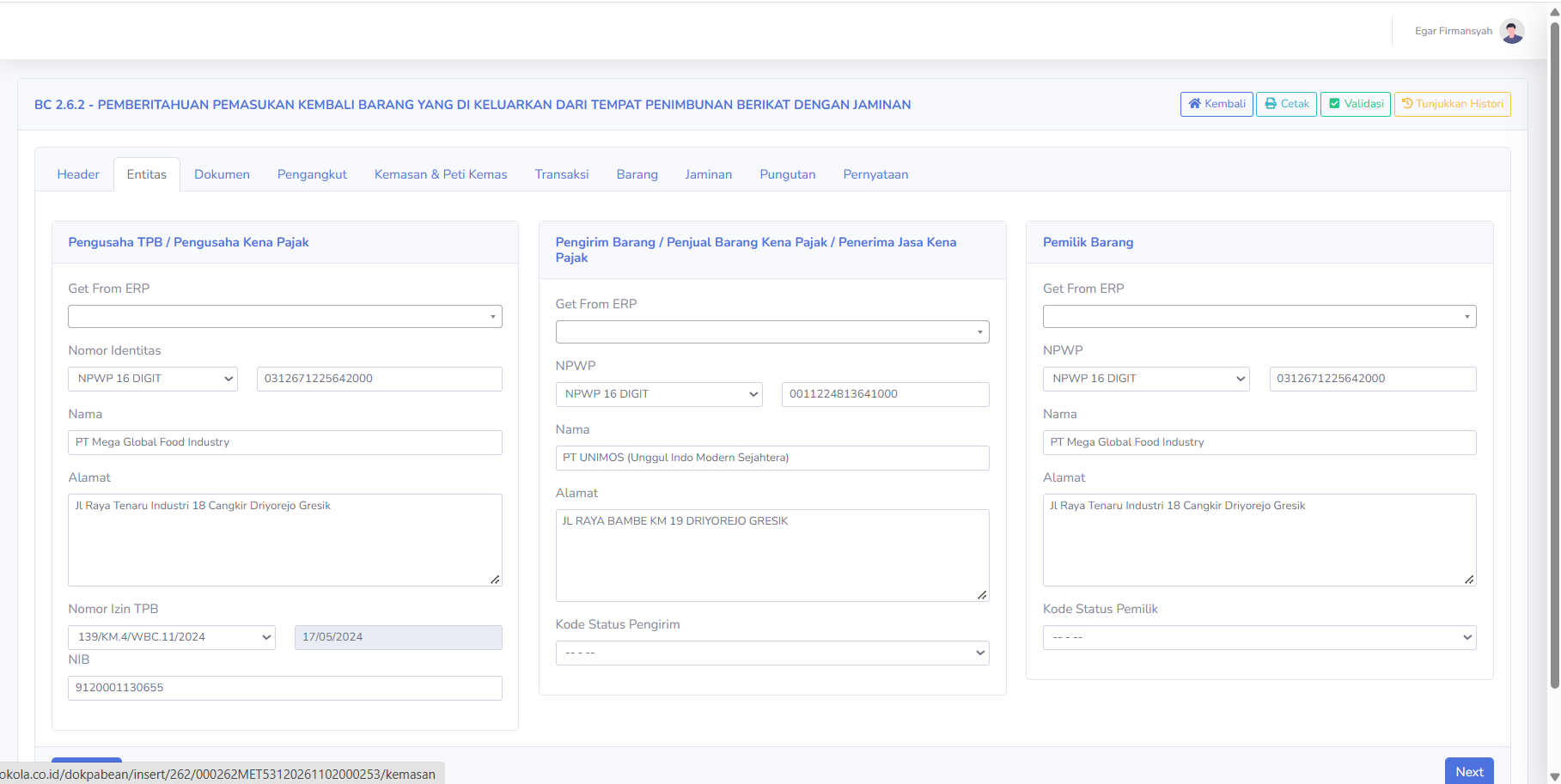
The Entity tab is used to enter and manage the identities of the parties involved in the process of re-importing goods into the TPB. There are three main sections:
TPB Operator / Taxable Business Entity
-
Get From ERP: Retrieves or selects company data from the ERP system
-
Identification Number: Displays the type and number of the company's identification, such as the NPWP.
-
Name: Displays the name of the TPB operator's company
-
Address: Displays the company's address
-
TPB Lincese Number: Displays the TPB facility license number.
-
Lincese Date: Displays the TPB license date.
-
NIB: Displays the business identification number (NIB)
Shipper / Seller of Taxable Goods / Recipient of Taxable Services
-
Get From ERP: Retrieve or select shipper data from the ERP system
-
NPWP: Displays the sender's Taxpayer Identifiction Number
-
Name: Dispalys the name of the comapny or the sender of the goods
-
Address: Displays the sender's address
-
Sender status Code: Displays the sender's status code options according to the application's reference.
Owner of the Goods
-
Get From ERP: retrieves the owner's information from the ERP system.
-
NPWP: Displays the owner's Tax ID Number.
-
Name: Displays the name of the company or party owning the goods.
-
Address: Displays the owner's address.
-
Owner status code: Displays a selection of owner status codes based on the application's reference
This tab is used to ensure that the identities of the TPB Operator, Shipper, and Owner of Goods match the submission data and supporting documents.
Document Tab Description
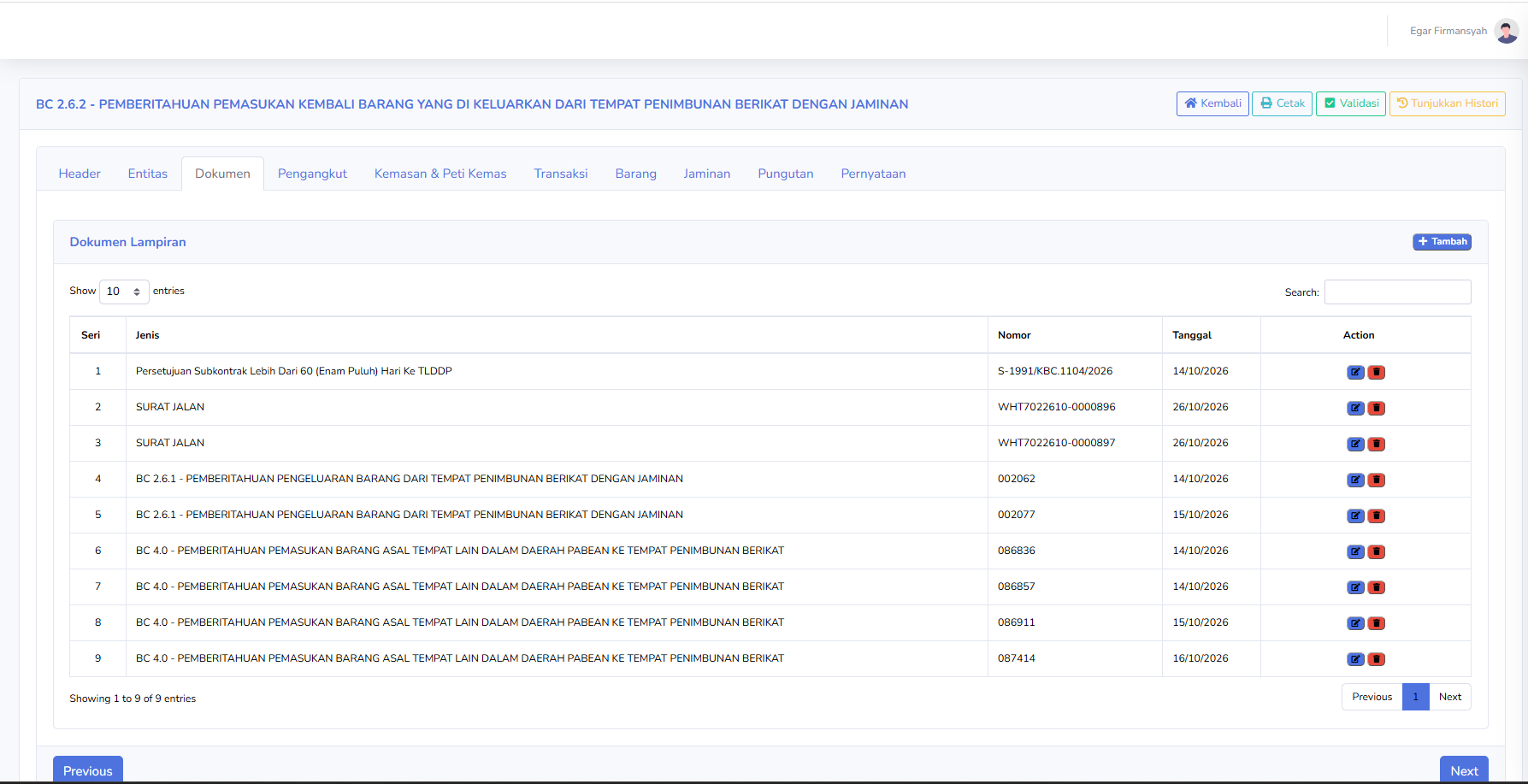
The Document tab is used to manage supporting documents for the process of returning goods to the TPB. The columns available in the table include:
-
Series: Displays the sequential number of the supporting document
-
Type: Display the type of supporting document.
-
Number: Displays the document identification number.
-
Date: Display the document's issuance date.
-
Action: Displays icons for editing or deleting document data
Examples of documents shown in the screenshot:
-
Approval of Subcontracts Exceeding 60 (Sixty) Days to TLDDP: An approval document related to subcontarcting activities.
-
Waybill: Supporting document for the transportation or shipment of goods.
-
BC 2.6.1: Document for the temporary release of goods from the TPB with a guarantee.
-
BC 4.0: Notification document for the entry of goods originating from the TLDDP into the TPB, listed as a reference.
-
Add: Add a new attached document
-
Edit: Modifies attachment data.
-
Delete: Deletes the selected attached document.
-
Search: Searches for the documents by keywords
-
Show Entries: Sets the number of documents displayed.
-
Previous / Next: Navigate between pages of the attchment list.
The screenshot shows nine recorded attached documents.
Note: Document BC 2.6.1 is an important reference for the return of goods that were previously temporarily released. Ensure that the application number, registration number, and details of the returned goods match those in the previous release document.
Carriage Tab Description
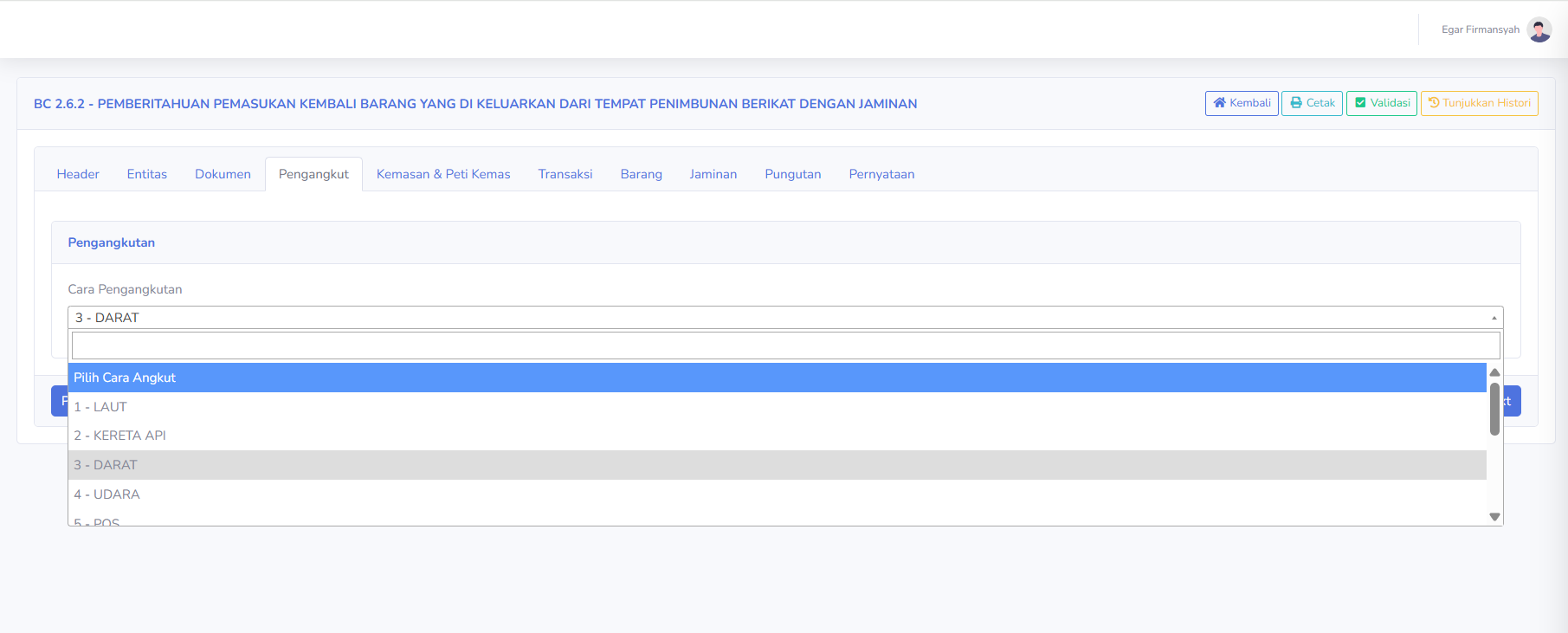
The Carriage tab is used to specify the method of transporting goods that are returned to the TPB. The available sections include:
Transportation Method
Displays options for the mode or method of transporting goods.
Some of the options displayed include:
-
1 - SEA: Transportation via SEA
-
2 - RAIL: Transportation via RAIL
-
3 - LAND: Transportation via LAND
-
4 - AIR: Transportation via AIR
-
5 - MAIL: Transportation via portal service.
In the screenshot, the selected mode of transportation is 3 - LAND.
Users must select the mode of transportation based on the means used in the process of re-importing the goods.
Explanation of the Packaging & Container Tab
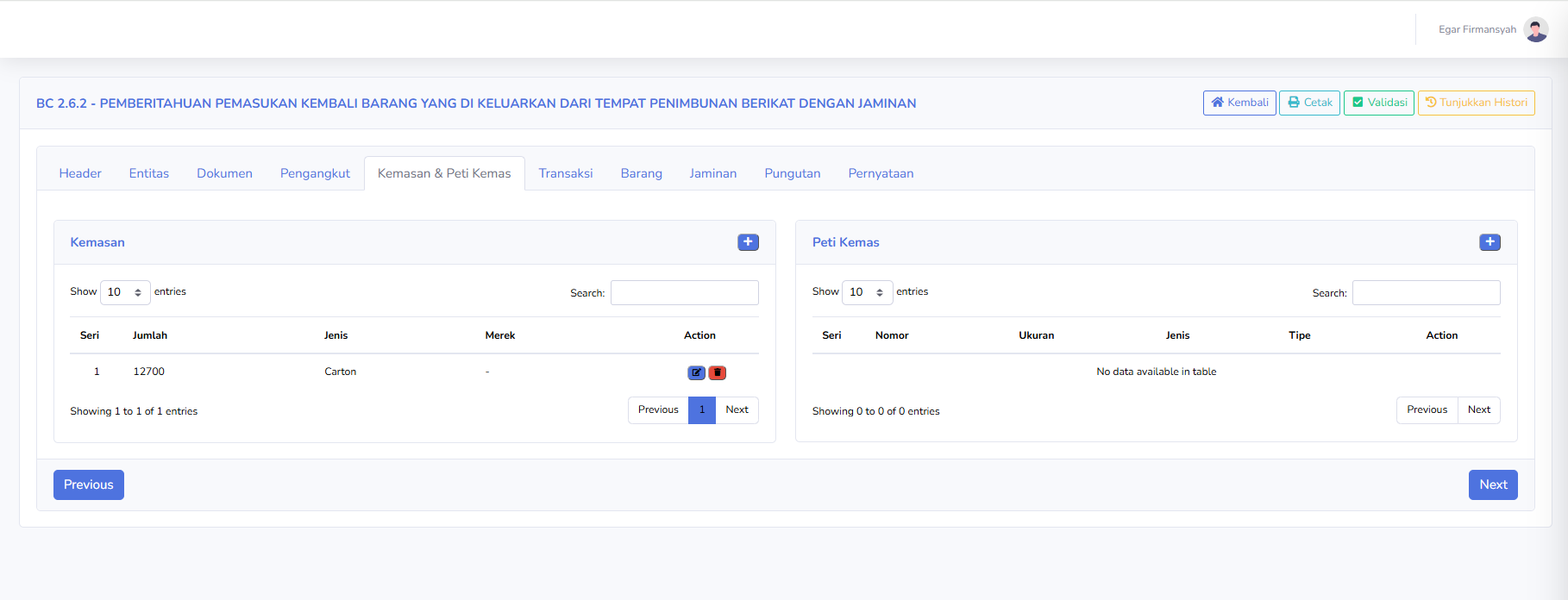
The Packaging & Container tab is used to record packaging and container information related to goods being returned to the TPB. There are two main sections:
Packaging
-
Series: Displays the sequential number of the package
-
Quantity: Displays the number of packages of goods
-
Type: Displays the packaging type.
-
Brand: Displays the brand or packaging label, if available.
-
Action: Displays options to edit or delete packaging data.
The screenshot shows an example of the data:
-
Quantity: 12.700
-
Type: Carton
Container
-
Series: Displays the container's serial number.
-
Number: Displays the shipping container's identification number.
-
Size: Displays the shipping of container's dimensions
-
Type: Displays the shipping container type.
-
Type: Displays the packaging type.
-
Action: Displays options to edit or delete packaging data.
In the screenshot, the Packaging table displays the message “No data available in table,” which means there is no packaging data recorded in that document yet.
Transaction Tab Description
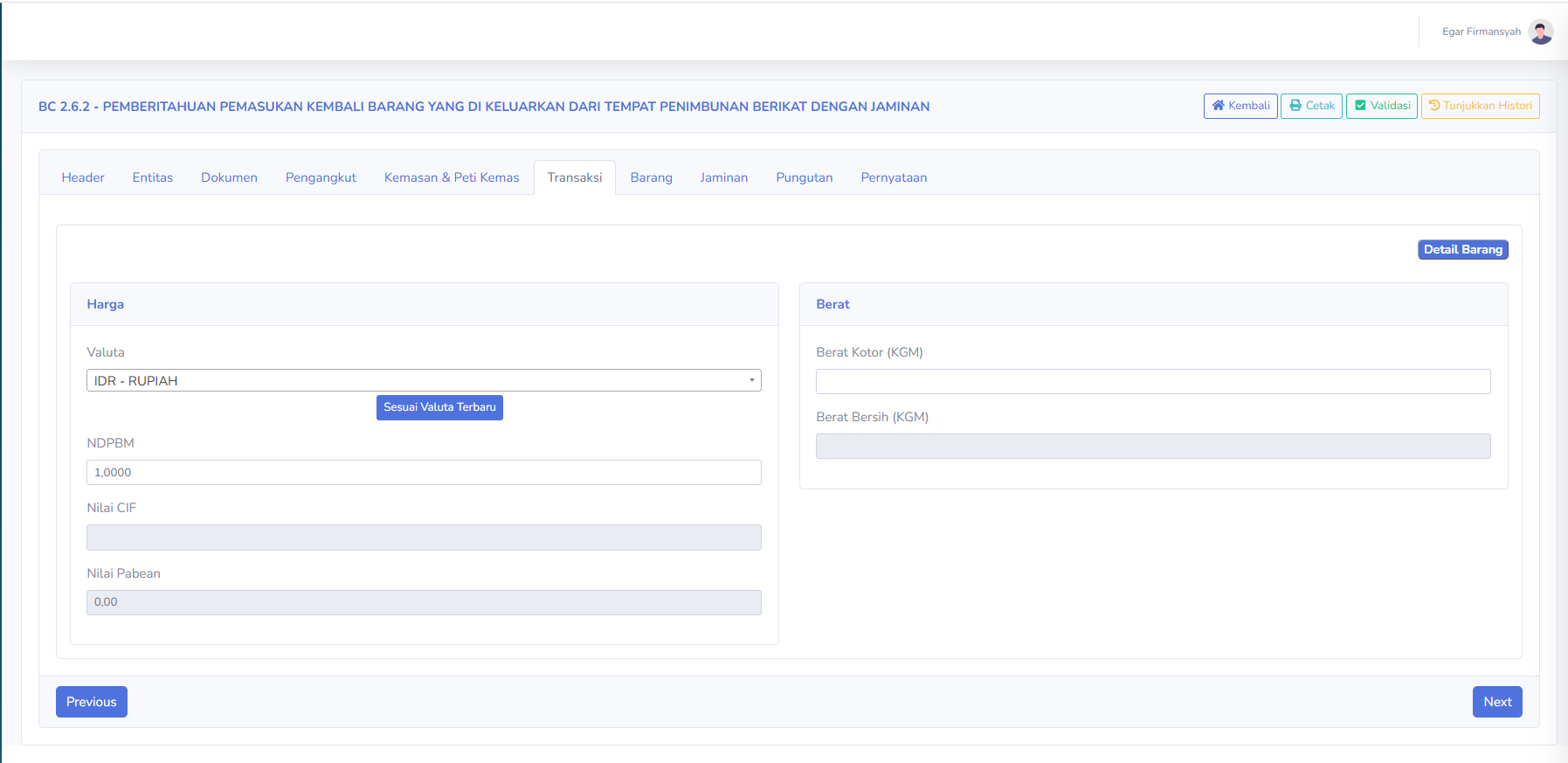
The Transaction tab is used to display and manage information regarding transaction values and the weight of goods re-entered into the TPB. There are two main sections:
Price
-
Currency: Displays the currency used in the transaction, for example IDR-Rupiah.
-
NDPBM: Displays the base value for Import Duty Calculation.
-
CIF Value: Displays the value of the goods based on the Cost, Insurance, and Freight components, if applicable.
-
Customs Value: Displays the value used for customs purpose in accordance with regulations.
-
Update to Latest Currency Rate: Used to update or adjust the currency value based on references avaible in application.
Weight
-
Gross Weight (KGM): Displays the weight of the goods, including packaging, as calculated.
-
Net Weight (KGM): Displays the weight of the goods without packaging.
Additionally, the following button is available:
-
Detail Items: Opens the item details associated with the document
Users must ensure that the transaction value and the weight of the goods match the supporting documents.
Item Tab Description
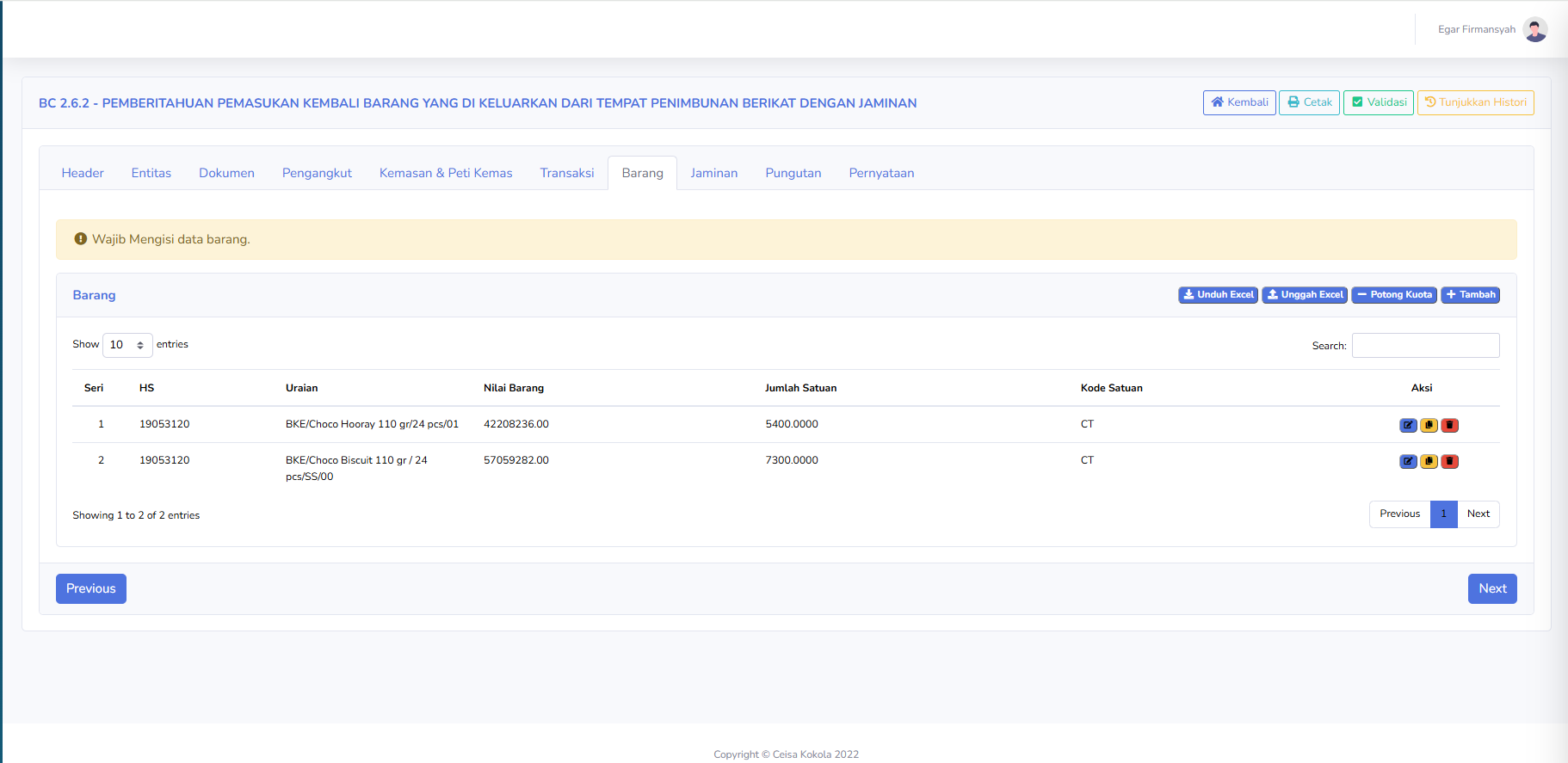
The Item tab is used to manage the list of items re-entered into the TPB. The available columns include:
-
Series: Dsiplays the item's serial number.
-
HS: Displays the Harmonized system code as the item's classification.
-
Description: Displays the name, Type, or description of the item.
-
Item Value: Menampilkan nilai setiap barang. Display the value of each item.
-
Quantity: Displays the quantity of items based on the unit od measure used.
-
Unit Code: Menampilkan kode satuan barang. Display the unit code for the item
-
Action: Display action options such as editing, copying, or deleting item data based on the application icons.
-
Download Excel: Download the data or excel format provided bythe app.
-
Upload Excel: Uploads product data via an excel file.
-
Quota Deduction: Runs features related to qouta management aacording to the system.
-
Add: Add a new product data.
Pada screenshot terlihat dua baris barang dengan kode HS yang sama, tetapi uraian dan jumlah satuannya berbeda.
Pada bagian atas juga terdapat notifikasi:
Wajib Mengisi data barang.
Notifikasi tersebut mengingatkan pengguna agar memastikan rincian barang telah diisi dengan lengkap dan sesuai.
Pengguna perlu mencocokkan uraian, jumlah, nilai, serta referensi barang dengan dokumen BC 2.6.1 yang digunakan saat pengeluaran sementara.
Penjelasan Tab Jaminan
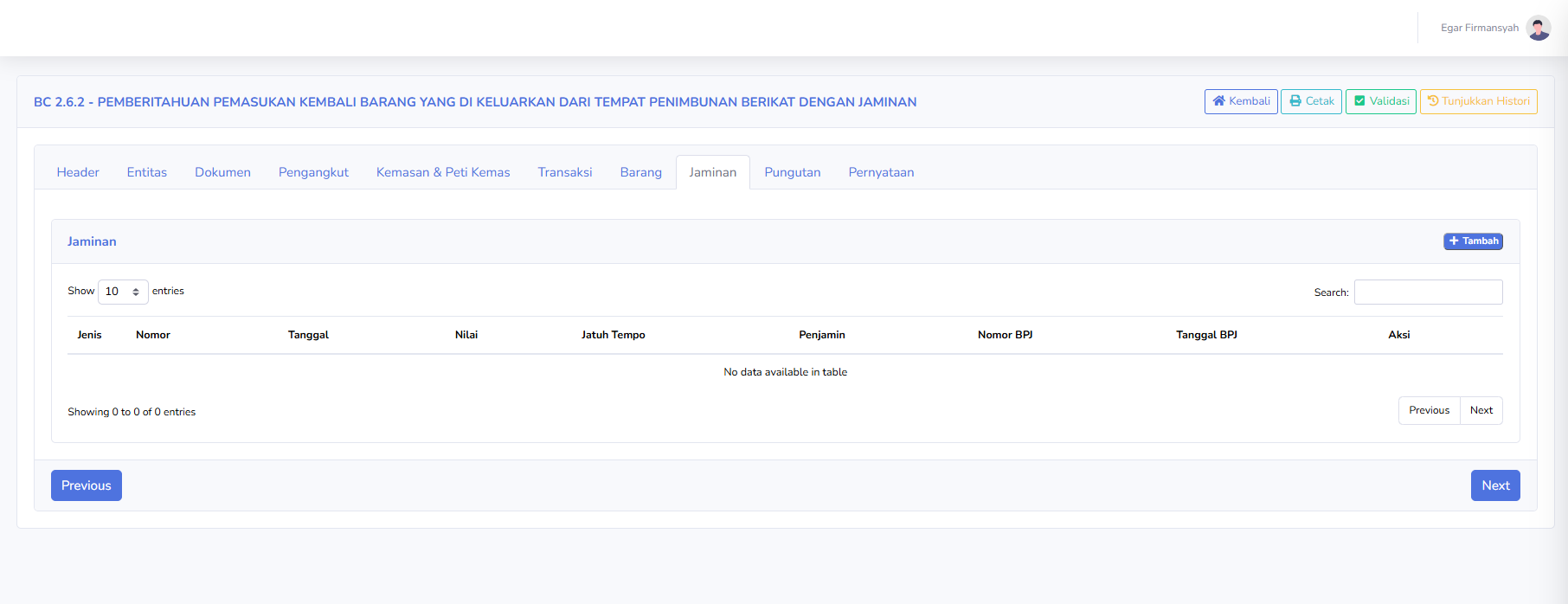
Tab Jaminan digunakan untuk mencatat informasi jaminan yang berkaitan dengan proses pemasukan kembali barang eks pengeluaran sementara. Kolom yang tersedia meliputi:
-
Jenis: Menampilkan jenis jaminan yang digunakan.
-
Nomor: Menampilkan nomor dokumen jaminan.
-
Tanggal: Menampilkan tanggal dokumen jaminan.
-
Nilai: Menampilkan nominal jaminan.
-
Jatuh Tempo: Menampilkan batas waktu berlaku atau jatuh tempo jaminan.
-
Penjamin: Menampilkan pihak yang memberikan jaminan.
-
Nomor BPJ: Menampilkan nomor Bukti Penerimaan Jaminan.
-
Tanggal BPJ: Menampilkan tanggal Bukti Penerimaan Jaminan.
-
Aksi: Menampilkan pilihan tindakan terhadap data jaminan.
Tombol yang tersedia:
-
Tambah: Menambahkan data jaminan baru.
Pada screenshot, tabel Jaminan masih kosong dan menampilkan keterangan No data available in table.
Tab ini membantu pengguna mengelola informasi jaminan yang terkait dengan dokumen pemasukan kembali barang.
Penjelasan Tab Pungutan
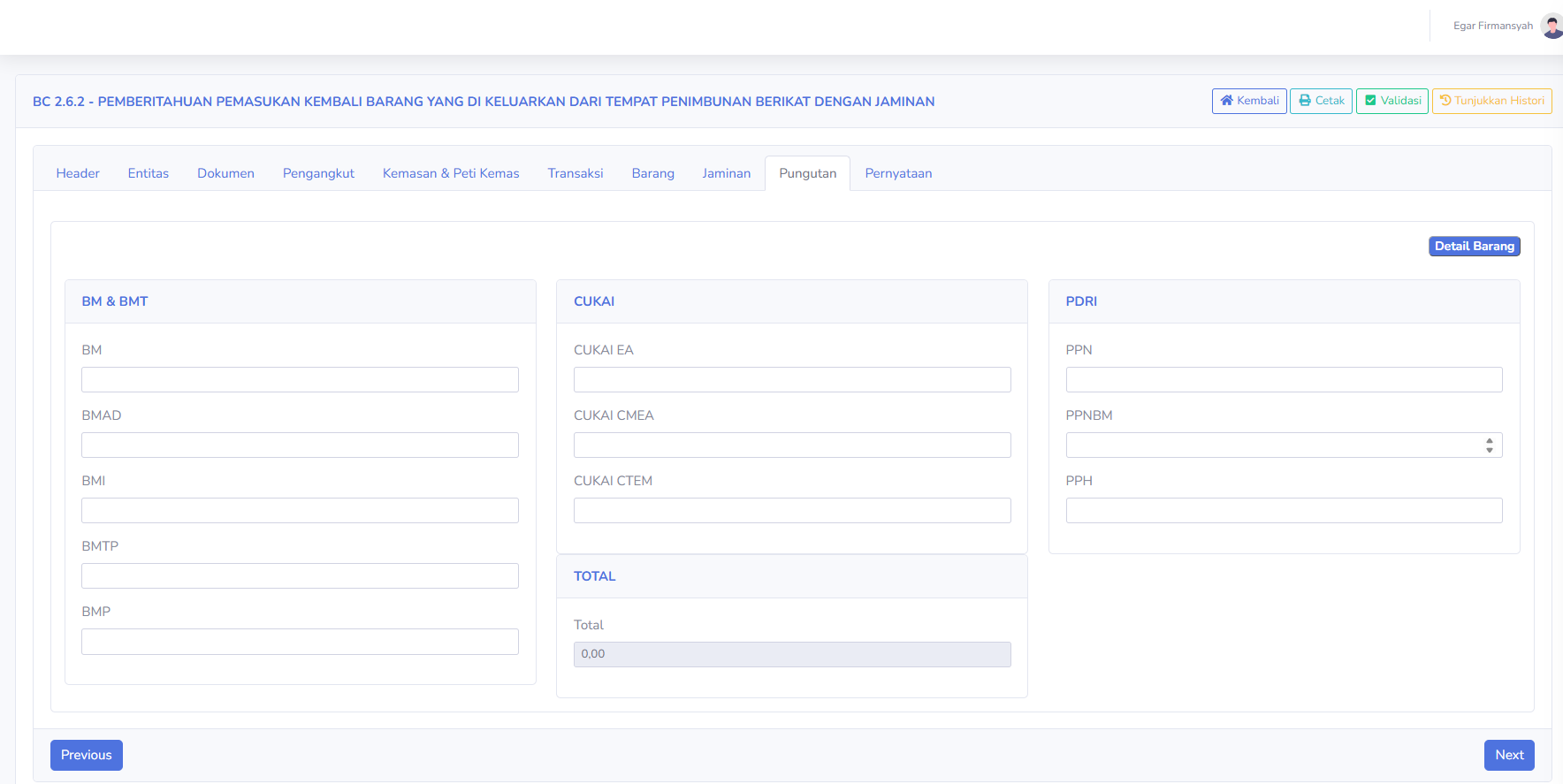
Tab Pungutan digunakan untuk menampilkan informasi komponen pungutan kepabeanan dan perpajakan yang berkaitan dengan dokumen BC 2.6.2. Bagian yang tersedia meliputi:
BM & BMT
-
BM: Bea Masuk.
-
BMAD: Bea Masuk Anti-Dumping.
-
BMI: Bea Masuk Imbalan.
-
BMTP: Bea Masuk Tindakan Pengamanan.
-
BMP: Bea Masuk Pembalasan.
CUKAI
-
Cukai EA: Komponen cukai etil alkohol.
-
Cukai CMEA: Komponen cukai minuman mengandung etil alkohol.
-
Cukai CTEM: Komponen cukai hasil tembakau.
PDRI
-
PPN: Pajak Pertambahan Nilai.
-
PPnBM: Pajak Penjualan atas Barang Mewah.
-
PPh: Pajak Penghasilan yang berkaitan dengan kegiatan impor apabila berlaku.
TOTAL
-
Total: Menampilkan jumlah hasil perhitungan komponen pungutan.
Selain itu, tersedia tombol Detail Barang untuk melihat informasi rincian barang.
Pada screenshot, nilai Total yang ditampilkan adalah 0,00. Nilai tersebut perlu diperiksa kembali berdasarkan status pengisian, perhitungan, dan ketentuan dokumen.
Penjelasan Tab Pernyataan
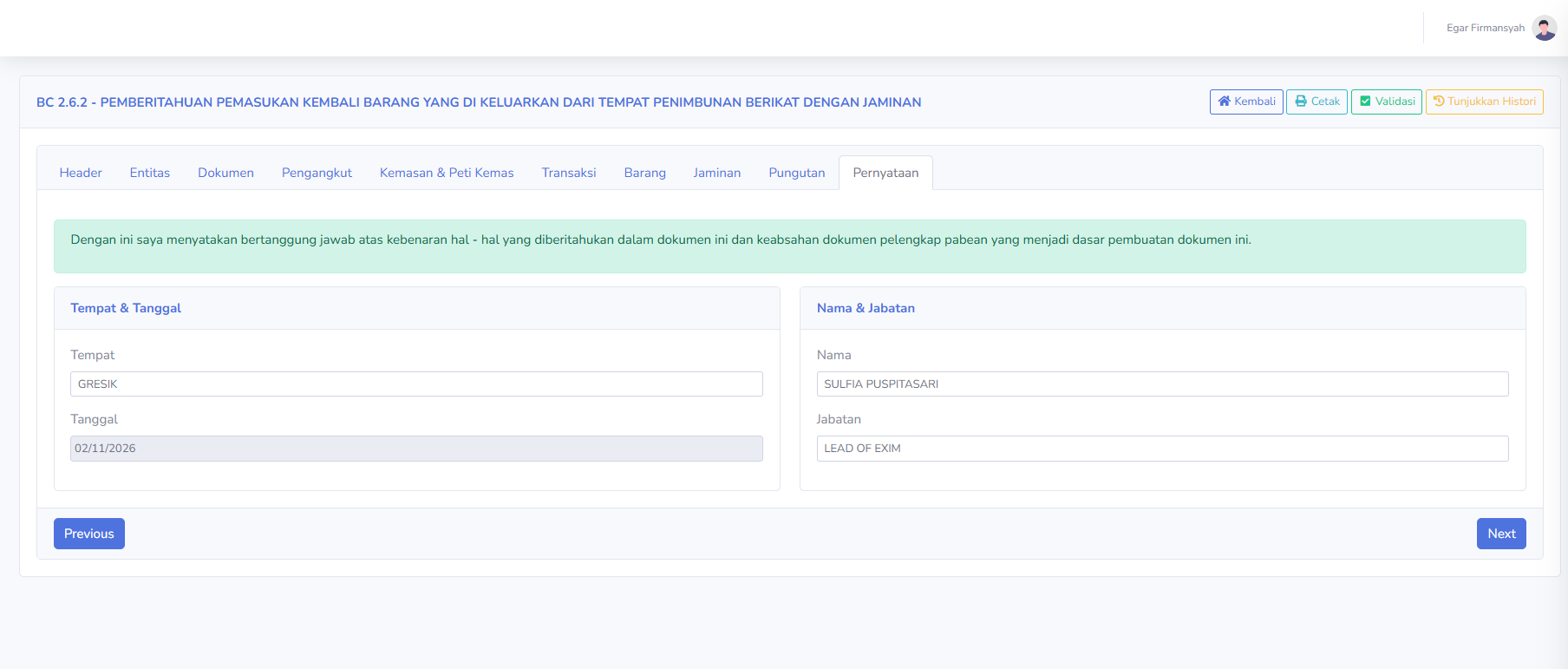
Tab Pernyataan digunakan untuk melengkapi informasi penanggung jawab dokumen BC 2.6.2. Pada bagian atas terdapat pernyataan tanggung jawab atas kebenaran data yang diberitahukan dan keabsahan dokumen pelengkap pabean.
Bagian yang tersedia meliputi:
Tempat & Tanggal
-
Tempat: Menampilkan lokasi pembuatan atau penandatanganan pernyataan.
-
Tanggal: Menampilkan tanggal pernyataan dokumen.
Nama & Jabatan
-
Nama: Menampilkan nama penanggung jawab dokumen.
-
Jabatan: Menampilkan jabatan penanggung jawab dalam perusahaan.
Pengguna perlu memastikan bahwa nama, jabatan, tempat, dan tanggal telah sesuai dengan data pihak yang berwenang.
Penjelasan Fitur Tunjukkan Histori
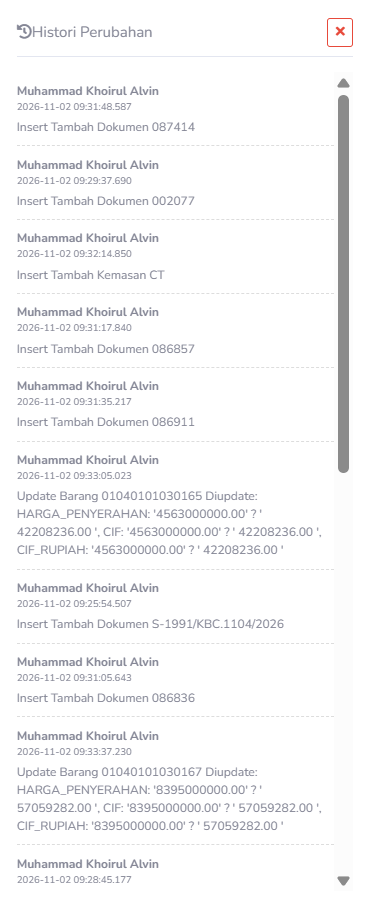
Fitur Tunjukkan Histori digunakan untuk menampilkan riwayat aktivitas atau perubahan data dokumen yang tercatat dalam sistem CEISA Kokola. Ketika tombol diklik, aplikasi menampilkan panel Histori Perubahan.
Informasi yang tersedia meliputi:
-
Nama Pengguna: Menampilkan pengguna yang melakukan aktivitas pada dokumen.
-
Tanggal dan Waktu: Menampilkan waktu aktivitas atau perubahan dilakukan.
-
Jenis Aktivitas: Menampilkan proses yang dilakukan, seperti penambahan dokumen, perubahan data barang, atau penambahan kemasan.
-
Detail Perubahan: Menampilkan informasi data yang ditambahkan atau diperbarui apabila dicatat oleh sistem.
Contoh aktivitas yang terlihat pada screenshot:
-
Insert Tambah Dokumen: Menunjukkan aktivitas penambahan dokumen lampiran.
-
Insert Tambah Kemasan: Menunjukkan aktivitas penambahan data kemasan.
-
Update Barang: Menunjukkan aktivitas perubahan informasi barang, termasuk nilai transaksi yang diperbarui.
Pada panel tersedia tombol X untuk menutup tampilan histori.
Fitur ini membantu pengguna melakukan penelusuran perubahan data, pemeriksaan aktivitas pengguna, dan pengecekan riwayat pengelolaan dokumen.
Catatan: Histori Perubahan pada aplikasi merupakan catatan aktivitas internal sistem. Tidak semua aktivitas yang tercatat di dalamnya merupakan respons resmi dari Bea Cukai.
Instructions for Use
Notes
- BC 2.6.2 is used for the re-entry of goods that were previously temporarily removed from the TPB.
- The BC 2.6.2 document is related to BC 2.6.1, which is used in the temporary removal process.
- Ensure that the BC 2.6.1 reference matches the goods being re-entered.
- Review the approval documents and supporting documents before submission.
- Use the Application Number to facilitate document retrieval.
- The Application Number and Registration Number serve different purposes.
- Ensure that the identities of the shipper, owner, and TPA operator are correct.
- Check the number of packages, item details, HS codes, value, and unit of measure.
- Ensure that the guarantee document has been included in accordance with transaction requirements.
- Any duty amounts that are left blank or show 0.00 must be checked before submission.
- Check the “Declaration” section to ensure the responsible party’s information is correct.
- The “New” status indicates that the document is in the initial stage based on the application indicators.
- Application validation does not automatically mean the document has received official approval from Customs.
- Ensure that a response from Customs has been received before concluding that the re-entry process is complete.
- Use the Change History feature to track document management activities.
- Use internal features such as “Update to ERP,” “Multi Backup,” and “Quota Deduction” in accordance with company procedures.