BC 2.6.1
Customs Documents Module Guide
Module Location:
CEISA > Customs Documents > BC 2.6.1
Purpose
The BC 2.6.1 form is used for the temporary release of imported goods and/or goods originating from elsewhere within the customs territory from a Bonded Warehouse (TPB) to Another Location Within the Customs Territory (TLDDP). This document is used when goods are temporarily released from the TPB and may subsequently be re-entered into the TPB via the BC 2.6.2 form.
How to Open
- Log in to the CEISA app.
- Select the Customs Documents menu.
- Click the BC 2.6.1 submenu.
- The system displays the Document List page.
Page Display
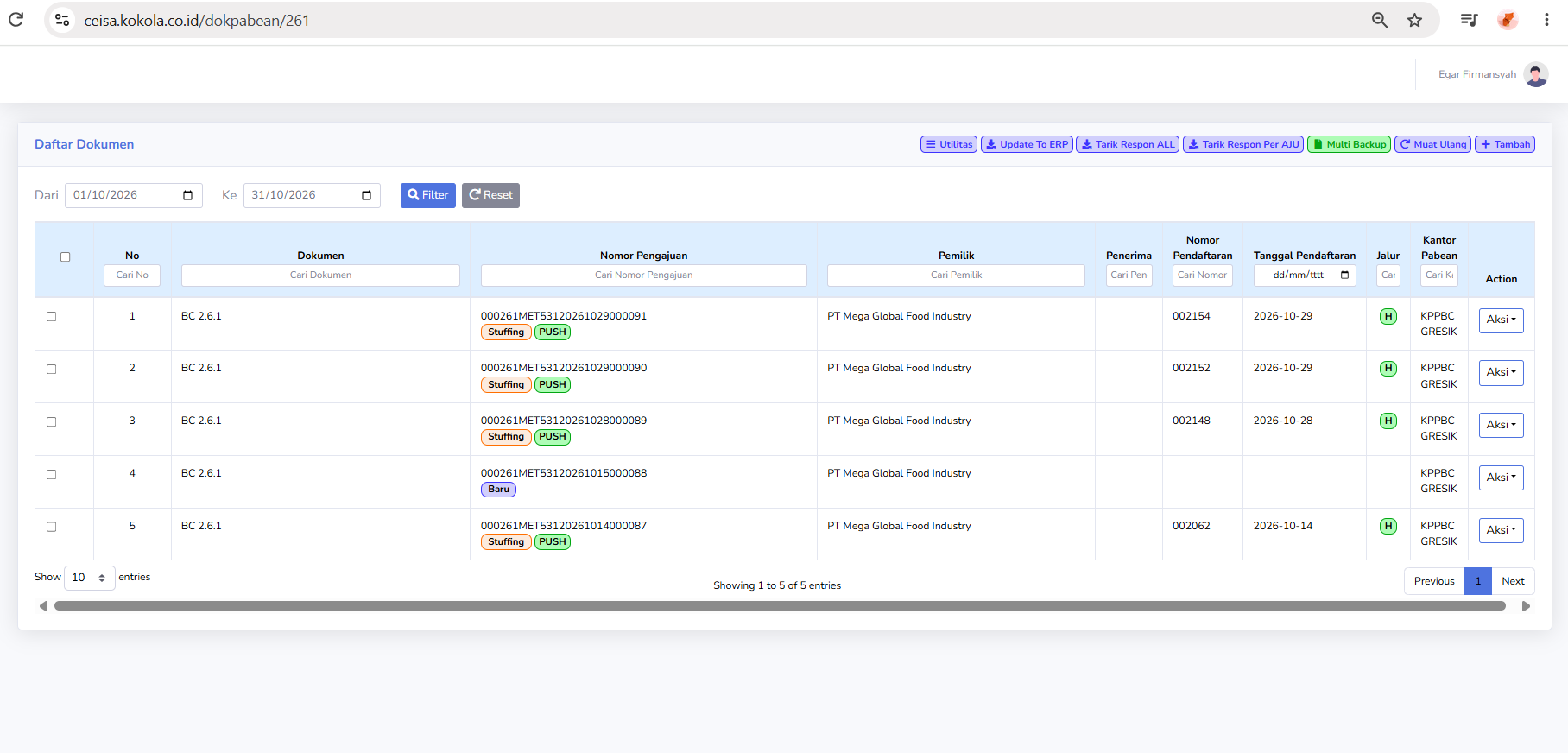
The main page displays a list of BC 2.6.1 documents created within a specific time period. At the top, there are date filters, utility buttons, a synchronization button, a response retrieval button, and a button to add a new document.
Each row in the table displays key document information, such as document type, submission number, owner, recipient, registration number, registration date, route, customs office, and an “Actions” button.
Column Descriptions
The columns available on the document list page include:
- Checkbox: Used to select specific documents if the system supports bulk selection.
- No.: Displays the sequential number of the data in the table.
- Document: Displays the document type, namely BC 2.6.1.
- Submission Number: Displays the identification number of the document submission.
- Owner: Displays the name of the company or party owning the goods.
- Recipient: Displays the party receiving the goods.
- Registration Number: Displays the document’s registration number from the customs system.
- Registration Date: Displays the document’s registration date.
- Channel: Displays the service or inspection channel for the document.
- Customs Office: Displays the Customs and Excise office handling the document.
- Action: Displays a button to initiate further actions on the document.
The table header also includes individual search columns, allowing users to search for data by document, application number, owner, recipient, registration number, or customs office.
Button Descriptions on the List Page.
- Filter: Displays documents based on the selected period.
- Reset: Resets the filter to its default settings.
- Utilities: Opens additional features available in the module.
- Update to ERP: Used to update or synchronize document data with the ERP system.
- Retrieve ALL Responses: Retrieves or updates customs responses for all relevant documents.
- Retrieve Response by AJU: Retrieves responses based on a specific application number.
- Multi Backup: Backs up multiple documents at once.
- Reload: Refreshes the document list view.
- Add: Creates a new BC 2.6.1 document.
- Actions: Opens options for further actions on the document.
Status and Workflow Explanations
In the Application Number column, the system may display process status labels, such as:
- New: Indicates that the document is still in the initial stage or has just been created.
- Stuffing: Indicates that the document is in a specific process stage according to the application workflow.
- PUSH: Indicates that data is being sent or synchronized within the application.
In the “Path” column, the system displays service path indicators, for example:
- H: Generally indicates the Green Path.
- Other paths may appear depending on the customs system’s response.
Note: Status names such as New, Stuffing, and PUSH are labels that appear in the CEISA Kokola application. Their detailed operational meanings must be aligned with business processes and official system responses.
Table Navigation Explanation
At the bottom of the table, you’ll find the following features:
- Show entries: Sets the number of data rows displayed.
- Previous: Go to the previous page.
- Next: Go to the next page.
- Showing x to y of z entries: Displays the number of data entries currently shown.
- Horizontal scrollbar: Used to scroll the table if not all columns are visible on the screen.
Document Edit Page
When a user opens a document using the Action button, the system displays the BC 2.6.1 document details or edit page. At the top of the edit page are the following buttons:
- Back: Return to the previous page.
- Print: Print the document.
- Validate: Checks the completeness and accuracy of the document data.
- Show History: Displays the process history or document history.
The edit page contains several tabs, namely:
- Header

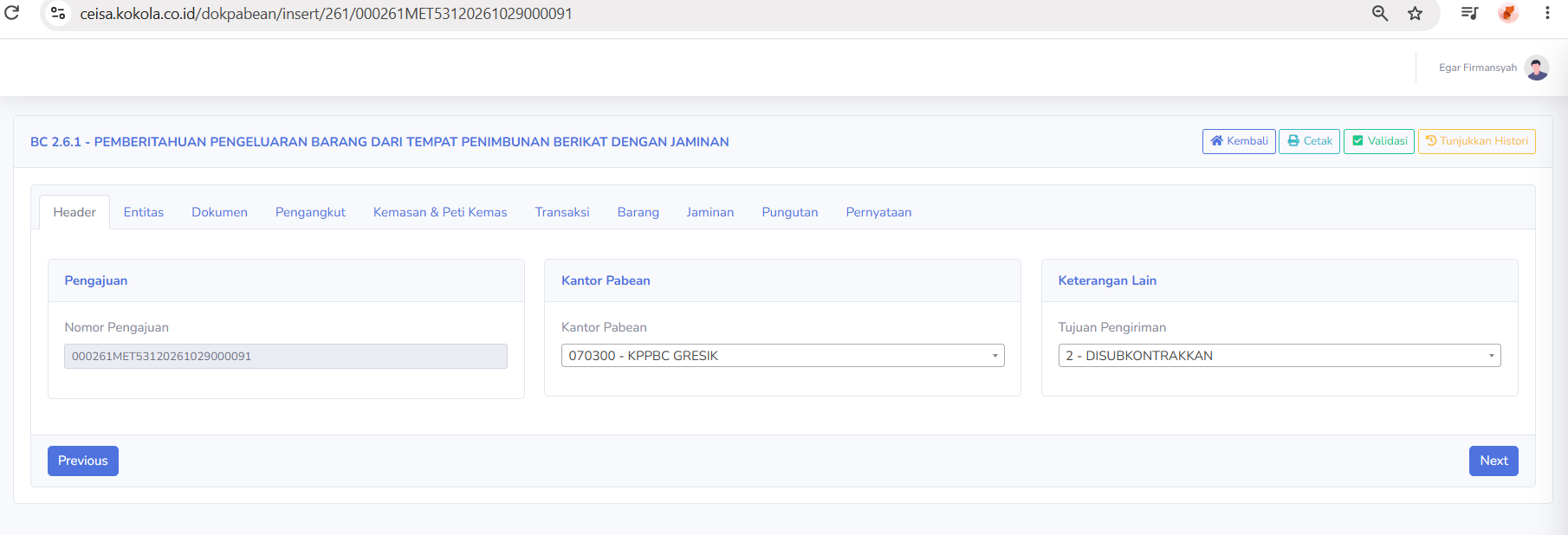
The Header tab is used to display general data regarding BC 2.6.1 document submissions.
The available sections include:
-
Submission
Submission Number: Displays the document submission identification number.
Customs Office
Customs Office: Displays the Customs and Excise office where the document was registered.
-
Additional Information
Shipment Purpose: Displays the purpose of the temporary release of goods, such as subcontracting or other purposes as required by the transaction.
This tab serves as a basic summary of the document, which will be continued on the next tab.
-
- Entity

Tab Entitas digunakan untuk mengisi dan menampilkan data pihak-pihak yang terkait dalam transaksi pengeluaran sementara barang. Terdapat tiga bagian utama:
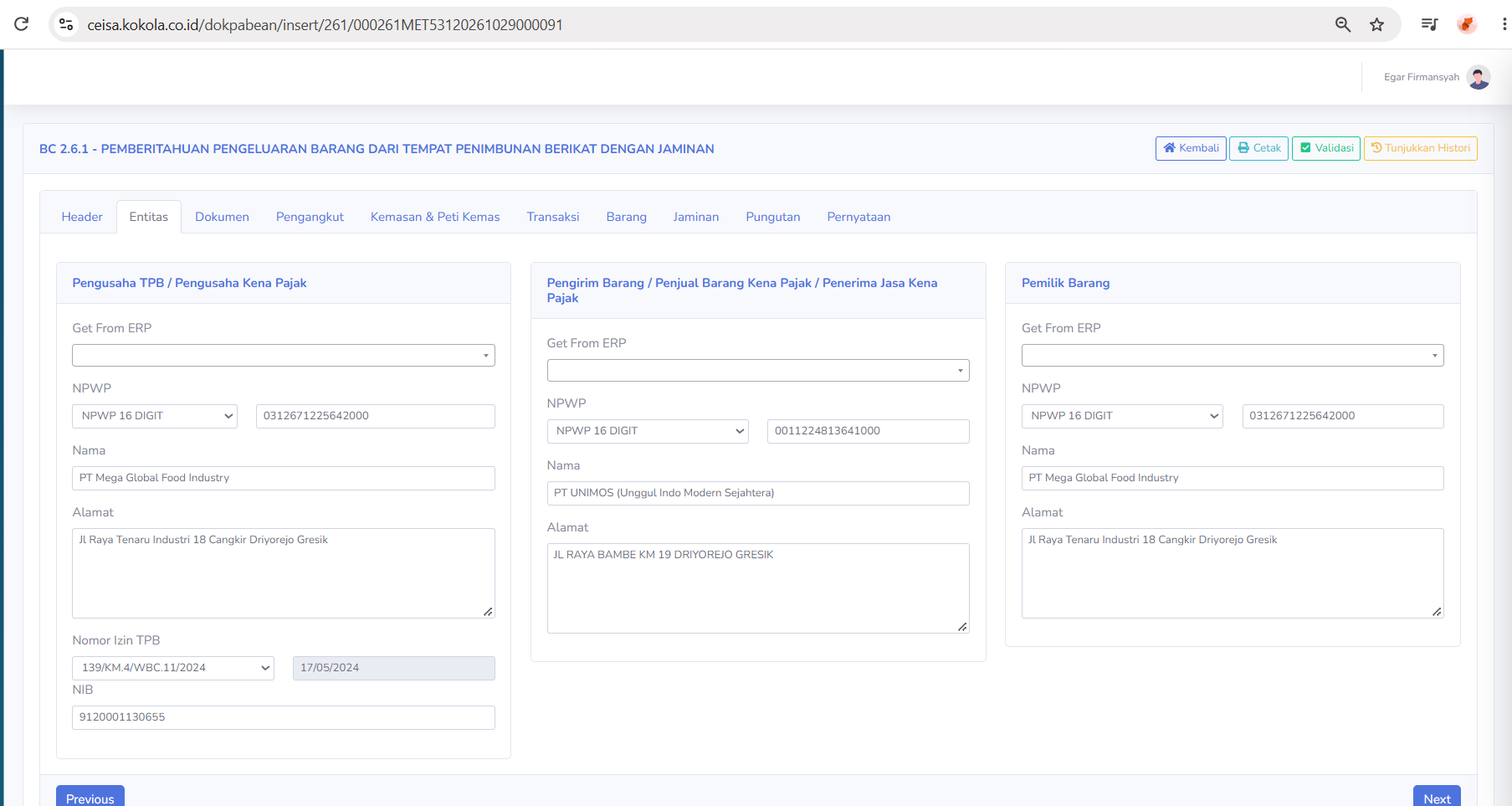
- TPB Business Owner / Taxable Business Owner
Available columns include:
-
Get From ERP
- NPWP
- Name
- Address
- TPB License Number
- Permit Date
- NIB
This section is used to display the identity of the TPB managing company.
-
- Shipper / Seller of Taxable Goods / Recipient of Taxable Services
The available fields include:
- Get From ERP
- Tax ID Number (NPWP)
- Name
- Address
This section is used to enter information about the shipper or the party involved in the shipment of goods.
- Item Owner
Available fields include:- Get From ERP
- Tax ID Number
- Name
- Address
This section is used to record the owner of goods that have been temporarily released.
- Document

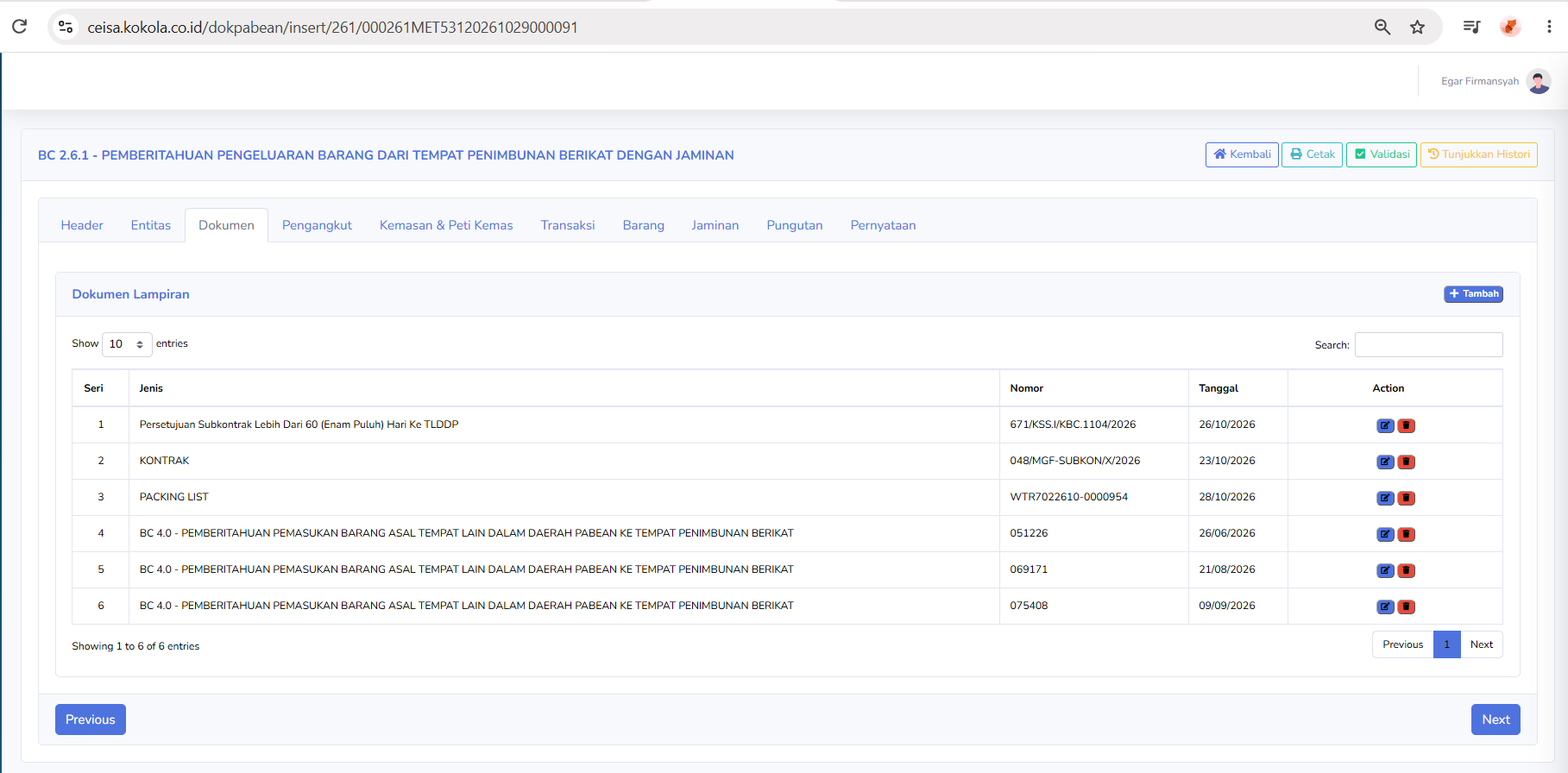
The Documents tab is used to manage attached documents or supplementary customs documents that support the BC 2.6.1 submission.
Available columns include:
- Series
- Type
- Number
- Date
- Action
Examples of documents shown in the screenshot include:
-
Approval of Subcontracts Exceeding 60 (Sixty) Days to TLDDP
- Contract
- Packing List
-
BC 4.0 - Notification of Import of Goods Originating from Another Location Within the Customs Area into a Bonded Warehouse
Available buttons:
- Add : a new attached document
-
Edit Icon: Modifies attachment data.
-
Delete Icon: Deletes attachment data.
- Search : Search for a specific attachment.
- Show entries : Adjust the number of records displayed in the table.
This tab is used to verify that the supporting documents for temporary export are complete.
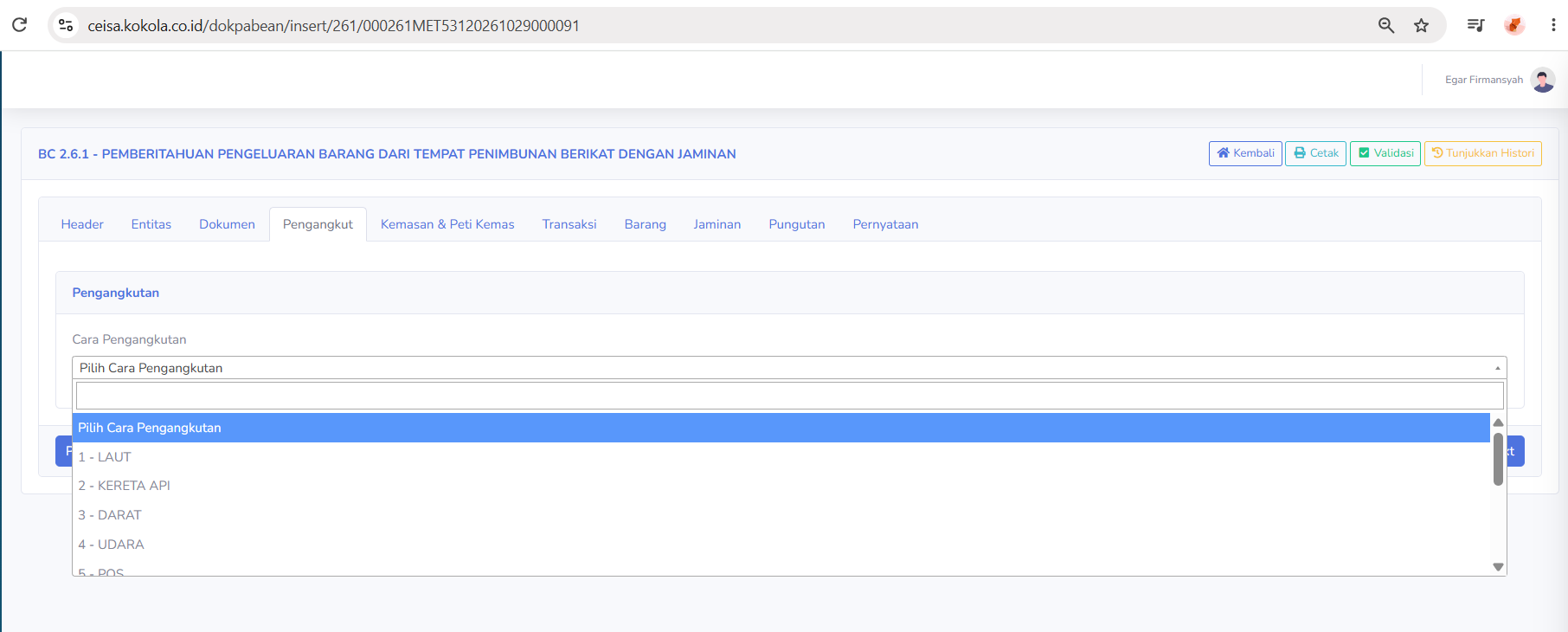
- Carrier

The Shipping tab is used to specify the method of shipping goods.
Available sections include:
Shipping MethodThis dropdown displays several options, such as:
- 1 - SEA
- 2 -RAIL
- 3 - ROAD
- 4 - AIR
- 5 - MAIL
-
and other options as listed in the system.
Users select the shipping method based on the mode of transportation used during the temporary release of goods.
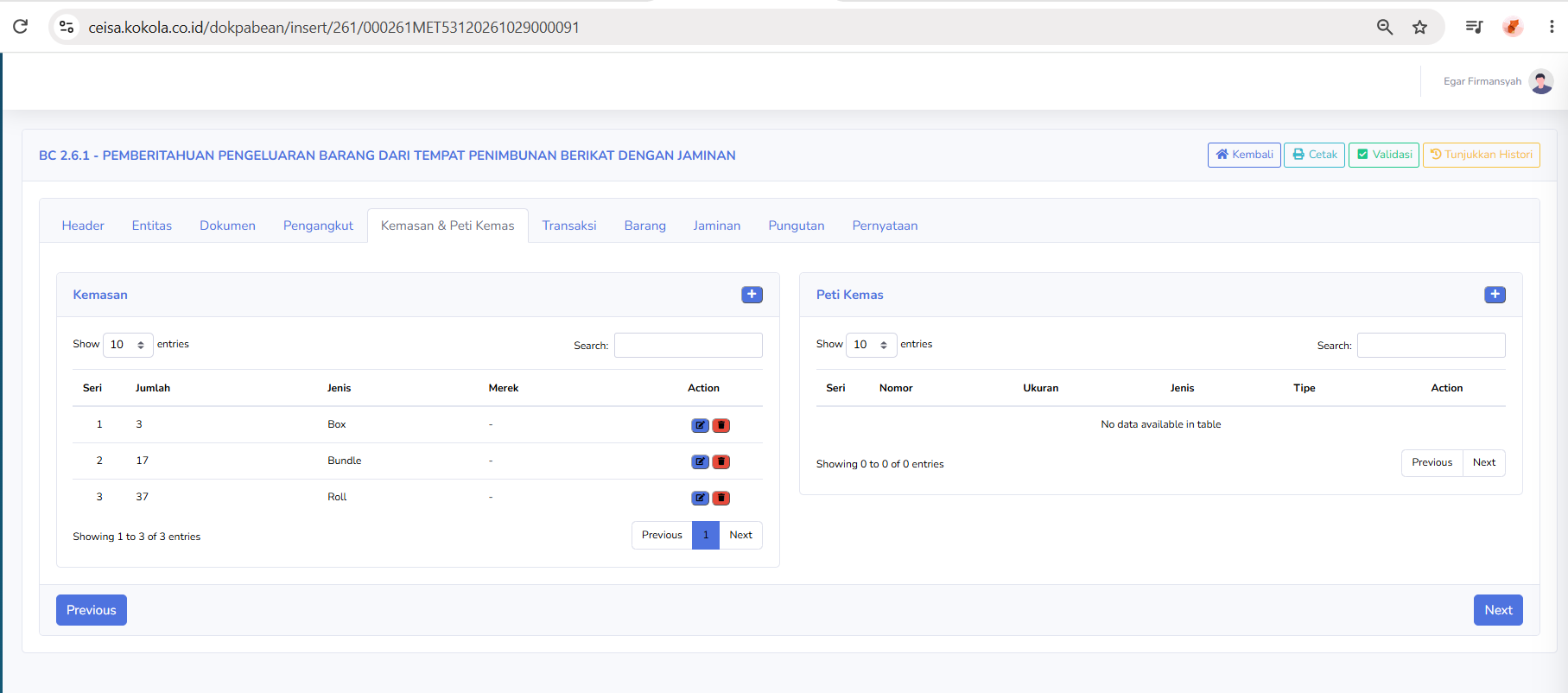
- Packaging & Containers

The Packaging & Containers tab is used to record data on product packaging and containers.
There are two main sections:
Packaging
Available columns:
- Series
- Quantity
- Type
- Brand
- Action
The screenshot shows an example of packaging data:
- Box
- Bundle
- Roll
The Add (+) button is used to add new packaging data.
Container
Available columns:
- Series
- Number
- Size
- Type
- Class
- Action
In the screenshot, this section displays the message “No data available in table,” which means no container data has been entered yet.
This tab is used to record the packaging types of items being shipped.
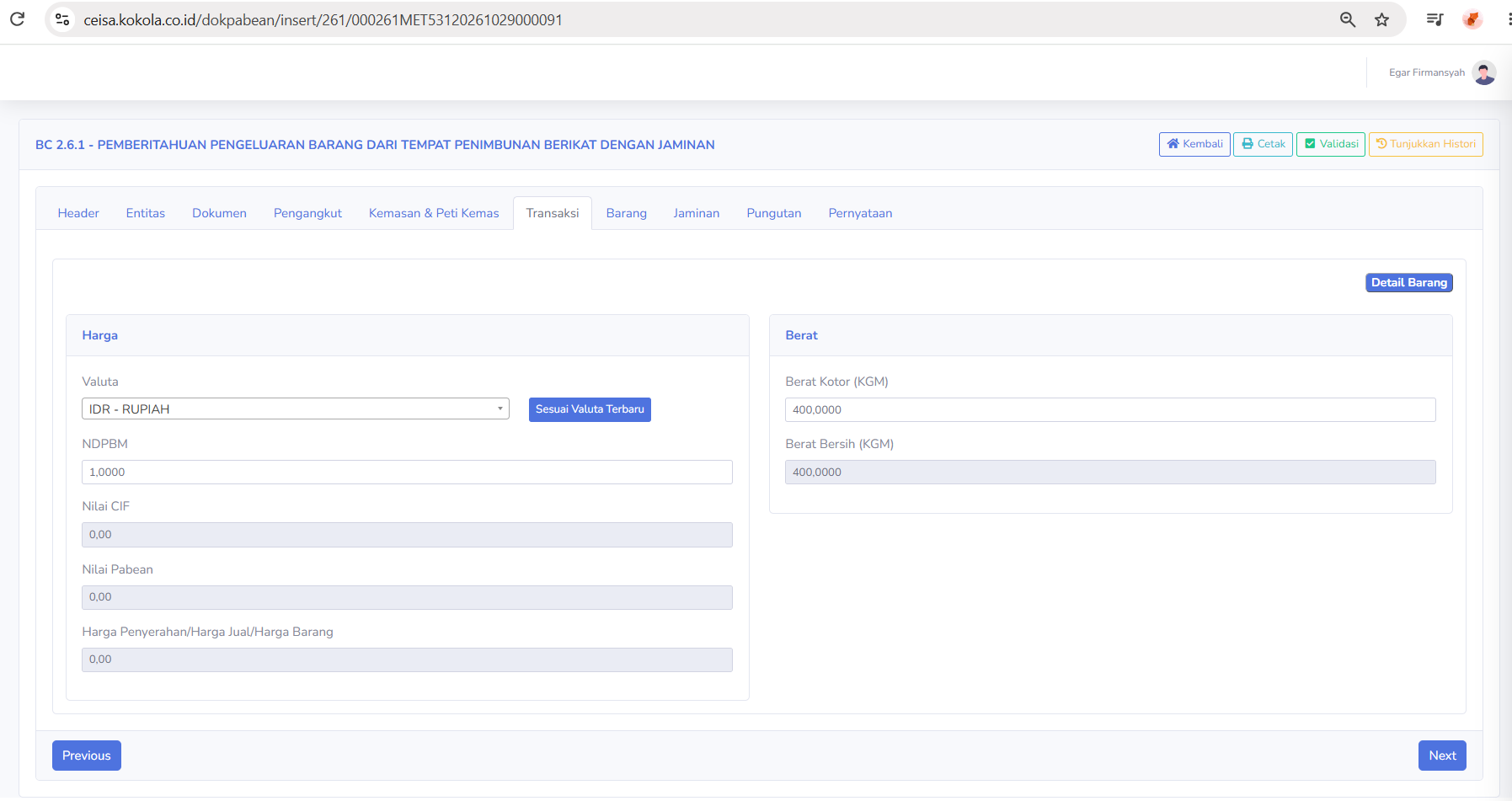
- Transaction

The Transactions tab is used to enter transaction value and item weight data.
Available fields include:
Price
- Currency
- NDPBM
- CIF Value
- Customs value
- Delivery Price / Selling Price / Item Price
Button:
-
Update to Latest Exchange Rate: used to adjust the exchange rate or currency value used
Weight
- Gross Weight (KGM)
- Net Weight (KGM)
There is also a “Item Details” button to view details of the items associated with the transaction.
This tab helps users ensure that the value and weight of the goods match the transaction documents.
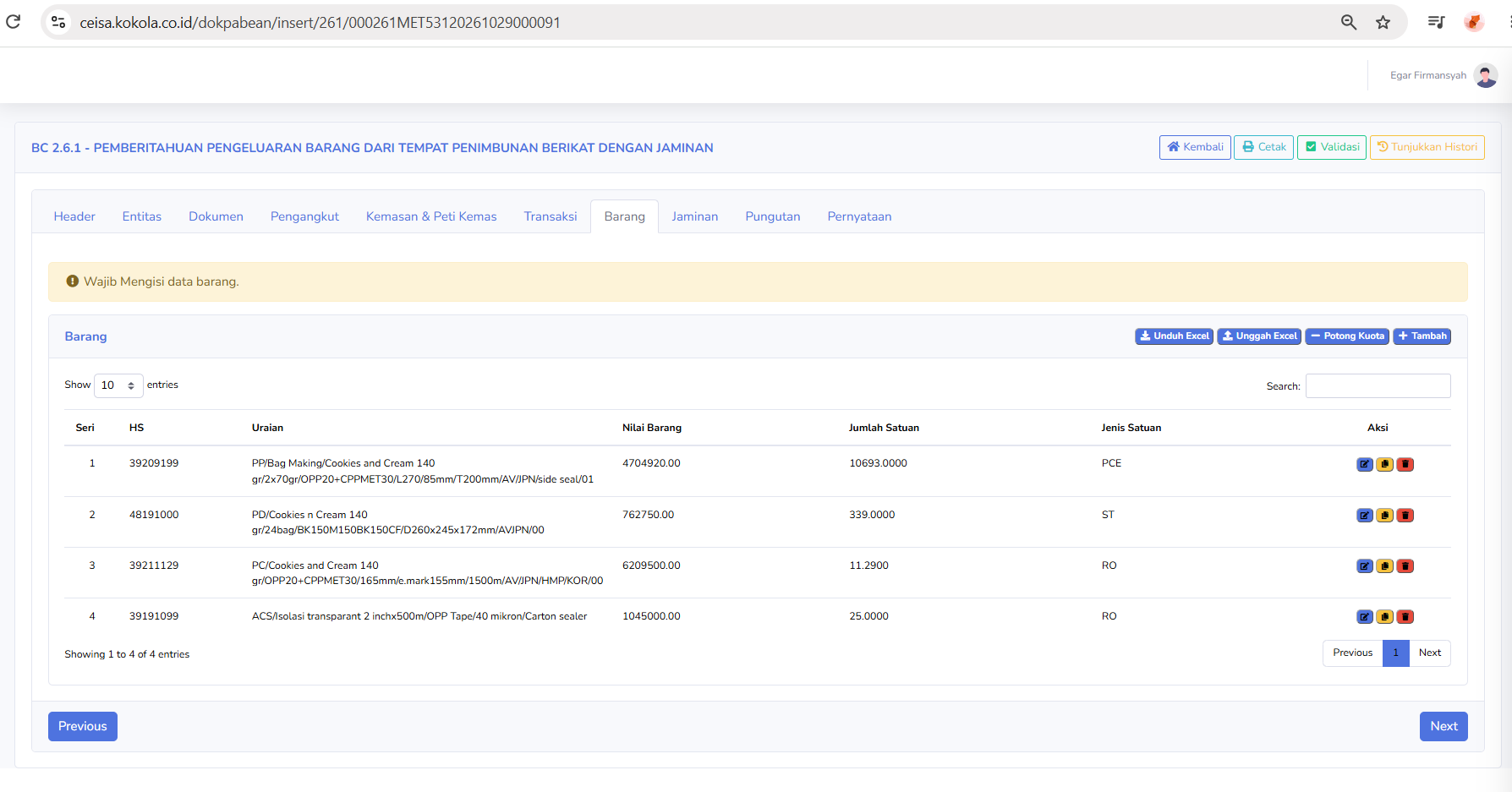
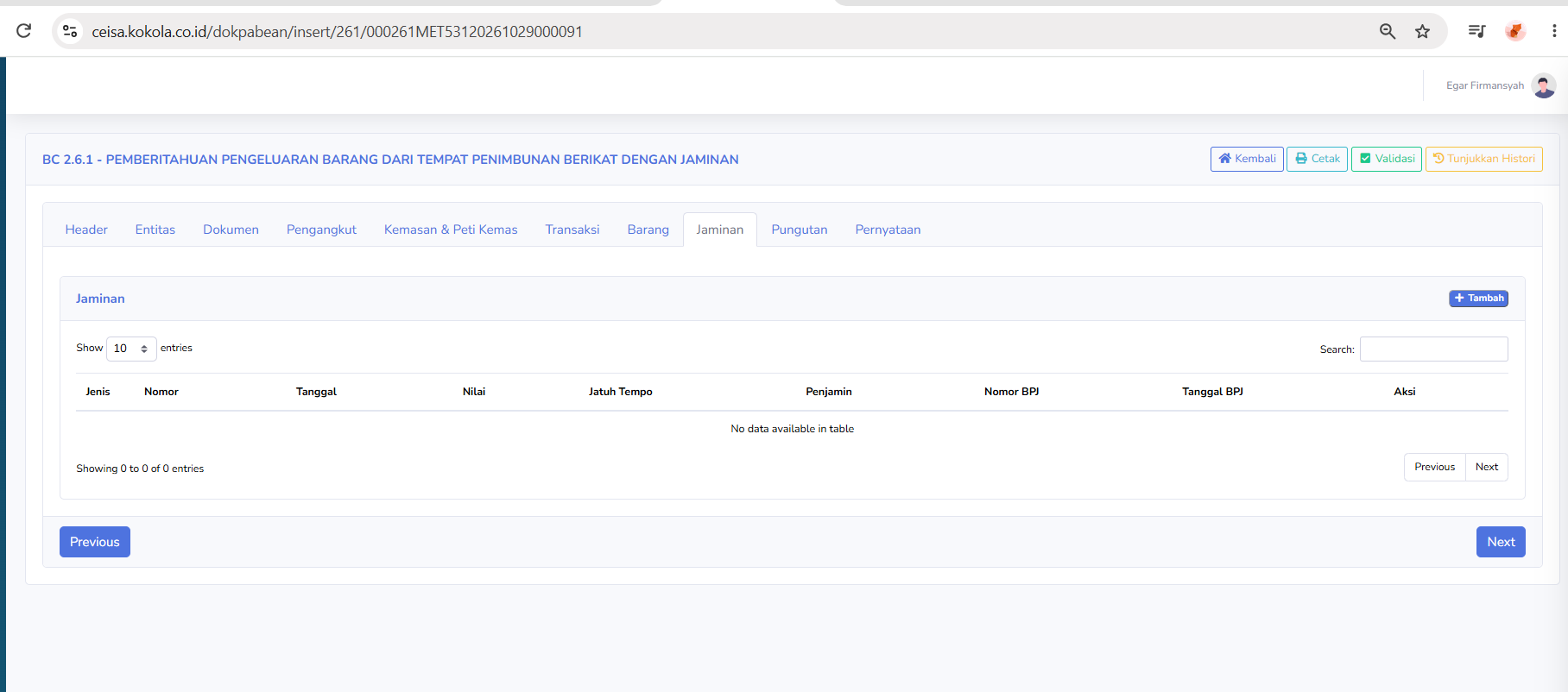
- Collateral

The Items tab is used to manage details of items temporarily removed from the TPB.
The columns in the items table include:
- Series
- HS
- Description
- Item Value
- Quantity
- Unit Type
- Action
The buttons available on this tab include:
- Download Excel : Download the item template or data in excel format
- Upload Excel :Upload item data via an excel file
- Deduct Quota: Runs quota-related processes as required by the system
- Add: Add a new items
A notification may also appear at the top:
-
Item data must be filled in.
This notification indicates that item data must be completed or reviewed before proceeding to the next step.
- levy

The Collateral tab is used to record collateral data related to the temporary release of goods from the TPB.
The columns available in the collateral table include:
- Type
- Number
- Date
- Value
- Due Date
- Guanrantor
- BPJ Number
- BPJ Date
- Action
Available buttons:
-
Add: Adds new collateral data.
In the screenshot, the table is still empty and displays “No data available in table.”
This tab is used when a transaction requires the entry of collateral data in accordance with regulations.
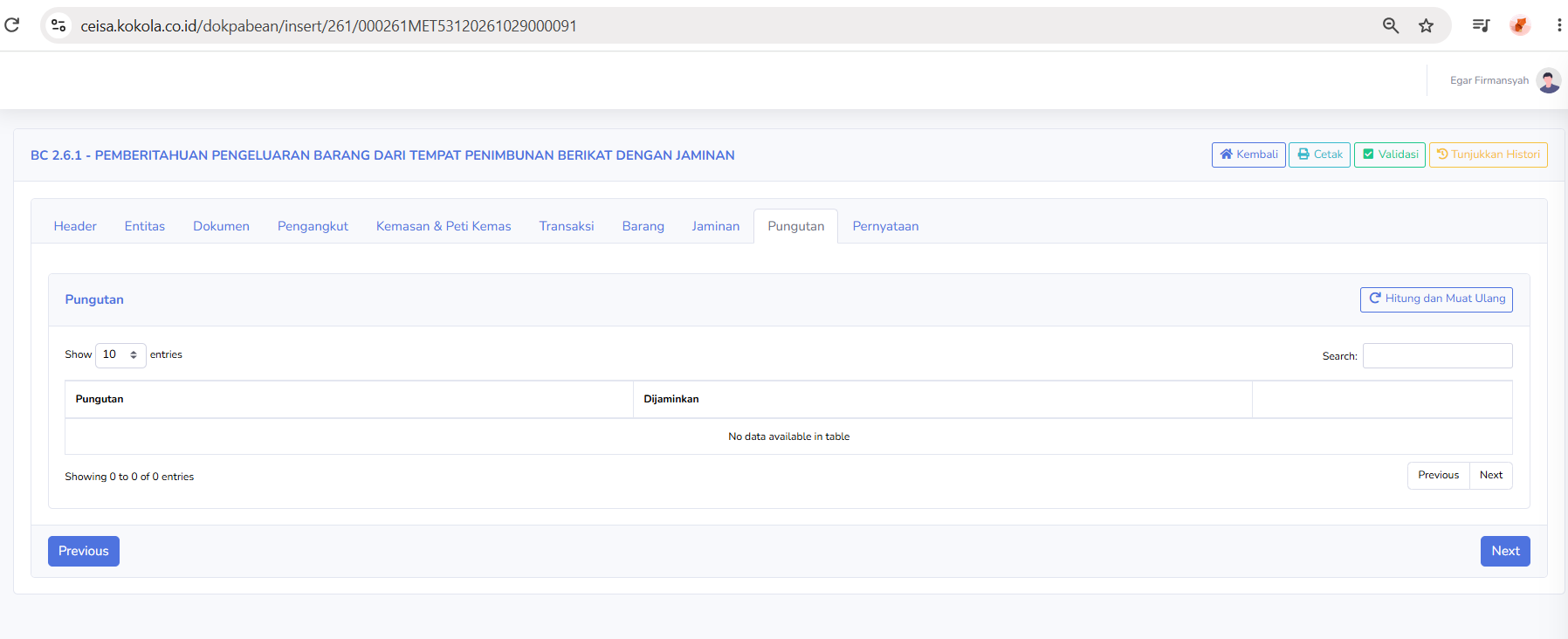
- Fees

The Fees tab is used to display or calculate fees related to BC 2.6.1 documents.
Available columns include:
- Fees
-
Guaranteed
Available buttons:
-
Calculate and Reload: Used to recalculate fees and refresh the table display.
In the screenshot, the table is still empty and displays “No data available in table.”
This tab is used to view the amounts of fees guaranteed in provisional expenditure transactions.
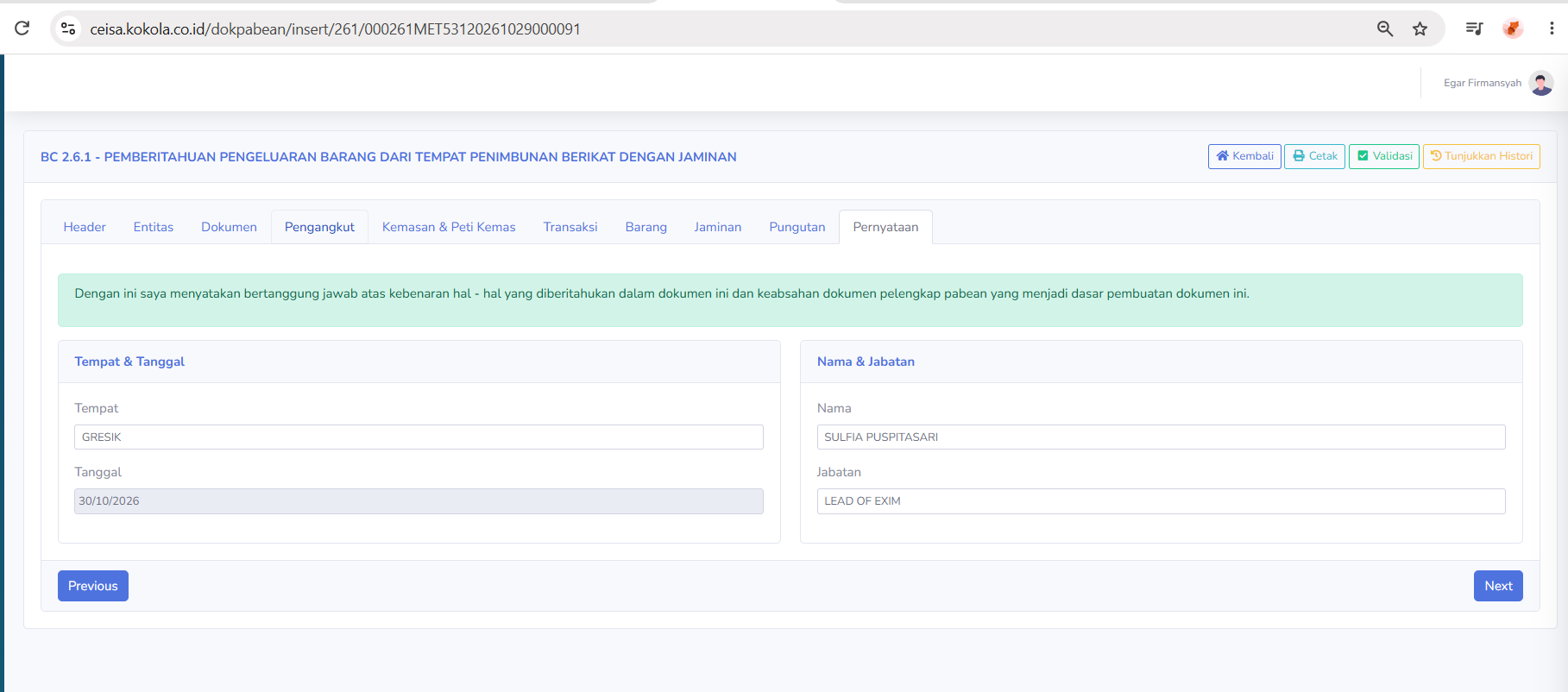
- Statement

The Declaration tab is used to complete the declaration by the person responsible for the document.
At the top, there is a statement that the user is responsible for the accuracy of the document’s content and the validity of the supporting customs documents on which the document is based.
The available sections include:
Place & Date
- Place
- Date
Name & Position
- Name
- Position
This tab must be completed with the information of the authorized official or responsible party.
At the bottom of the page, the following buttons are also available:
- Previous: Go to the previous tab.
- Next :Vo to the next tab.
Instructions for Use
Notes
- BC 2.6.1 is used for the temporary export of goods from a bonded warehouse to another location within the customs territory.
- This document is paired with BC 2.6.2, which is the document for the re-entry of goods previously exported under temporary export to the bonded warehouse.
- According to the official filing instructions, each BC 2.6.1 declaration is intended for a single transaction involving the release of goods under bond, but may include more than one type of goods.
- Ensure that entity data, attached documents, goods details, and declaration data are fully completed before validating the form.
- Use data from valid supporting documents to avoid errors in filling out the form.
- If the system displays a notification that goods data is required, double-check the Goods tab.
- Data on the Security and Levies tabs must be adjusted according to the transaction and applicable regulations.
- The use of features such as “Update to ERP,” “Retrieve Response,” and “Multi Backup” must follow the company’s internal procedures.