BC 2.5
Customs Documents Module Guide
Module Location:
CEISA > Customs Documents > BC 2.5
How to Access
- Log in to the CEISA Kokola application.
- Select the Customs Documents menu.
- Click the BC 2.5 submenu.
- The system displays the Document List page.
Page Display
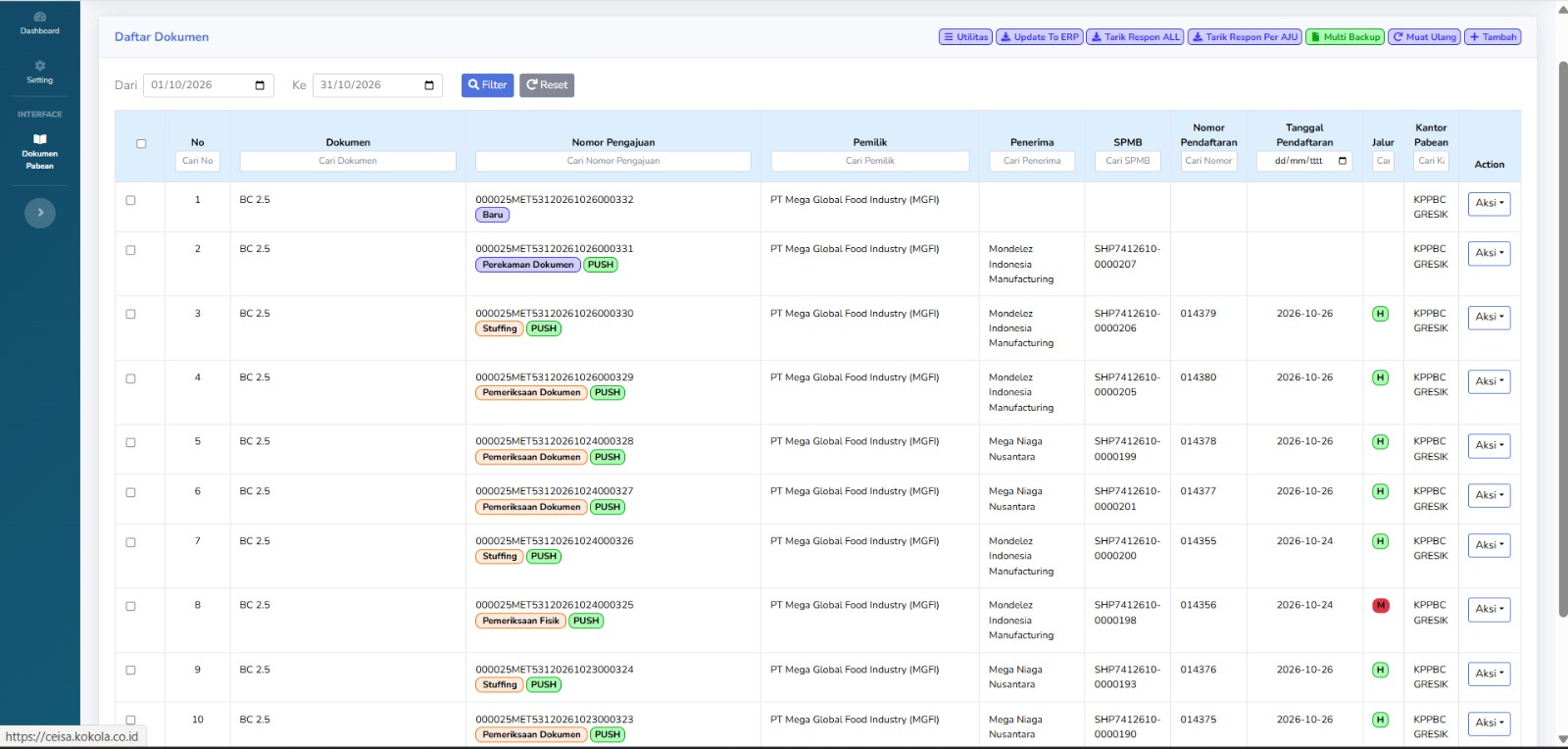
The main page displays a list of BC 2.5 document submissions for goods release activities from the TPB. Each row displays document information, such as submission number, owner, recipient, SPMB, registration number, registration date, route, customs office, and processing status. The page layout consists of a period filter, a document table, a search column, utility buttons, and an action menu.
Column Descriptions
Available columns include:
- Checkbox: Select one or more documents for actions that support bulk selection.
- No: Displays the document’s sequential number in the list.
- Document: Displays the type of customs document, namely BC 2.5.
- Submission Number: Displays the AJU number as the document submission identifier.
- Owner: Displays the name of the company or party owning the goods.
- Recipient: Displays the name of the company or party receiving the goods.
- SPMB: Displays the SPMB reference number related to the goods release transaction. The abbreviation and source of this number must be aligned with the Kokola system.
- Registration Number: Displays the document’s registration number from the customs process.
- Registration Date: Displays the document’s registration date.
- Channel: Displays the indicator for the customs service or supervision channel.
- Customs Office: Displays the Customs Office handling the document.
- Action: Displays options for further actions regarding the document.
Button Descriptions
- Filter: Displays documents based on the selected date range.
- Reset: Restores search settings to their default state.
- Utilities: Opens a menu of additional features for document management.
- Update to ERP: Updates or synchronizes document data with the company’s ERP system.
- Retrieve ALL Responses: Retrieves or updates customs responses for a number of documents.
- Retrieve Response by AJU: Retrieves or updates responses based on a specific application number.
- Multi Backup: Backs up multiple documents according to the application’s features.
- Reload: Refreshes the document list view.
- Add: Opens the process for creating a new BC 2.5 document.
- Actions: Displays additional actions for the selected document.
Status and Process Explanation
In the Application Number column, there are several indicators that show the document processing stages:
- New: Indicates that the document is in the initial stage or has just been created.
- Document Entry: Indicates that the document is in the data entry stage.
- Document Review: Indicates the document review or investigation stage.
- Physical Inspection: Indicates the stage related to the physical inspection of goods.
- Stuffing: Indicates the stage of loading or arranging goods into a transport vehicle.
- PUSH: An application indicator believed to be related to the data transmission or synchronization process.
In the Lane column, the following indicators are displayed:
- H (Green): Believed to indicate the Green Lane, which is a service lane that generally does not require routine physical inspection, except under certain conditions.
- M (Red): Believed to indicate the Red Lane, which is a service lane that requires physical inspection in accordance with customs regulations.
Note: Statuses such as New, Stuffing, PUSH, and Document Inspection are labels displayed in the CEISA Kokola application. The technical meaning of each status must be aligned with the processes implemented in the system.
Table Navigation Explanation
At the bottom of the document list, the following navigation features are available:
- Show Entries: Sets the number of documents displayed on each page.
- Previous: Go to the previous page of the list.
- Next: Go to the next page of the list.
- Showing Entries: Displays the number of documents currently shown and the total number of available documents.
- Horizontal Scrollbar: Scroll the table view to see columns that are not visible on the screen.
Explanation of the Document Edit Page
When a user selects the Edit action on a BC 2.5 document, the system displays the document details page.
This page is used to view, complete, and update data regarding the issuance of goods from the TPB.
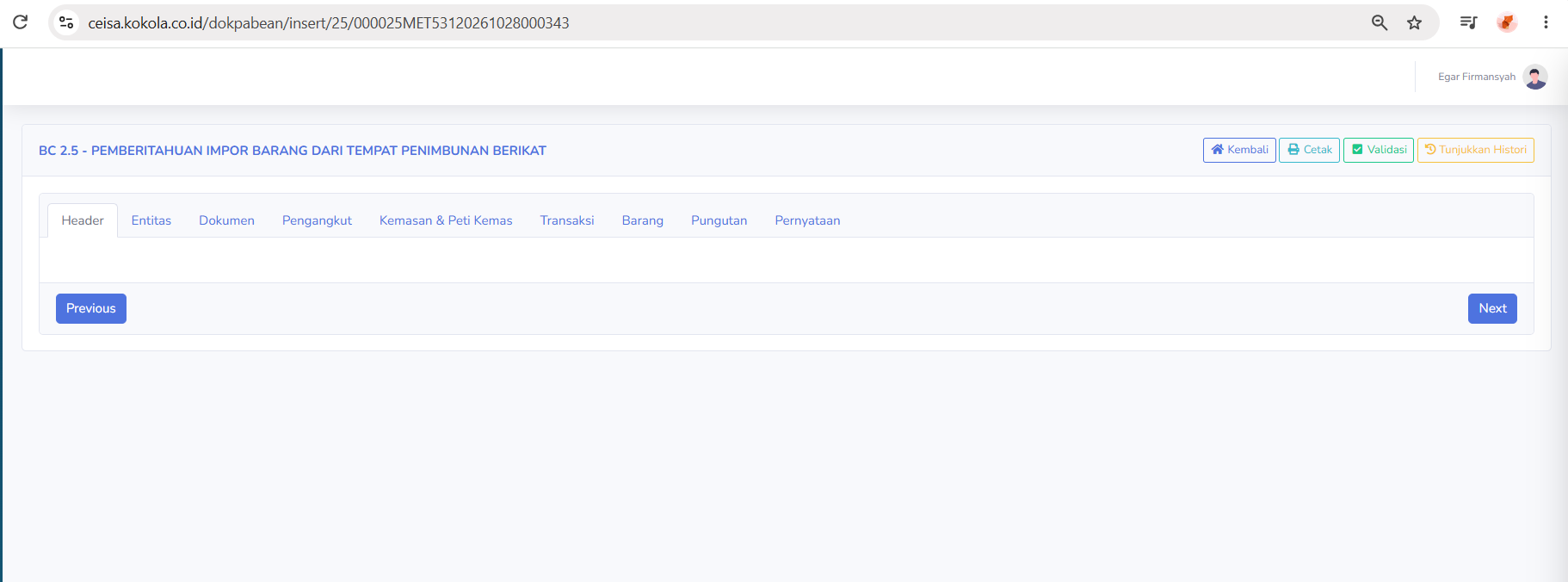
At the top of the page are the following buttons:
- Back: Return to the previous page.
- Print: Prints the document.
- Validate: Runs a check on the completeness and accuracy of the data through the application.
- Show History: Displays the history recorded for the document.
In addition, there are nine navigation tabs: Header, Entity, Document, Carrier, Packaging & Containers, Transaction, Goods, Levies, and Statement.
At the bottom of the page, there are Previous and Next buttons for navigating between tabs.
- Header Tab Description
In the provided screenshot, the header section does not yet display any columns or submission information. What is visible are the navigation menu and document management buttons. Therefore, the details of the header tab cannot be determined from this image.
- Entity Tab Description

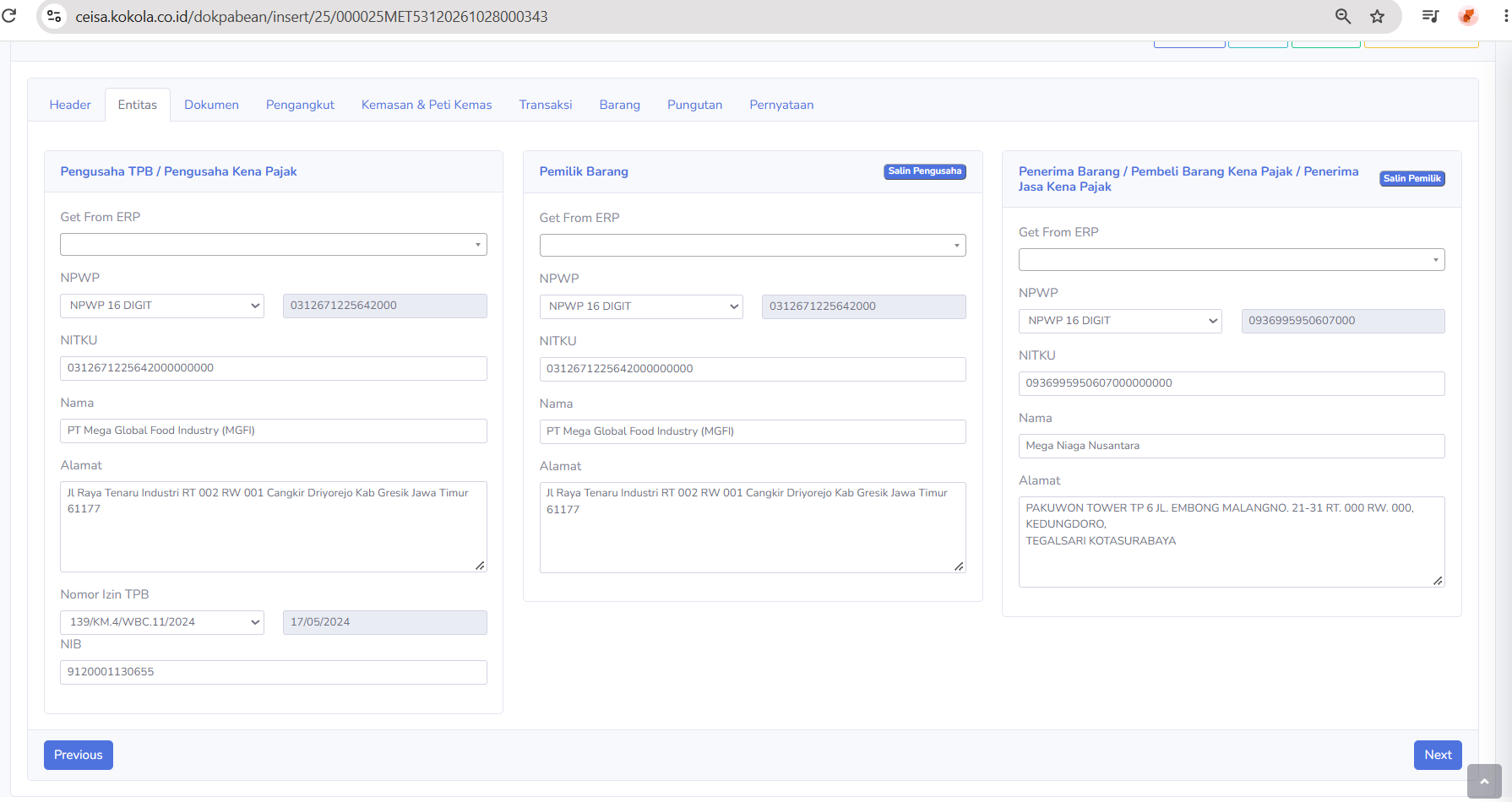
The Entity tab is used to manage the identities of parties involved in the issuance of goods.
There are three main sections.
TPB Business Owner / Taxable Business Owner
-
Get From ERP: Retrieves or selects company data references from the ERP.
-
NPWP: Displays the company’s Taxpayer Identification Number.
-
NITKU: Displays the Business Activity Location Identification Number.
-
Name: Displays the name of the TPB operator.
-
Address: Displays the company’s address.
-
TPB License Number: Displays the TPB facility license number.
-
License Date: Displays the date the license was issued.
-
NIB: Displays the Business Identification Number.
Goods Owner
-
Get From ERP: Retrieves the goods owner's information from the ERP system.
-
NPWP: Displays the goods owner's NPWP
-
NITKU: Displays the business location's identification number.
-
Name: Displays the name of the company that owns the goods
-
Address: Dsiplays the address of the owner of the goods
-
Copy Business Owner: Copies the TPB Business Owner's identity to the Owner of Goods section if both are the same paerty.
Recipient of Goods / Purchaser of Taxable Goods / Recipient of Taxable Services
-
Get From ERP: Retrieves recipient information from the ERP
-
NPWP: Displays the recipient's NPWP
-
NITKU: Displays the recipient's business location ID
-
Name: Displays the recipient company's name
-
Address: Display the recipient's address.
-
Copy Business Owner: Copies the Goods Owner's information to the arecipient section if both parties are the same.
This tab helps ensure that the data for the business owner, owner, and recipient matches the transaction documents.
-
Get From ERP: Retrieves the goods owner's information from the ERP.
-
NPWP: Displays the goods owner's NPWP.
-
NITKU: Displays the business location's identification number.
-
Name: Displays the name of the company that owns the goods
-
Address: Displays the address of the goods owner
-
Copy Business Owner: Copies the TPB business owner's identity to the Goods owner section if both are the same party
Recipient of Goods / Purchaser of Taxable Goods / Recipient of Taxable Services
-
Get From ERP: Retrieves recipient information from the ERP.
-
NPWP: Displays the recipient's NPWP.
-
NITKU: Displays the recipients business Location ID.
-
Name: Displays the recipients company's name
-
Address: Displays the recipients address
-
Copy Business Owner: Copies the Goods Owner's information to the recipient section if both patiesare the same
This tab helps ensure that the data for the business owner, owner, and recipient matches the transaction documents.
-
- Document Tab Description

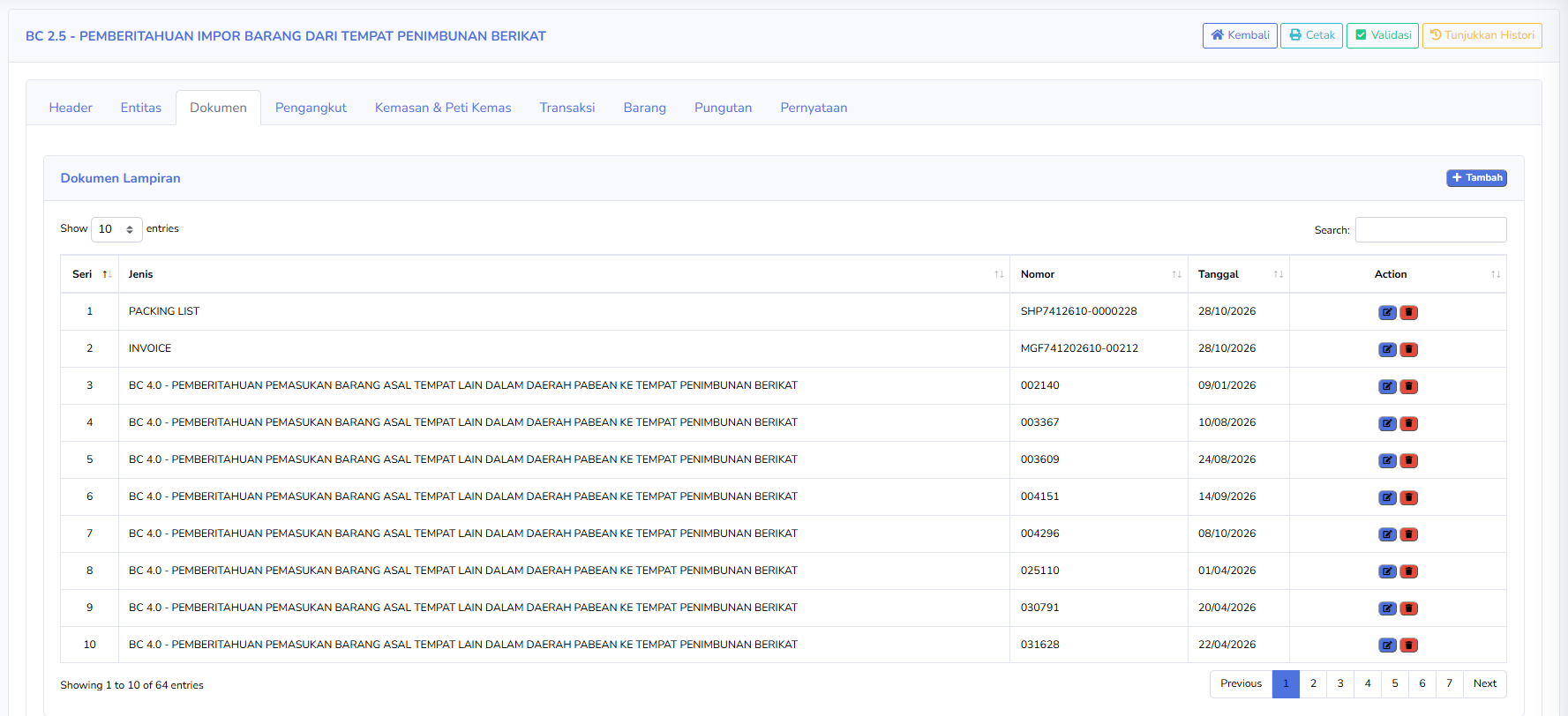
The Documents tab is used to manage the list of supporting documents or reference documents related to the BC 2.5 submission.
The available columns include:
-
Series: Displays the document's serial number
-
Type: Dsiplays the type of attached document.
-
Number: Displays the document's identification number.
-
Date: Displays the document's date.
-
Action: Displays options to edit or delete data.
Example of a document shown in the image:
-
PACKING LIST: A document containing details of the packaging yang memuat rincian kemasan dan barang.
-
INVOICE: A transaction or sales document for goods.
-
BC 4.0: A notification for document for the receipt of goods originating form TLDDP to TPB, used as a reference.
Available button :
-
Add: Adds a new attached document
-
Edit: Modifies the information in an attached documents
-
Delete: Deleted the seleced attached document.
-
Search: Searches for documents based on keywords.
-
Show Entries: Sets the number of documents displayed.
-
Previous / Next: Navigate between pages of the attachedment list.
The screenshot shows 64 attachedment entries, with 10 entries displayed on the first page.
Note: BC 4.0 references can be used to trace the origin of goods in BC 2.5 transactions. However, each document’s reference must be matched to the corresponding goods
-
- Carrier Tab Description

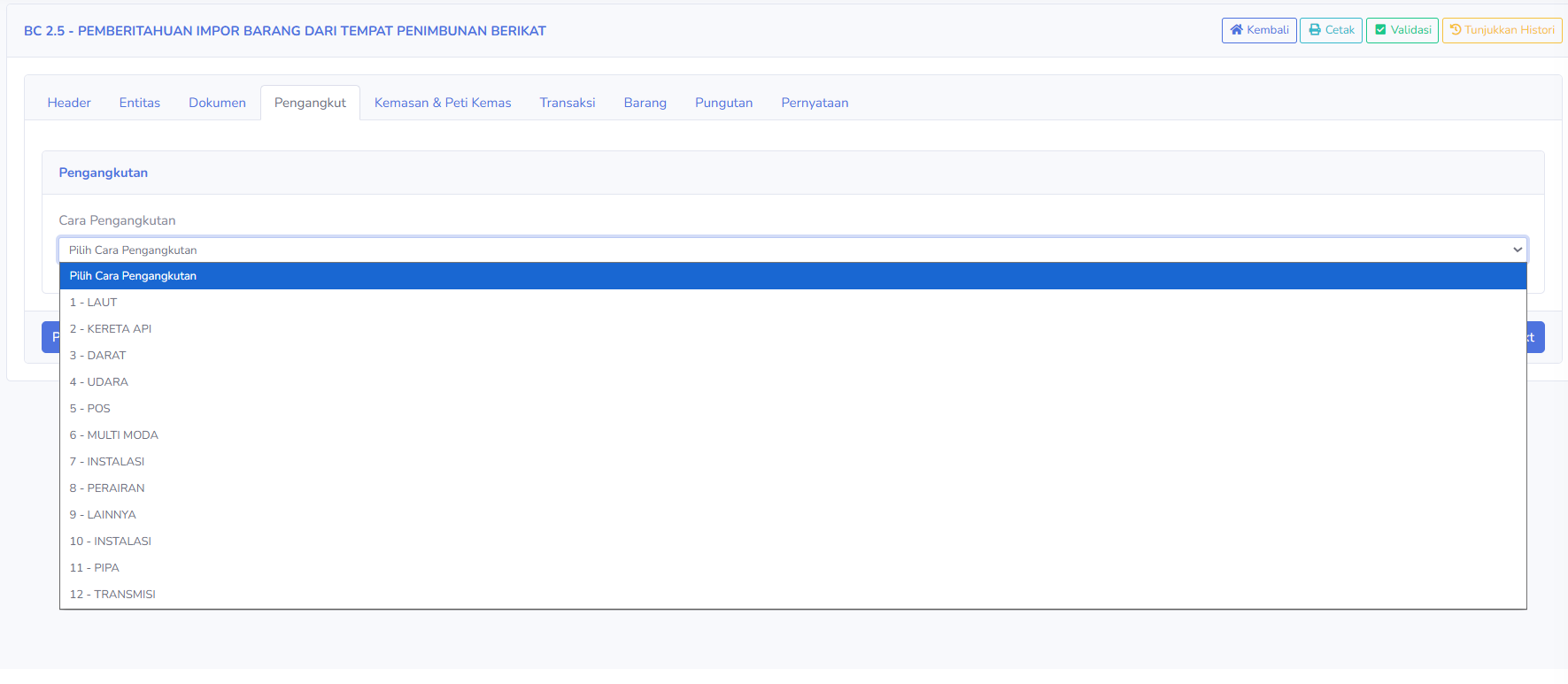
The “Carrier” tab is used to specify the mode of transportation for goods to be released from the TPB.
Available sections:
Mode of Transportation
Displays options for the type of mode or method of transportation, namely:
-
1 - SEA Transportation by sea
-
2 - RAIL: Transportation by rail
-
3 - LAND: Transportation by land
-
4 - WILD: Transportation by air
-
5 - POSTAL: Transportation via postal service
-
6 - MULTIMODA: Transportation using a combination of modes
-
7 - FACILITY: A category for transportation or distributionvia a facility
-
8 - WATER Transportation via waterways
-
9 -OTHER: used for other type of transportation
-
10 - FASCILITY: Other facility categories as listed in the application.
-
11 - PIPELINE: Distribution via a pipeline network.
-
12 - TRANSMISI: Dsitribution via transmission facilities.
Users must select the transportation type that corresponds to the method used in the transaction.
Note: The screenshot shows two codes both labeled “Installation.” The differences between these codes must be verified in the application reference before use.
-
- Packaging & Container Tab Description

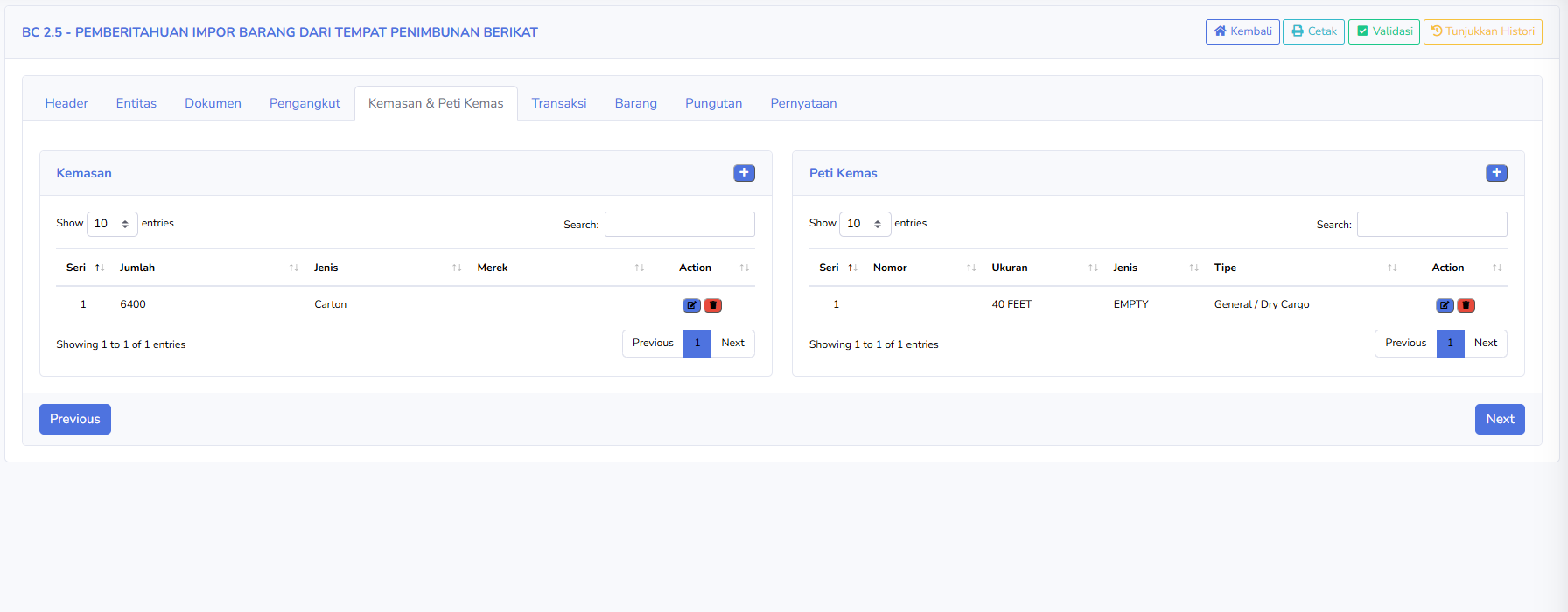
The Packaging & Containers tab is used to record the quantity, type, and identification of the packaging and containers for goods.
There are two main sections.
Packaging
-
Series: Displays the sequential number of package
-
Quantity: Displays the number of package of goods
-
Type: Displays the type of packaging, such as carton
-
brand: Display the brand or mark on the packaging, if available
-
Action: used to edit or delete packaging data.
The screenshot shows an example of 6,400 packages of the “Carton” type.
Container
-
Series: Displays the sequential number of container.
-
Number: Displays the container's identification number, if available
-
Size: Displays the container's size, for example 40 FEET.
-
Type: Menampilkan kategori peti kemas sebagaimana tercatat pada sistem.
-
Type: Displays the container's type, for example, general/ Dry cargo
-
Action: Used edit or delete container data
The screenshot shows the “EMPTY” category. This value is the data recorded in the application and must still be verified for consistency with the actual condition and shipping documents.
The Add (+) button in each section is used to add a new package or container.
-
- Transaction Tab Description

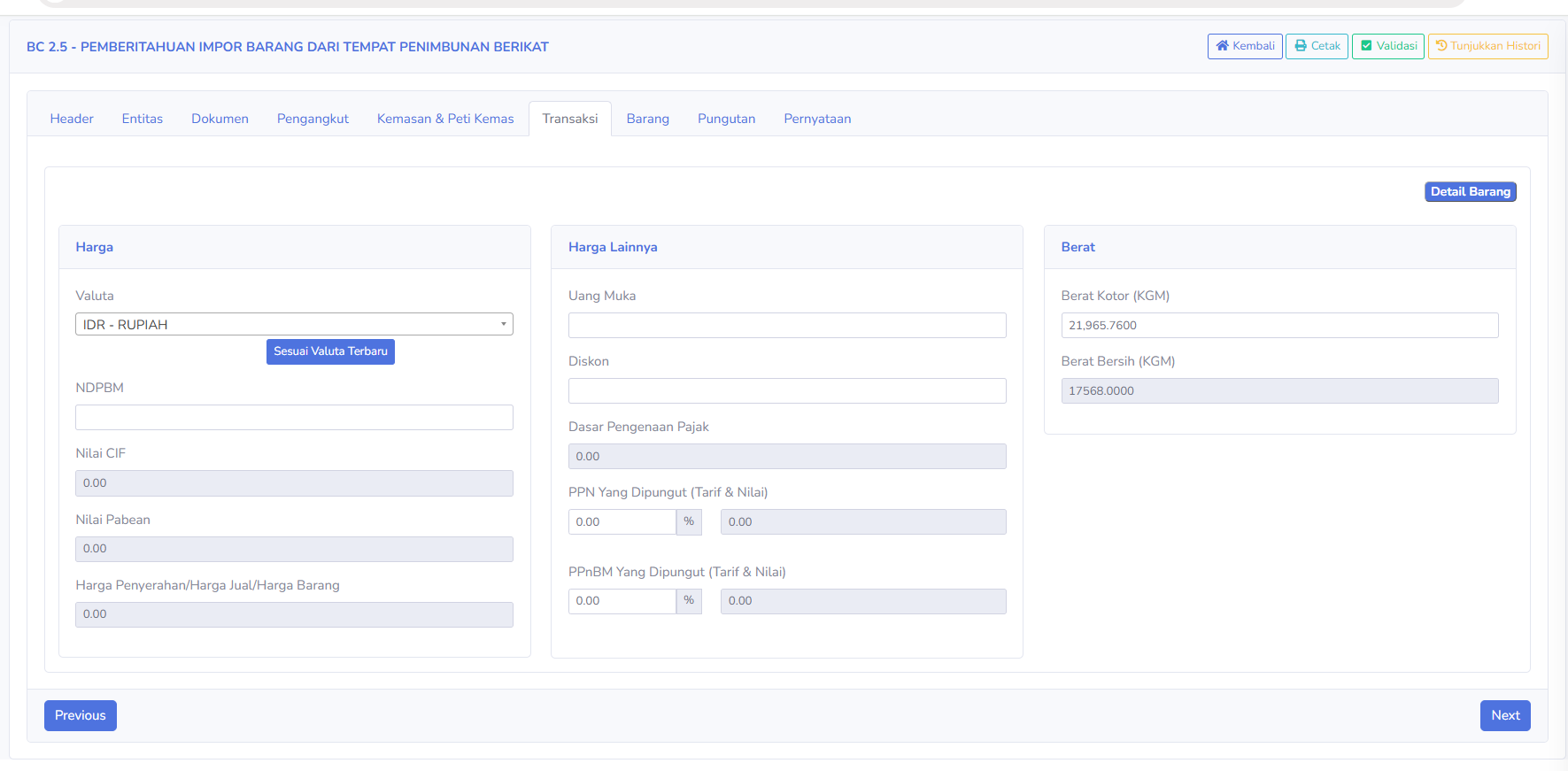
The Transactions tab is used to manage information regarding transaction values, taxes, and the weight of goods.
There are three main sections.
Price
-
Currency: Displays the transaction currency, for example IDR-Rupiah
-
NDPBM: Displays the base value for import duty calculation, if applicable.
-
CIF Value: Displays the value based on the cost, insurance and freight components, if used.
- Custom Value: Displays the value used in customs calculation in accordance with regulations.
-
Delivery Price/Selling Price/Goods Price: Displays the transaction value for the delivery or sales of goods.
Available buttons:
- Update to Latest Exchange Rate: Used to update the exchange rate reference used by the application. Users must verify the applicable exchange rate and date.
Other Prices
-
Down payment: Display the down payment amount, if any.
-
Discount: Display the transcastion discount
-
Tax base: Displays the value used as the basis for tax calculation.
-
VAT Collected (Rate & Amount): Displays the rate and amount of Value-Added Tax colledted.
-
Luxury goods sales tax collated (Rate & Amount): Dispaly the rate and amount of luxury goods sales tax, if applicable
Weight
-
Gross Weiht : Displays the weight of the items, including
-
Net Weight (KGM): Displays the weight of the items without pacakging
Note: A value of 0.00 on the form does not always indicate that a transaction has no payment obligation. This value may also indicate that the data has not yet been entered or calculated.
-
- Goods Tab Description

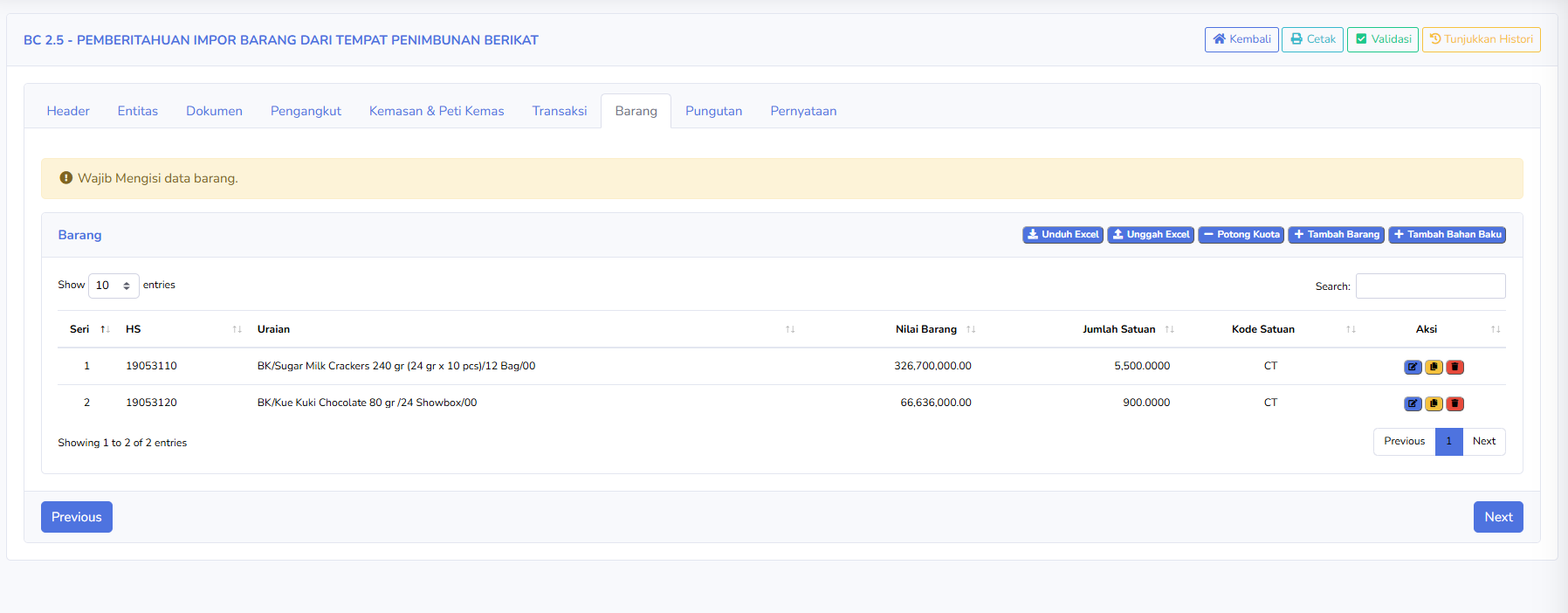
The Goods tab is used to manage the details of goods listed in the BC 2.5 document.
The available columns include:
-
Series: Displays the serial number of the goods
-
HS: Displays the harmonized system code or tariff classification of the goods.
-
Description: Displays the name, specifications, or description of the goods
-
Goods value: Displays the value of each item.
-
Quantity: Displays the quantity of the item based on the unit of measure used.
-
Unit Code: Displays the unit code for the item, for example CT.
-
Action: Displays icons to edit, copy or delete item data according to the application's functions.
Available buttons:
-
Download Excel: Downloads the data or excel format provided by the application
-
Upload Excel: Uploads a list of items via an excel file
-
Quota Deduction: runs processes related to quota managements or deduction in accordance with system regulation
-
Add Item: Adds details for a new item.
-
Add Raw Material: Adds raw material data associated with the item
The screenshot shows two rows of item data with different HS codes.
At the top of the page, there is also a notification:
Item data must be filled out.
This notification indicates that the user needs to verify the completeness of the item data, even though the table already displays data rows.
Note: Before submitting a request, ensure that the HS code, description, value, quantity, unit code, and raw material details match the transaction and inventory documents.
-
- Levies Tab Description

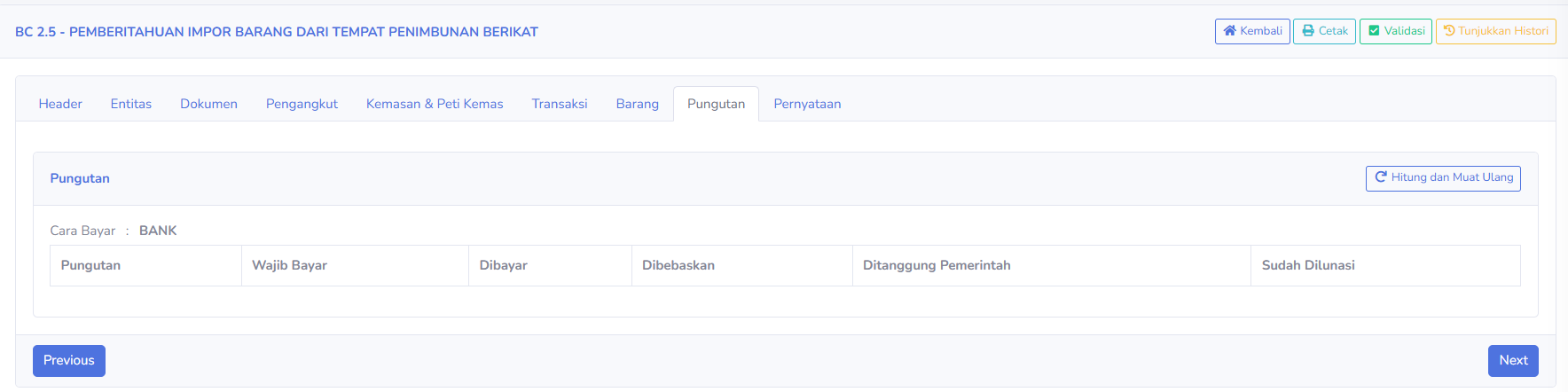
Tab Pungutan digunakan untuk menampilkan dan menghitung kewajiban pungutan kepabeanan serta perpajakan yang berkaitan dengan dokumen BC 2.5.
Pada screenshot terlihat Cara Bayar: BANK.
Bagian yang tersedia meliputi:
-
Pungutan: Menampilkan jenis pungutan yang dihitung.
-
Wajib Bayar: Menampilkan nilai kewajiban pembayaran.
-
Dibayar: Menampilkan nilai pungutan yang dibayarkan.
-
Dibebaskan: Menampilkan nilai pungutan yang memperoleh fasilitas pembebasan.
-
Ditanggung Pemerintah: Menampilkan nilai pungutan yang memperoleh perlakuan ditanggung pemerintah apabila berlaku.
-
Sudah Dilunasi: Menampilkan nilai pungutan yang tercatat telah dilunasi.
Tombol yang tersedia:
- Hitung dan Muat Ulang: Menghitung kembali data pungutan dan memperbarui tampilan hasil perhitungan.
Tab ini digunakan untuk memeriksa kewajiban pungutan sebelum melanjutkan proses dokumen.
Pengguna perlu memastikan bahwa nilai transaksi, data barang, dasar pengenaan pajak, dan fasilitas yang digunakan sudah sesuai.
-
- Statement Tab Description
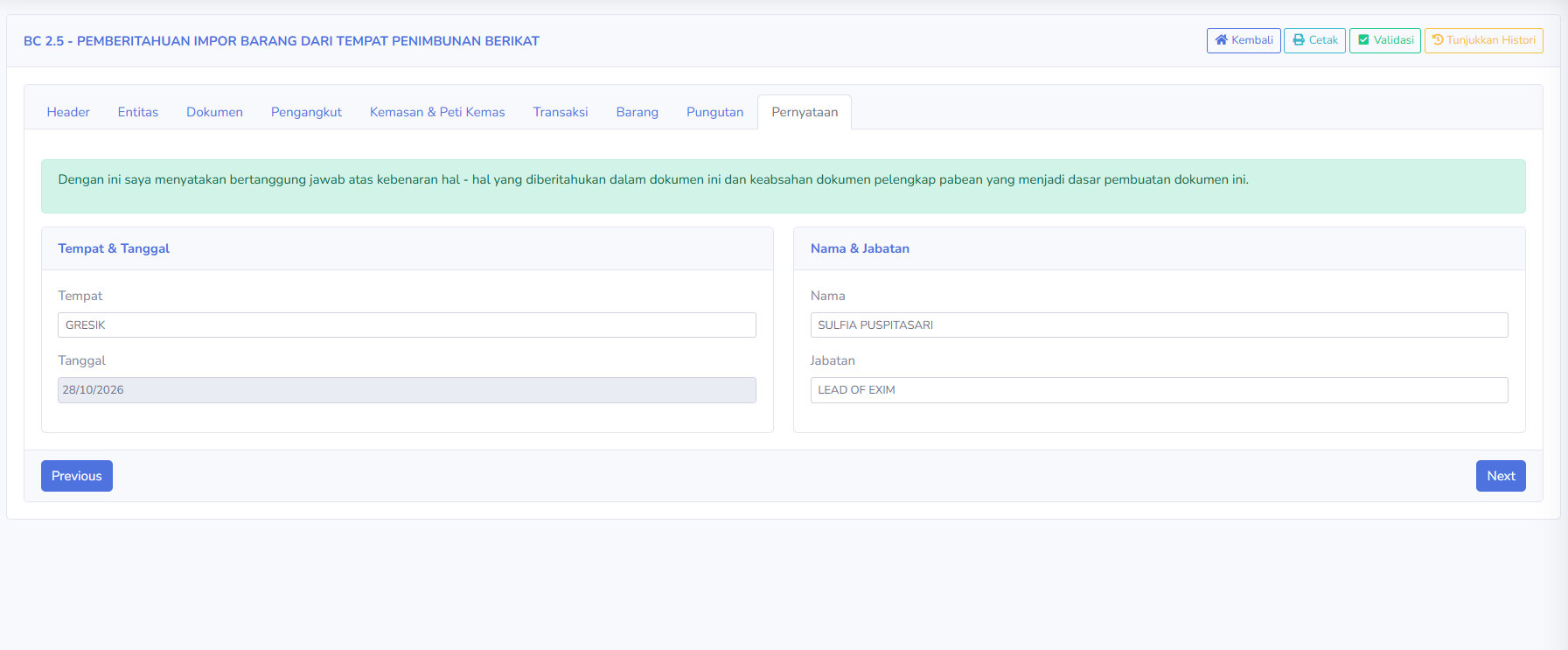
The Declaration tab is used to complete the information regarding the person responsible for the BC 2.5 document.
At the top is a declaration of responsibility for the accuracy of the reported data and the validity of the customs supporting documents.
The available sections include:
Place & Date
- Place: Displays the location where the declaration was prepared or signed
- Date: Displays the date of document's declaration
Name & Position
- Name: Display the name of person reponsible for the document
- Position: Display the person's position within the company
Users must ensure that the name, position, place, and date match the information of the party authorized to sign the document.
Steps for Using BC 2.5
Notes
- Make sure the search period matches the document you want to check.
- Use the Application Number to make it easier to search for specific documents.
- Check the data for the TPB Business Owner, Goods Owner, and Recipient before submitting your application.
- Make sure the supporting documents match the goods transaction.
- Use the “Copy Business Owner” or “Copy Goods Owner” feature only if the identities of both parties are the same.
- Check the HS code, description, value, quantity, and unit code for each item.
- Use the “Upload Excel” feature to help enter data for a large number of items.
- Check the raw material data and reference documents before processing the quota deduction.
- Ensure that the transaction value and the calculated duty amount match.
- Check the name, title, location, and date on the “Declaration” tab.
- Use the Validate button to check the completeness of the documents.
- Application validation does not necessarily mean the documents have been accepted or approved by Customs.
- The Green or Red Lane indicator does not necessarily mean the goods release process is complete.
- Check the official response from CEISA after the documents have been submitted.
- Use internal features such as Update to ERP, Quota Deduction, and Show History in accordance with company procedures.