TOWER
Checklist Module Guide
Module Location:
Access Requisition > Checklist > Tower
-
Tower Main View
The Tower Checklist menu is used to record and monitor the results of periodic tower condition inspections through the Access Requisition system. This page can be used to perform tower checklists, view a list of checklists that have been created, monitor the status of approvals and documents, and view annual tower preventive maintenance reports based on the UNIMOS or MGFI plant.
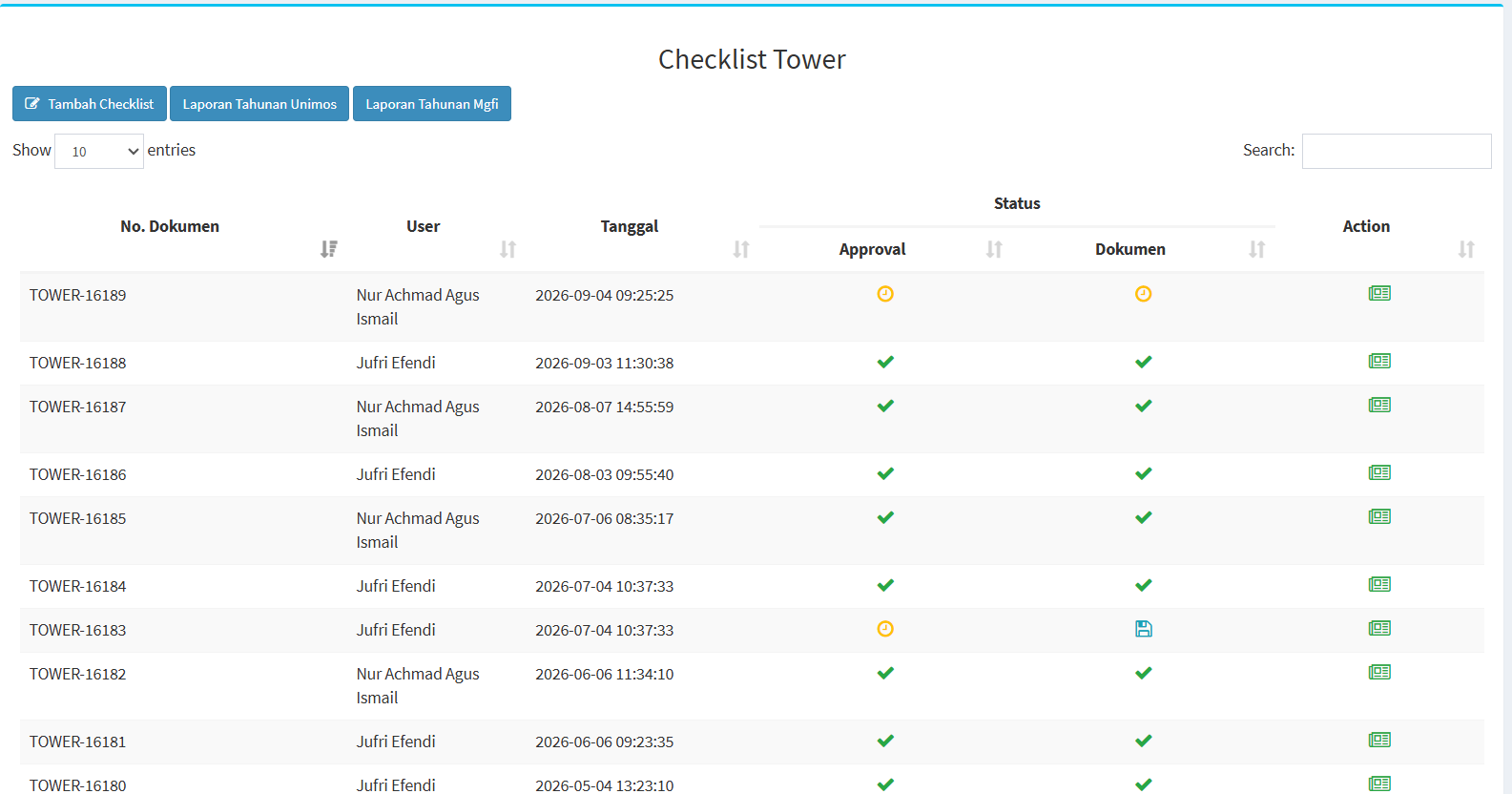
The following features are available on this Tower Main Page:
| Feature | Description |
|---|---|
| Add Checklist |
Used to create a new tower inspection checklist. |
| Unimos Annual Report | Used to view the annual tower preventive maintenance report for the UNIMOS plant. |
| Mgfi Annual Report | Used to view the annual tower preventive maintenance report for the MGFI plant. |
| Show Entries | Used to specify the number of records displayed in the table. |
| Search | Used to search for specific checklist data. |
- Tower Checklist List
The main page displays a table showing tower checklist data that has been recorded in the system.
Coloum Description Dokumen No. Displays the document number of the tower checklist.
User Displays the name of the user who performed or created the checklist.
Date Displays the date and time the checklist was recorded in the system.
Status Approval Displays the status of the checklist approval process.
Status Dokumen Displays the status of the checklist document.
Action Displays the actions that can be taken on the checklist data.
Checklist Status
-
Checklist Status
In the Status column, the system displays the Approval and Document statuses in the form of icons. The interface includes several types of icons, including:
-
A green checkmark icon, indicating that the related step has been completed or processed (approved).
-
A yellow/orange icon, indicating that the related step is still in progress (pending).
- A blue icon in the Document column indicates that the document is available.
Since statuses may change as the checklist and approval processes progress, users should review both columns to determine the document’s current status. -
- Add Checklist
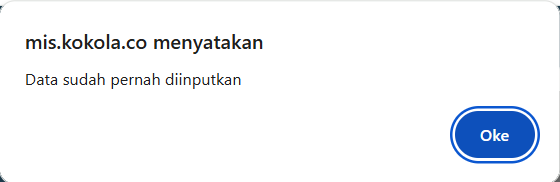
To create a new Tower checklist, click the Add Checklist button on the main page. The system will check the available checklist data. If a checklist for that condition or period has already been created, the system will display a notification:
Click the OK button to close the notification. This notification is designed to prevent users from creating the same checklist more than once.
-
UNIMOS Annual Report
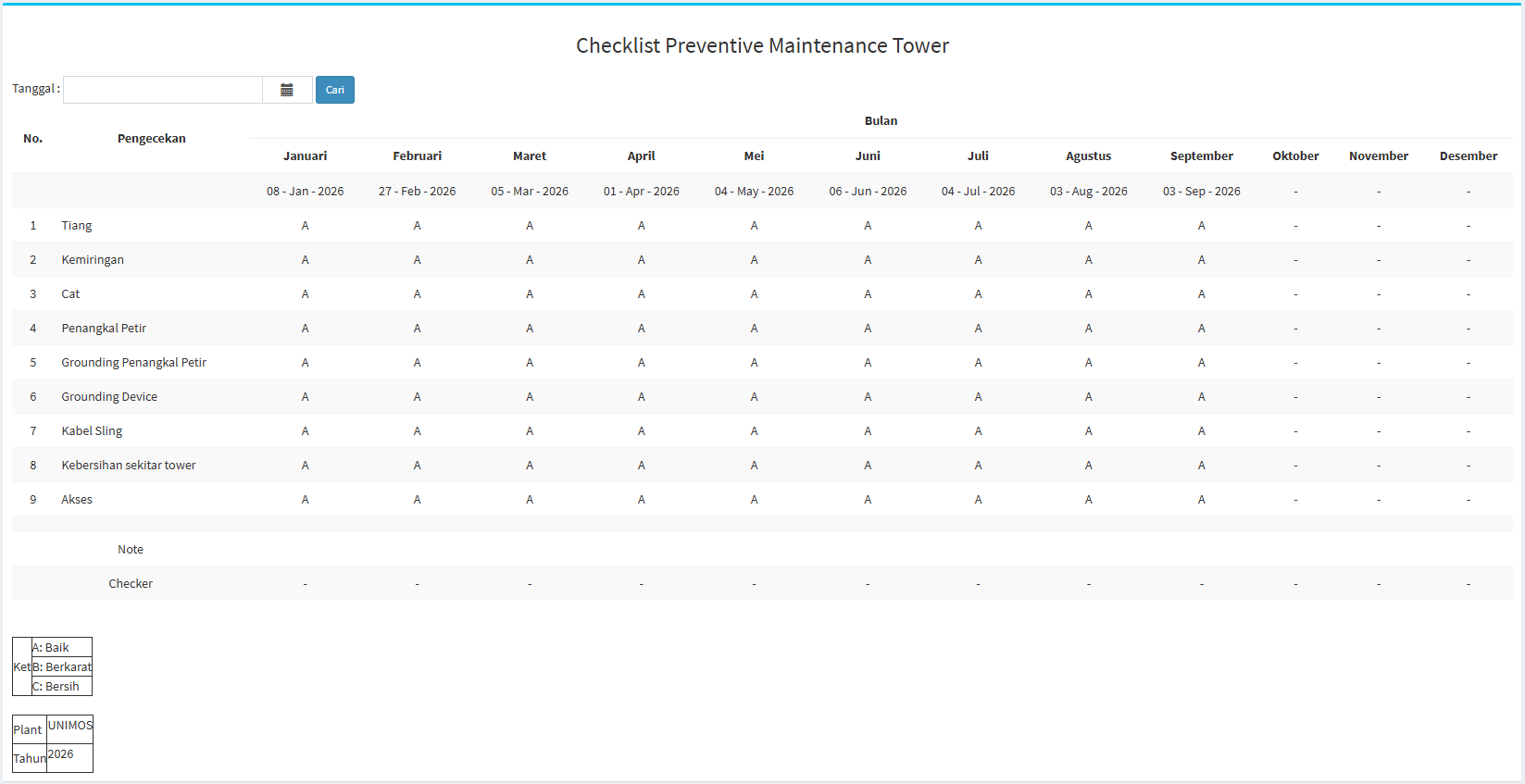
To view the tower inspection checklist report for the UNIMOS plant, click the “UNIMOS Annual Report” button. The report displays the results of tower inspections over the course of one year, organized by month from January through December. The system will display the following page:

-
Tower Inspection Data
The annual report displays several parts of the tower that are inspected periodically, including:
No. Inspection
Description 1 Pole
Displays the results of the inspection of the tower pole’s condition.
2 Tilt
Displays the results of the inspection of the tower’s condition or tilt.
3 Paint
Displays the results of the inspection of the tower’s paint condition.
4 Lightning Rod
Displays the results of the inspection of the lightning rod.
5 Lightning Rod Grounding Displays the results of the grounding inspection for the lightning rod. 6 Grounding Device Displays the results of the grounding device inspection. 7 Sling Cable Displays the results of the sling cable condition inspection. 8 Cleanliness Around the Tower Displays the results of the cleanliness inspection of the area around the tower. 9 Access Displays the results of the inspection of access to or around the tower.
Each inspection result is displayed by month so that users can monitor changes in the tower’s condition over the course of a year. The date the checklist was completed can also be displayed at the top of each month. - Checklist Results Description
At the bottom of the report, there is an explanation for interpreting the inspection results. These codes are used in the table to indicate the inspection results for each part of the tower for the relevant month.
Code Description A Good B Rusted C Clean
-
-
MGFI Annual Report
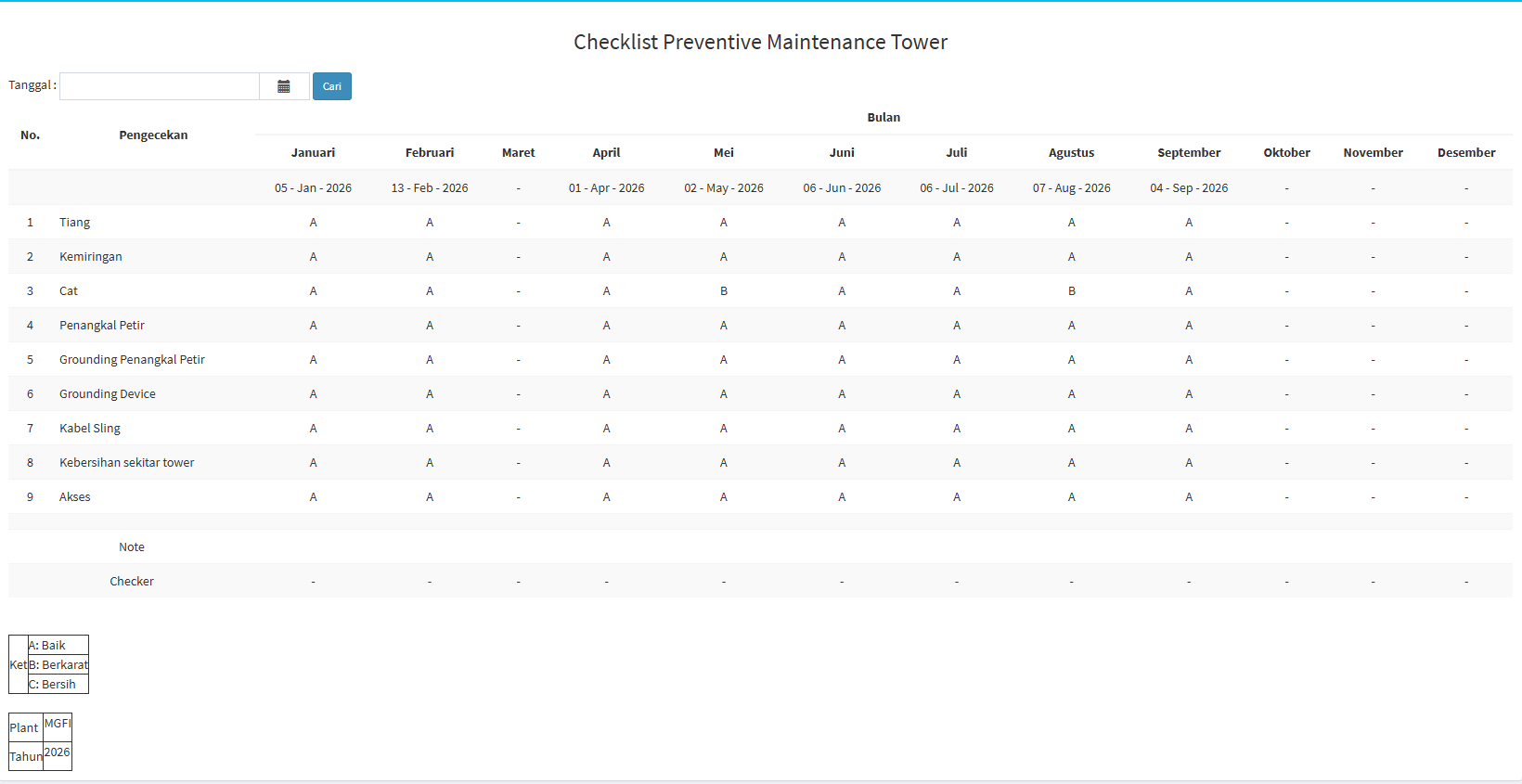
The system will display the Tower Preventive Maintenance Checklist page for the MGFI plant. The structure of the MGFI report is essentially the same as that of the UNIMOS report. The structure of the MGFI report is essentially the same as that of the UNIMOS report. Data is displayed by month from January through December. The system will display:

Differences Between UNIMOS and MGFI Reports
The main difference lies in the plant that serves as the data source.
Report Plant UNIMOS Annual Report
UNIMOS MGFI Annual Report
MGFI
Viewing Tower Condition History
Annual reports can be used to compare the condition of tower components from month to month. For example, in the MGFI report, the condition of a particular part may show different results in a given month. Users can view these changes directly in the component row and the corresponding month column. If a month does not yet have a checklist result, the table will display a “-” symbol. With this view, tower condition can be monitored periodically throughout the year.
-
Tips & Important Notes
-
Use “Add Checklist” to create a new tower inspection record.
-
If the message “Data has already been entered” appears, it means the relevant checklist data is already available in the system, so there is no need to create the same data again.
-
Check the Document No. to ensure the checklist you open matches the required data.
-
Check the Approval Status and Document Status to track the progress of the checklist process.
-
Use “Search” to find specific checklist data more quickly.
-
Use “Show Entries” to adjust the number of records displayed.
-
Use the Unimos Annual Report or the Mgfi Annual Report depending on the plant you wish to inspect.
-
Note the checklist dates for each month when reviewing the annual report.
-
Use the inspection result codes according to the descriptions provided in the report.
-
A “-” indicates that no checklist values or information are displayed for that period.
-
Make sure the Plant and Year at the bottom of the report are correct before using the report data.
-