DASHBOARD
Access Requisition Module Guide
Module Location:
Access Requisition > Dashboard
The Dashboard is the main page in Access Requisition used to view a summary of information and the status of requests recorded in the system. Through this page, users can monitor the number of requests based on their status such as New, Approved, In Progress, Rejected, and Completed as well as view a summary of data for the various types of requests available in Access Requisition.
1. Purpose
The Dashboard page provides an overview of the status of requests in the Access Requisition system. The information on this page helps users track the number of new requests, requests currently being processed, and requests that have been approved, rejected, or completed. The Dashboard also displays a summary by request type, making it easier for users to monitor the data.
2. Main View
The Dashboard page contains several sections that display a summary of application data.
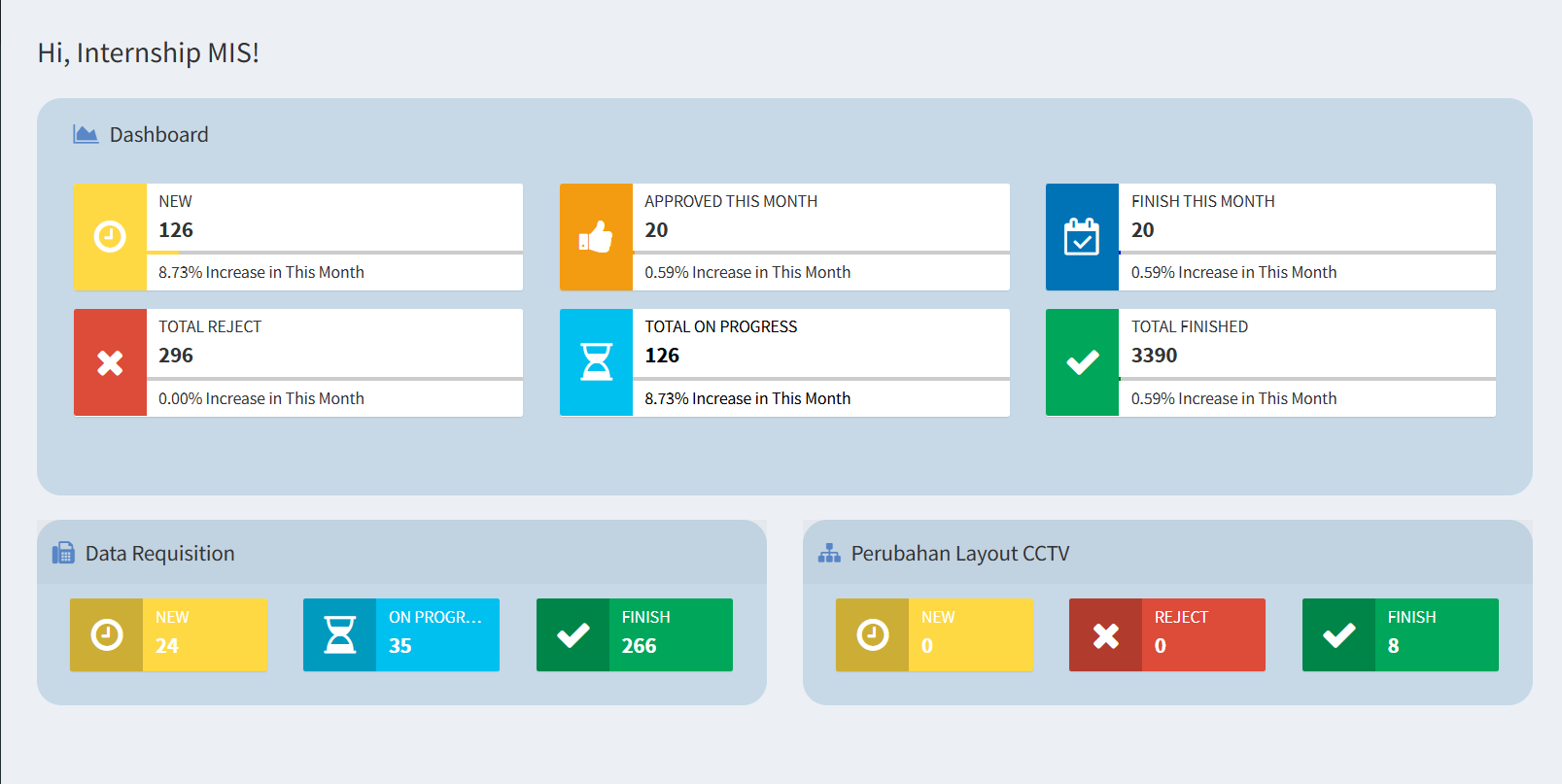
The dashboard page shown above displays a summary of application data, consisting of:
-
Application Status Summary
|
Information |
Description |
|
New |
Displays the number of new applications recorded in this system that are still in the “New” status. |
|
Approved This Month |
Displays the number of applications that have been approved this month. |
|
Finish This Month |
Displays the number of applications that have been completed this month. |
|
Total Reject |
Displays the total number of applications with a “Reject” status. |
|
Total On Progress |
Displays the number of applications still in progress. |
|
Total Finished |
Displays the total number of applications that have been fully processed. |
Some information also includes a “Increase This Month” percentage. This information serves as an indicator of data growth displayed by the system for the current month.
- Sample Display
The Dashboard example above shows the following information: These figures are based on the data stored in the system and may change depending on the status of the applications.
-
- New: 126 requests
- Approved This Month: 20 requests
- Finished This Month: 20 requests
- Total Rejected: 296 requests
- Total In Progress: 126 requests
- Total Completed: 3,390 requests
- New: 126 requests
-
Request Data
The Requisition Data section is used to display a summary of the status of requisitions in the Requisition Data category.
| Status | Description |
| New | Displays the number of Requisition Data entries that are still in the “New” status. |
| On Progress | Displays the number of Requisition Data entries currently being processed. |
| Finish | Displays the number of Requisition Data entries that have been fully processed. |
In the dashboard example, the following figures are shown:
New: 24, On Progress: 35, and Finished: 266.
This information makes it easy for users to check the status of Data Requisitions without having to open each request individually.
3. CCTV Layout Changes
The CCTV Layout Changes section displays a summary of the status of requests related to CCTV layout changes. The available information includes:
|
Status |
Description |
|
New |
Displays the number of CCTV Layout Change requests that are still in the “New” status. |
|
On Progress |
Displays the number of CCTV Layout Change requests that have been rejected. |
|
Finish |
Displays the number of CCTV Layout Change requests that have been fully processed. |
In the dashboard example, the following values are displayed:
New: 0, Reject: 0, and Finish: 8.
The data counts will be updated based on the request statuses in the system.
4. Navigation Menu
On the left side of the page is a navigation menu used to access features in Access Requisition. The available menus include Dashboard, Requests, Approvals, Checklist, MIS, and Guide Book. Some menus have submenus that can be displayed by clicking the menu or the arrow icon.
5. Tips & Important Notes
-
Use the Dashboard to view the general status of a request before opening its details.
-
The data on the Dashboard reflects the requests and status changes recorded in the system.
-
The “New” status indicates a request that is still in the initial stage.
-
The “On Progress” status indicates a request that is currently being processed.
-
The “Reject” status indicates an application that has been rejected.
-
The “Finish/Finished” status indicates an application that has been fully processed.
- To view information or perform further actions on an application, use the relevant menu items in the sidebar