MIS
SUBMISSION LIST
MIS Module Guide
Module Location:
Go to Requisition > MIS > Submission List
The Submission List menu is used to view and monitor submissions received by the MIS. Through this page, you can filter data by period, status, and submission type, as well as view detailed information, processing progress, and available actions for each submission.
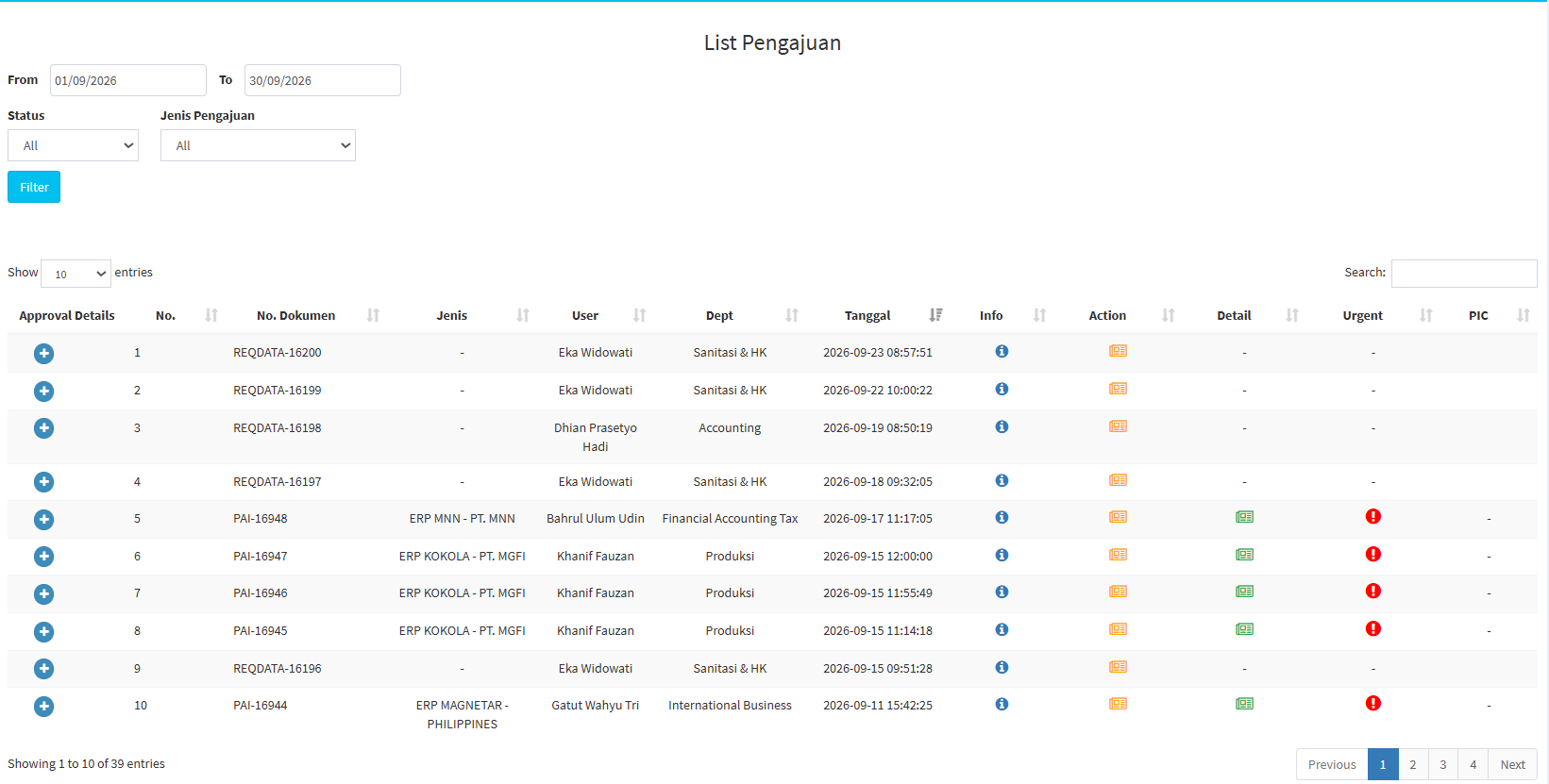
Application List Filters
At the top of the page, there are several filters used to narrow down the data.
| Section | Description |
|---|---|
| From |
Used to specify the start date of the application period. |
| To | Used to specify the end date of the application period. |
| Status | Used to filter data based on application status. |
|
Application Typ |
Used to filter data based on application type. |
| Filter | Used to display data based on the selected parameters. |
| Search | Used to search for data based on specific keywords. |
| Show Entries | Used to specify the number of records displayed per page. |
How to Use the Filter
- Set the start date in the From field.
- Set the end date in the To field.
- Select a Status if needed.
- Select an Application Type.
- Click Filter.
- The system will display the corresponding data
If you select All, the system will display all data in that category.
Submission List Table
| Coloum | Description |
|---|---|
| Approval Details | Used to view approval process details. |
| No. | Displays the sequential number of the record. |
| Dokumen No. | Displays the submission identification number. |
| Type | Displays the type of application or submission. |
| User | Displays the user associated with the submission. |
| Dept | Displays the user’s department. |
| Date | Displays the date and time of the submission. |
| Info | Displays the application status information. |
| Action | Used to open application information via “View Description.” |
| Detail | Used to view the processing progress via “View Details.” |
| Urgent | Used to mark an application as urgent. |
| PIC | Displays the PIC handling the application, if available. |
Icon Explanations
| Icon | Description |
|---|---|
| Blue Icon – Info | Used to open “View Description.” |
| Yellow Icon – Action | Used to open “View Description.” |
| Green Icon – Detail | Used to open “View Detail.” |
| Red Ikon – Urgent | Used to set the request as urgent. |
View Description
The View Description feature is used to view more detailed information about a submission. To open it:
- Select an entry on the Submission List page.
-
Click the yellow icon in the Action column.
-
The system will display the application details page.
-
For Application Change requests, the system displays the following page
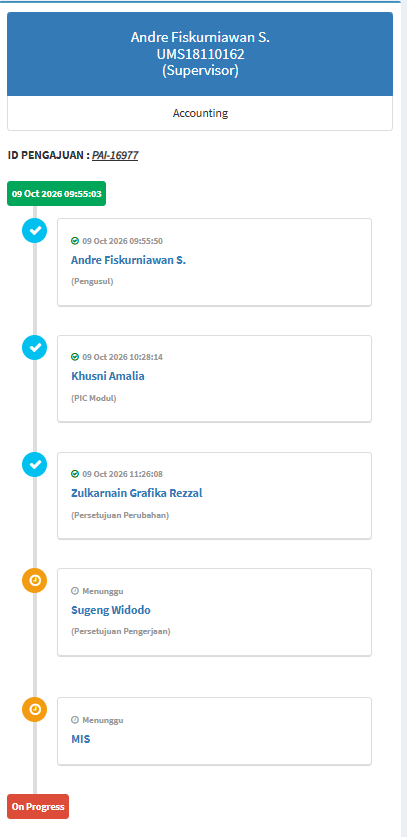
Application Information
On the left side of the page is information about the user and the approval process. This information may include:
- User name
- NIK
- Rol
- Department
- Submission ID
- Process date
- Approver
- Approval process status
Visible approval stages may include:
- Proposer
- Change Approval
- Module PIC
- Work Approval
- MIS
If the process is not yet complete, the system may display the status “Pending.”
Results Tab
The Results tab displays key information about the request.
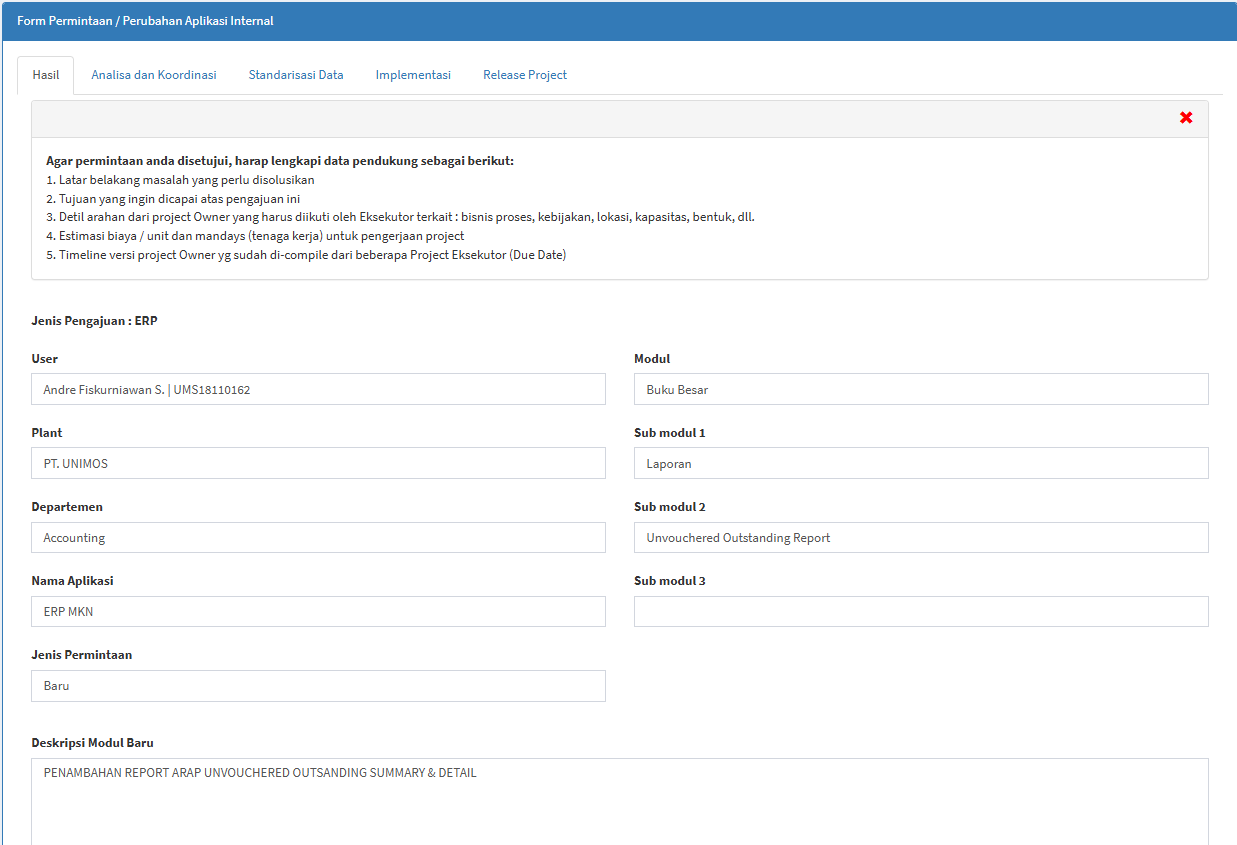
Available fields include:
| Field | Description |
|---|---|
|
Request Type |
Displays the type of request. |
| User |
Displays the user associated with the request. |
| Plant |
Displays the plant/company. |
| Departement |
Displays the user’s department. |
| Application Name | Displays the submitted application. |
| Request Type | Displays the type of request. |
| Module | Displays the main module. |
| Submodules 1–3 | Displays submodules, if available. |
|
New Module Description |
Displays an explanation of the need for changes or a new module. |
Analysis and Coordination
The Analysis and Coordination tab is used to record the initial project planning.
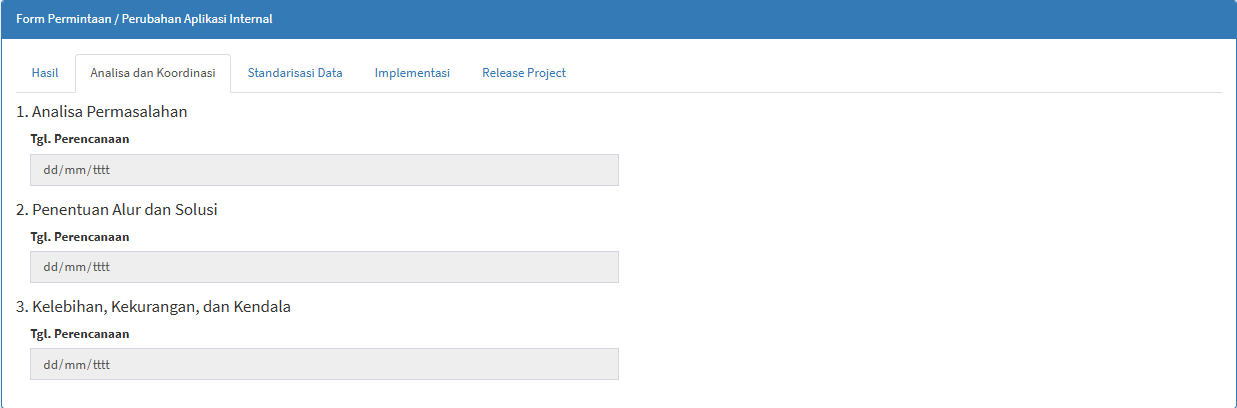
Available Phases:
| Phase | Description |
|---|---|
|
Problem Analysis |
The phase of analyzing the problems that form the basis of the proposal. |
|
Determination of Workflow and Solutions |
The phase of determining the workflow and solutions to be used. |
| Advantages, Disadvantages, and Constraints | The stage for evaluating the conditions and constraints of the planned solution. |
| Planning Dates | Used to determine the planned dates for each activity. |
Data Standardization
The Data Standardization tab is used to display plans related to data readiness.
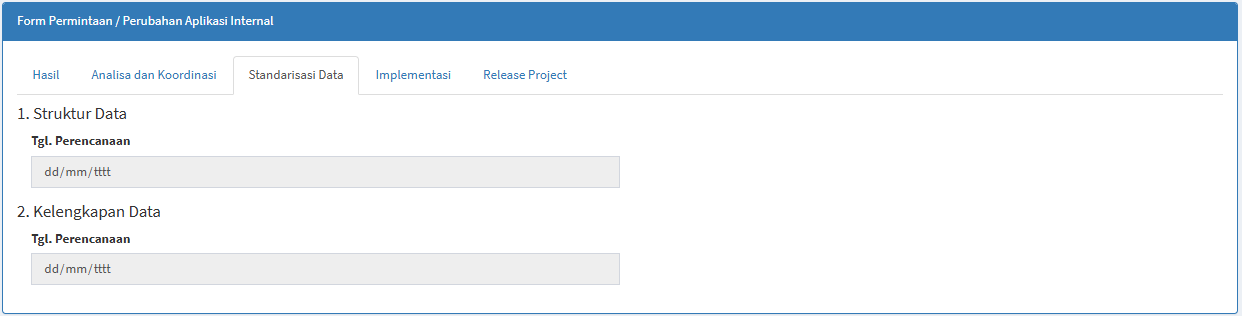
Available stages:
| Phase | Description |
|---|---|
|
Data Structure |
Used for planning related to data structure. |
|
Data Completeness |
Used for planning data completeness checks. |
|
Planning Date |
Used to determine the implementation schedule. |
Implementation
The Implementation tab is used to display the development and testing phases.
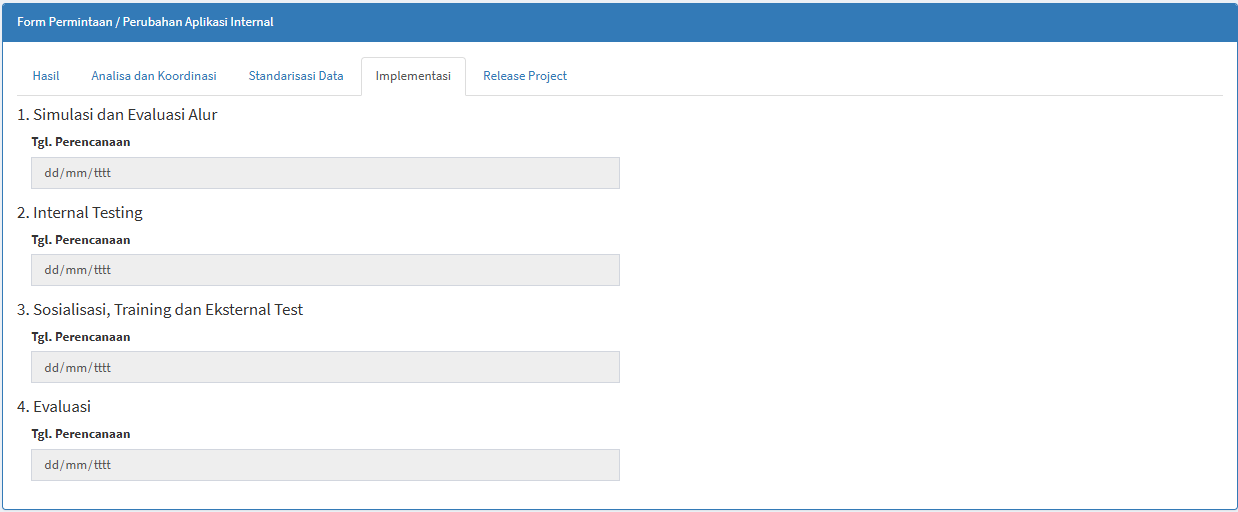
Available phases:
| Phase | Description |
|---|---|
|
Workflow Simulation and Evaluation |
The phase for simulating and evaluating the process workflow. |
| Internal Testing | The internal testing phase. |
| Sosialisasi, Training dan Eksternal Test | The outreach, training, and external testing phase. |
| Evaluation | The phase for evaluating the implementation results. |
| Planning Dates | Used to set the planned dates for each phase. |
Project Release
The Project Release tab is used to display the final stages before the project is made available to users.
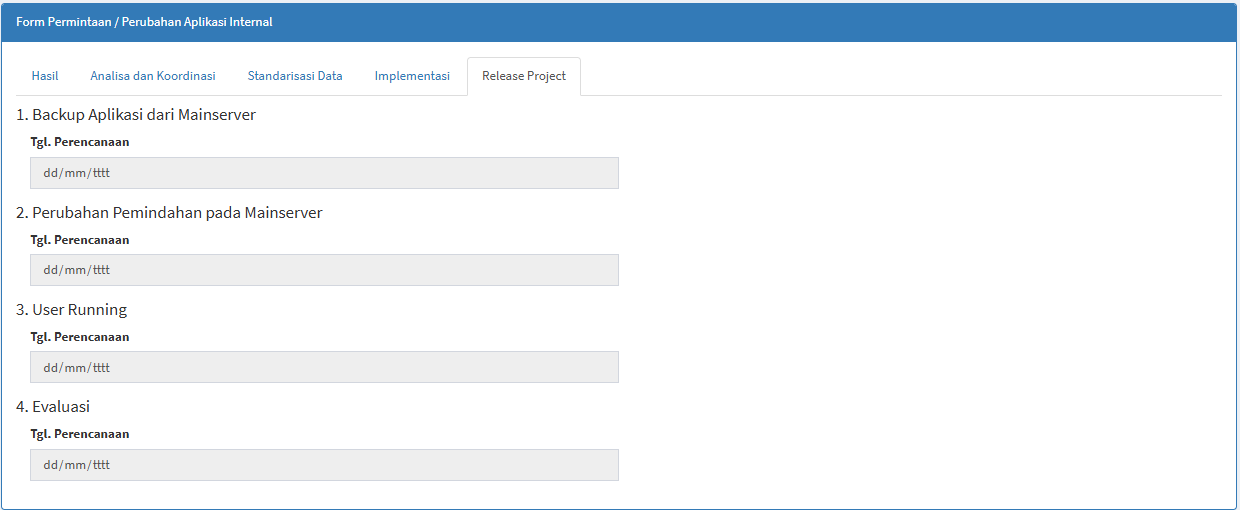
| Phase | Description |
|---|---|
|
Application Backup from Main Server |
The stage for preparing the application backup. |
|
Changes and Migration to Main Server |
The stage for making changes or migrating to the Main Server. |
| User Running |
The stage when users begin using the application. |
|
Evaluation |
The evaluation stage following the release. |
|
Planning Date |
Used to determine the schedule for each stage. |
View Details
The View Details feature is used to view the progress of a project.
Click the green icon in the Details column.
The system will display the following page:
Executor Project Timeline
Available information:
| Section | Description |
|---|---|
| Type |
Displays the application or project type. |
| Submission No. | Displays the submission number. |
| Module | Displays the related modules and submodules. |
| Description | Displays the requirements description. |
| Projects | Displays the project phases. |
| Indicator | Displays the achievement indicator. |
| Achievement Percentage | Displays the progress percentage. |
| PIC | Displays the PIC, if available. |
Indicator
| Value | Description |
|---|---|
| 0 | No Progress Yet |
| 5 | In Progress |
| 10 |
Completed |
API LIST
MIS Module Guide
Module Location:
Access Requisition > MIS > List API
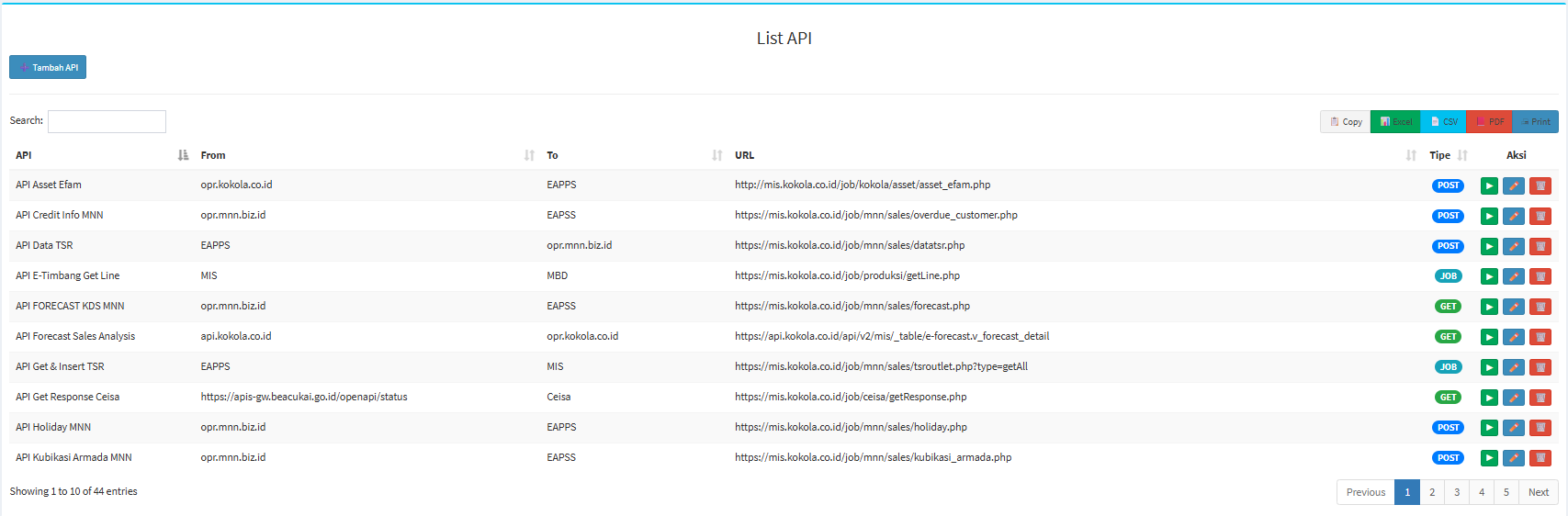
Screen Description
| Section |
Description |
|---|---|
| Add API |
Used to open the API addition form. |
| Search |
Used to search for APIs. |
| Copy |
Used to copy table data. |
| Excel | Used to export to Excel. |
| CSV | Used to export to CSV. |
| Used to export to PDF. | |
| Used to print the API list. |
API List Table
| Coloum | Description |
|---|---|
| API | API Name. |
| From | Source system/application. |
| To | Destination system/application. |
| URL | API endpoint address. |
| Type |
API process type. |
| Action |
Available actions. |
API Types
- GET: Used to retrieve data from the destination system/server.
- POST: Used to send to be processed by the server
- JOB: Used as an internal MIS system type for specific processes/jobs.
Adding an API
Add API
The system will display the Add API form.
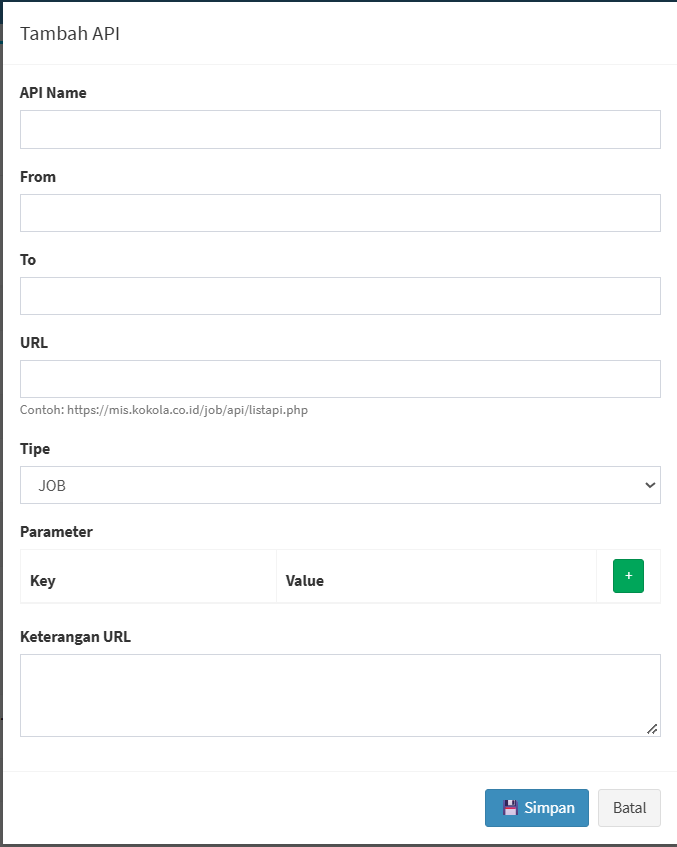
| Field | Description |
|---|---|
| API Name | API Name. |
| From |
Source system/application. |
| To | Destination system/application. |
| URL | API Endpoint. |
| Type | Specifies GET, POST, JOB, or other available options. |
| Parameter Key | Parameter value. |
| Parameter Value | Parameter value. |
| + | Add a parameter. |
| URL Description | Provides additional information about the API. |
| Save | Saves the API data. |
| Back | Cancels the addition. |
ESA UPDATE FORM
MIS Module Guide
Module Location:
Access Requisition > MIS > ESA Update Form
The ESA Update Form menu is used to retrieve specific data via the ESA Data Update form.
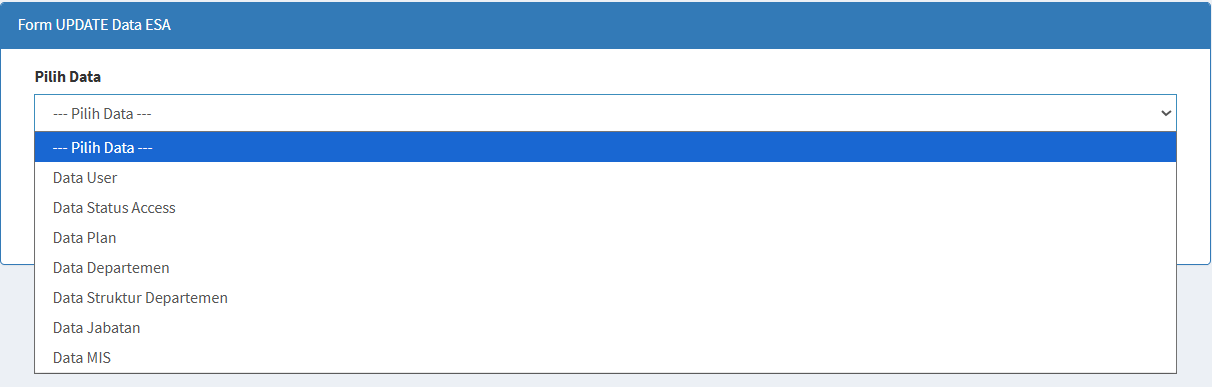
The page contains:
| Section | Description |
|---|---|
|
Select Data |
Used to select the type of data to be retrieved. |
| Get Data |
Used to run the data retrieval process based on the selection. |
For some data types, the system may display additional fields.
For example, when selecting “User Data,” the system displays:
Enter NIK (If Required)
The NIK can be used to retrieve data for a specific user.
The following rule applies:
A maximum of 1 NIK
APPROVAL SETTINGS
MIS Module Guide
Module Location:
Go to Requisition > MIS > Approval Settings
The system will display the Application Change Request page, which contains a list of approval configurations.
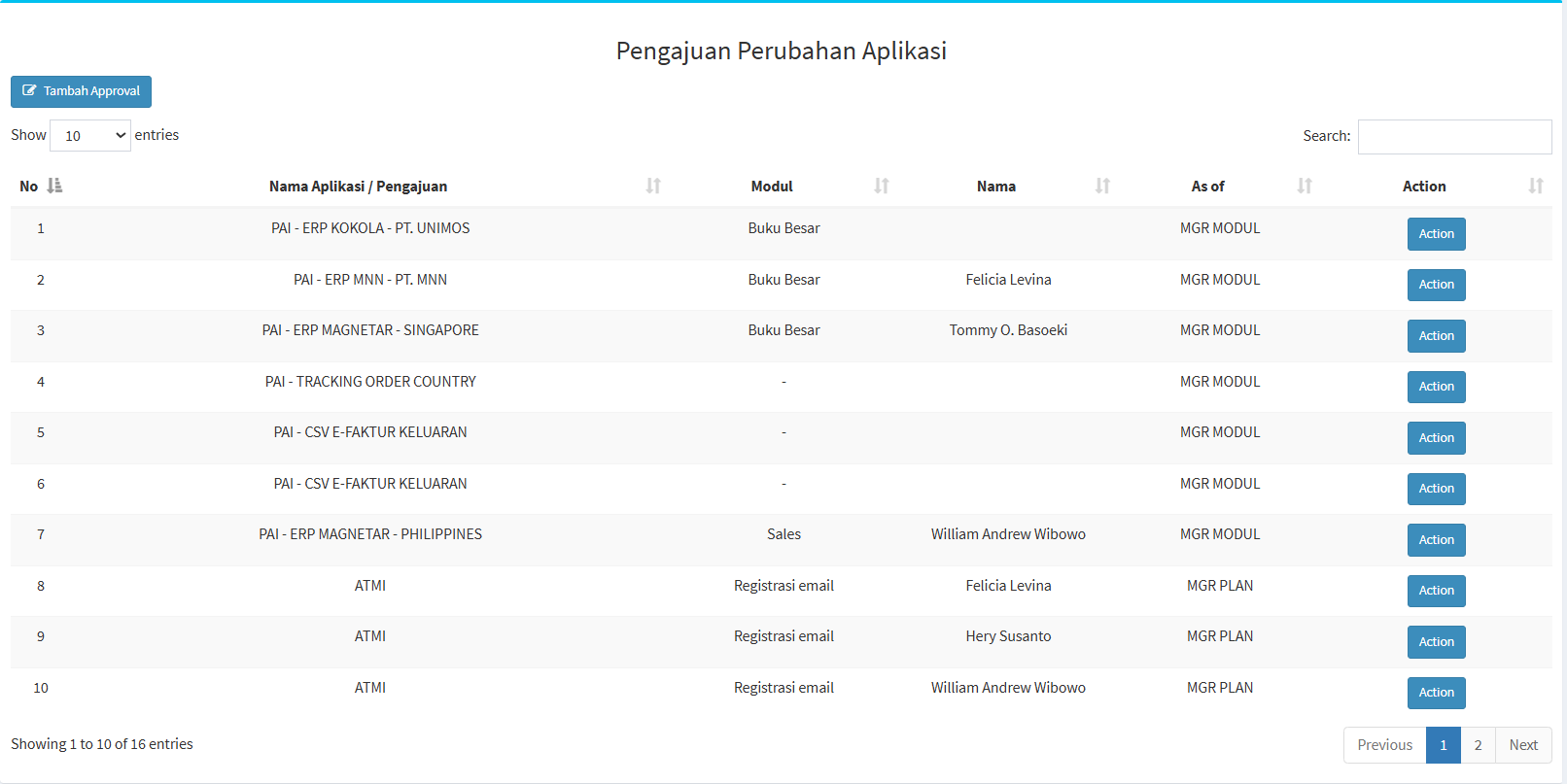
Table Description
| Coloum | Description |
|---|---|
| No |
Sequence number of the data. |
|
Application Name / Request |
Displays the application or type of request. |
| Module |
Displays the module related to the approval. |
| Name |
Displays the name of the party/PIC. |
| As of |
Displays the party’s position or role in the approval process. |
| Action |
Displays the action taken on the configuration. |
The “Show Entries” feature is used to set the number of records displayed, while “Search” is used to find specific configurations.
Adding an Approval
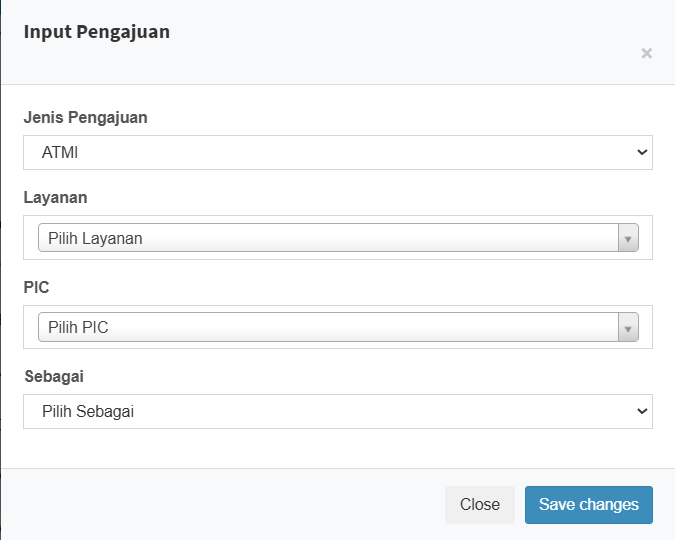
| Field | Description |
|---|---|
|
Request Type |
Used to select the type of request to be configured. |
|
Service |
Used to select the associated service. |
| PIC |
Used to specify the PIC. |
|
As |
Used to specify the PIC’s role in the approval process. |
| Close |
Closes the form without saving. |
| Save changes |
Saves the approval configuration. |
Usage Steps
- Select the Request Type.
- Select the Service.
- Specify the PIC.
- Select a role in the “As” field.
- Review your selections.
- Click “Save changes.”